When you grant access, you choose which data the AI app may read and can hide extra sensitive information. To change them later, see Edit permissions after connecting; to cut access, see Revoke connections.
SePay MCP permission groups
Each permission group is turned on or off separately under AI được phép xem (AI may view). SePay MCP is on for every company. A staff member with the Người dùng bình thường (regular user) role can connect only after a SuperAdmin or Admin grants them Cho phép kết nối AI qua MCP (allow AI connections through MCP), and sees only the groups matching the feature permissions they have (last column); SuperAdmin and Admin see every group. Which tool needs which group is in SePay MCP tools.
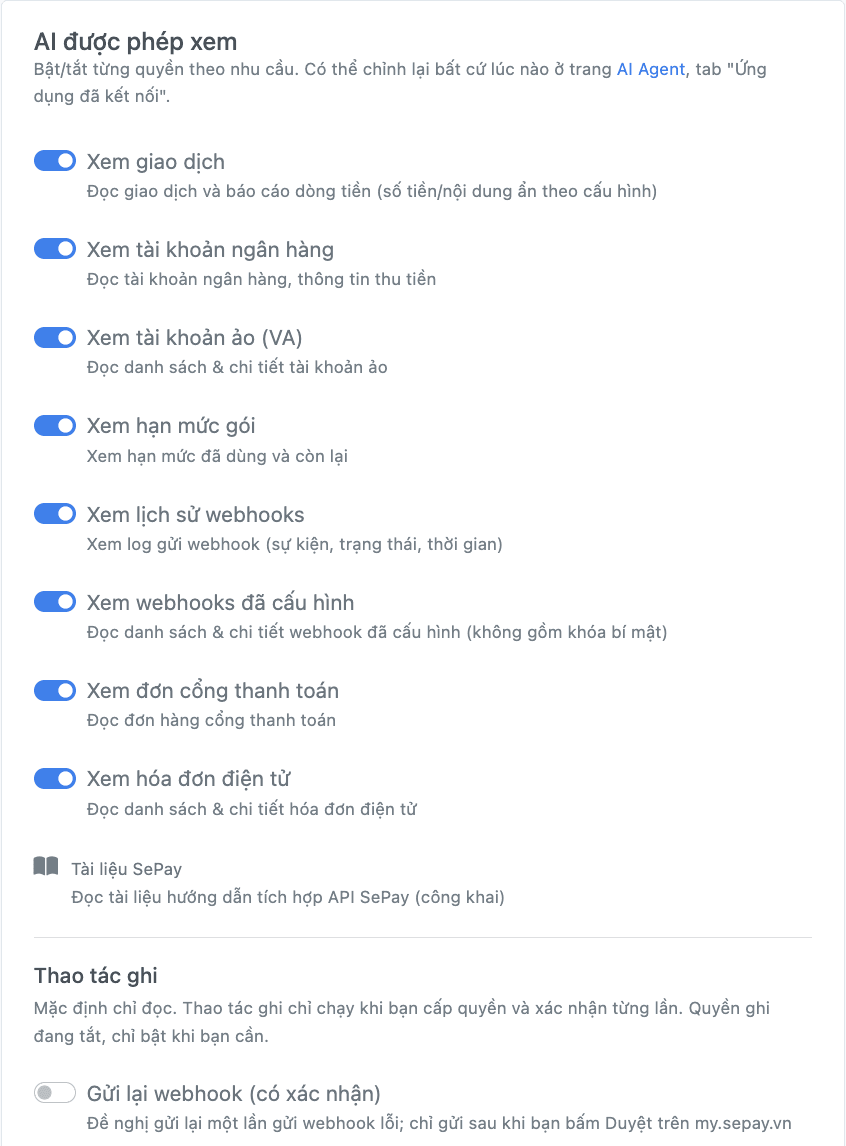
| Permission group | Code | Tools that use it | What the AI app can read | Feature permission needed |
|---|---|---|---|---|
| Xem giao dịch (view transactions) | mcp:transaction:read | list_transactions, get_transaction, get_transaction_summary, get_cashflow_report, get_einvoice_reconciliation | Transactions and cash flow reports | Xem danh sách giao dịch |
| Xem tài khoản ngân hàng (view bank accounts) | mcp:bank-account:read | list_bank_accounts, get_bank_account | Bank accounts, payment receiving info | Xem danh sách tài khoản |
| Xem tài khoản ảo (VA) (view virtual accounts) | mcp:va:read | list_virtual_accounts | Virtual account list and details | Xem danh sách tài khoản |
| Xem hạn mức gói (view plan quota) | mcp:quota:read | get_plan_quota | SePay plan quota and e-invoice issuing quota: used and remaining | SuperAdmin and Admin only |
| Xem lịch sử webhooks (view webhook history) | mcp:webhook-log:read | list_webhook_logs, get_webhook_report | Webhook delivery history: event, status, time | Xem nhật ký WebHooks |
| Xem webhooks đã cấu hình (view configured webhooks) | mcp:webhook:read | list_webhooks, get_webhook | Webhook list and details, without secret keys | Xem danh sách webhooks |
| Xem đơn cổng thanh toán (view payment gateway orders) | mcp:pg-order:read | list_pg_orders, get_pg_order | Payment gateway order list and details | Cổng thanh toán → Xem danh sách đơn hàng |
| Xem hóa đơn điện tử (view e-invoices) | mcp:einvoice-document:read | list_einvoices, get_einvoice, get_einvoice_reconciliation | E-invoice list and details, reconciling money received with invoices (also needs the Xem giao dịch group) | Hóa đơn điện tử (eInvoice) → Xem danh sách hóa đơn điện tử |
| Gửi lại webhook (có xác nhận) (resend webhooks, with approval) | mcp:webhook-log:write | replay_webhook | No extra data; lets the AI app ask to resend one failed webhook delivery, sent only after you click Duyệt (Approve) on my.sepay.vn (details) | SuperAdmin and Admin only |
| Tài liệu SePay (SePay docs; always on, no switch) | mcp:docs:read | list_docs, fetch_content | Public docs on developer.sepay.vn | None, no sign-in needed |
The Gửi lại webhook (có xác nhận) group is the only write group: on the access screen it sits apart and is not switched on by default.
The Tài liệu SePay (SePay docs) group (mcp:docs:read) is always granted and has no switch: the AI app can always read the public docs on developer.sepay.vn.
Per-bank permissions still apply: if a user is assigned only some bank accounts, the AI app reads transactions of those accounts only.
Hide sensitive information
Ẩn bớt thông tin cho ứng dụng này (Hide more information for this app) has four switches, on the access screen and in the Chỉnh quyền (Edit permissions) window. They only hide more; they never open data outside the granted groups.
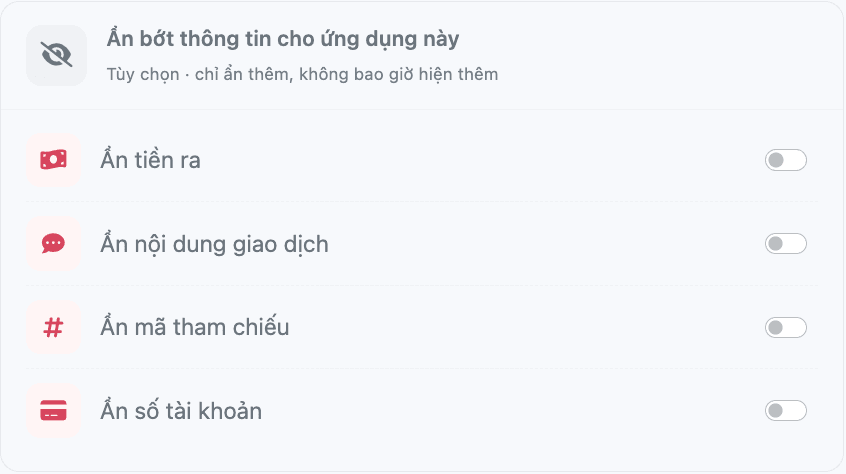
| Option | What the AI app gets |
|---|---|
| Ẩn tiền ra (hide money out) | No outgoing transactions at all |
| Ẩn nội dung giao dịch (hide transfer content) | Transfer content left empty |
| Ẩn mã tham chiếu (hide reference number) | Reference number left empty |
| Ẩn số tài khoản (hide account number) | Only the last 4 digits, as ****1234 |
Edit permissions after connecting
On the AI Agent page, Ứng dụng đã kết nối (Connected apps) tab, open the connection's ⋮ menu and select Chỉnh quyền (Edit permissions). In the Chỉnh quyền cho (app name) window:
- Turn each permission group on or off. To hide more information, open Ẩn bớt thông tin cho ứng dụng này (Hide more information for this app) and turn on the options you need.
- Select Lưu thay đổi (Save changes). The change applies from the AI app's next access.
The Thu hồi quyền (Revoke access) button in this window disconnects the app, as in Revoke your own connections.
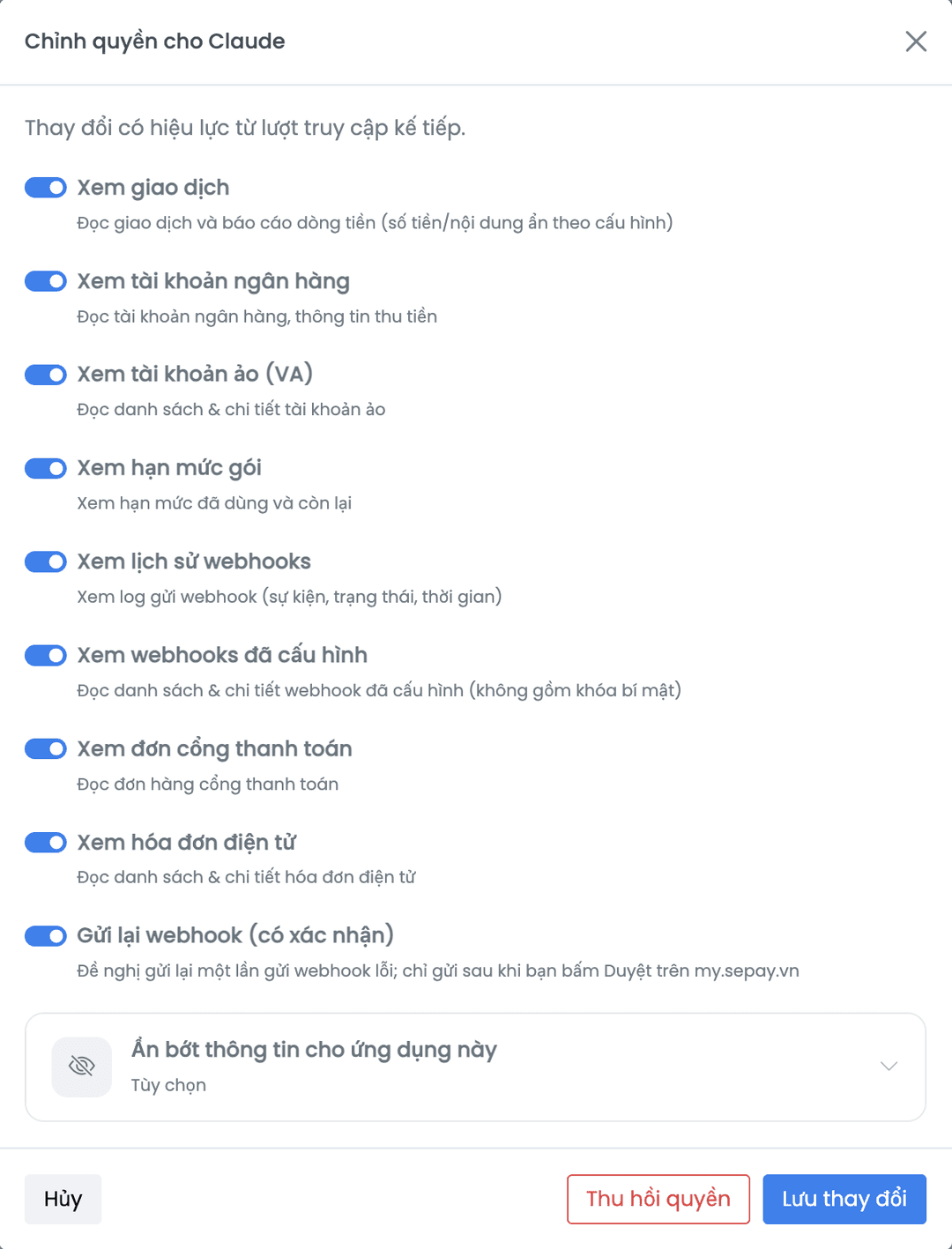
Changes apply from the next read, without reconnecting. If the AI app still answers the old way, start a new conversation.
Chỉnh quyền can only turn back on groups you approved when granting access. To add another group, reconnect from the AI app and turn that group on in the access screen.
When a connection ends
| Case | Connections ended |
|---|---|
| You change your SePay password: yourself, via forgot password, in the mobile app, or by reset | All your MCP connections, in every company |
| A SuperAdmin or Admin turns off your Cho phép kết nối AI qua MCP permission | All your MCP connections in that company |
| You connect the same AI app a sixth time in one company (each app keeps up to 5 sessions) | That app's session unused the longest |
| You reconnect and select Tiếp tục phiên (Continue session) under Chọn phiên kết nối | The old session is replaced by the new grant |
| A connection goes unused for a long time | It expires and the AI app asks you to sign in again |
These cases only end MCP connections, not other apps you authorized through OAuth2.
Losing a feature permission (for example Xem danh sách giao dịch) does not end the connection, but tools needing it are blocked from the next read.
Revoke connections on my.sepay.vn
Revoking takes effect at once: the AI app can no longer read SePay data, even if SePay is still added in the app. The log of a revoked connection stays for 90 days in the Nhật ký hoạt động (Activity log) tab.
Revoke your own connections
Sign in to my.sepay.vn; in the left menu, under Tích hợp & Thông báo, select AI Agent. On the Ứng dụng đã kết nối (Connected apps) tab:
- Open the ⋮ menu of the connection to revoke.
- Select Thu hồi (Revoke).
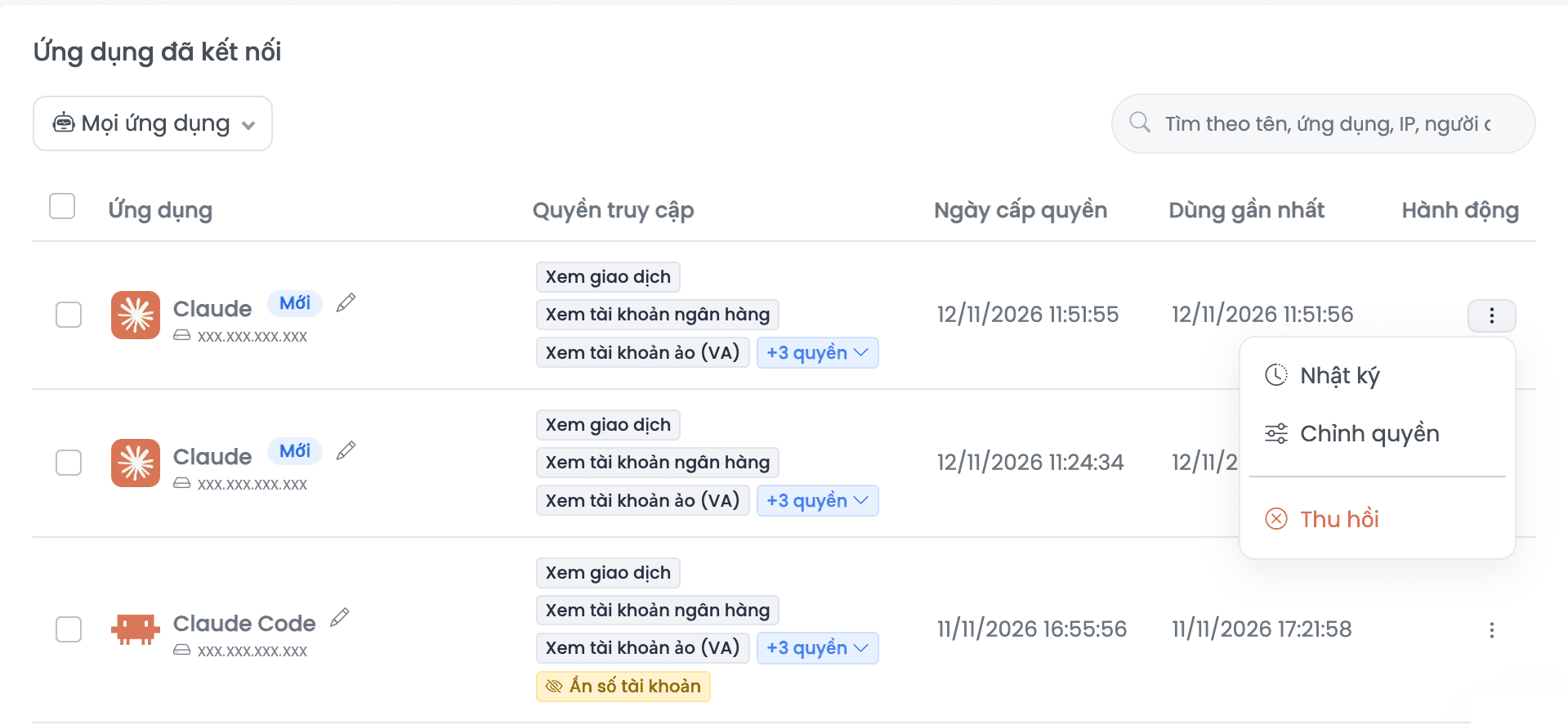
In the Thu hồi quyền truy cập? (Revoke access?) dialog, select Thu hồi.
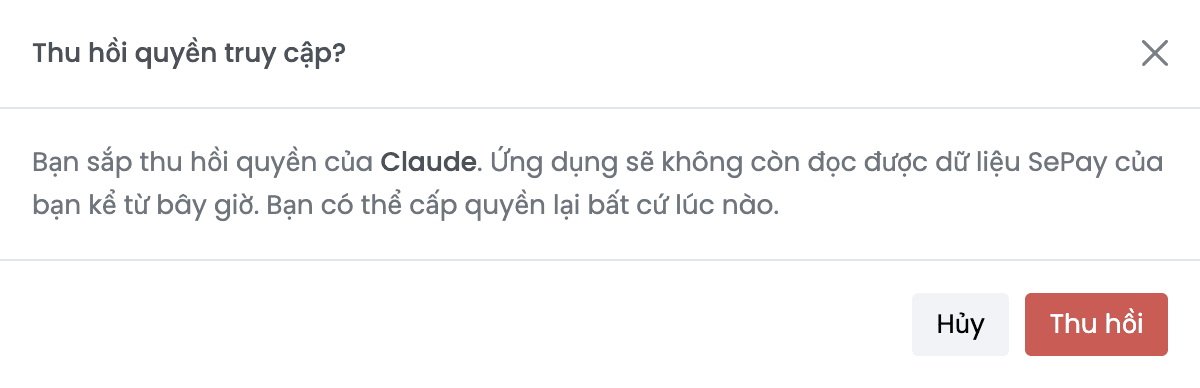
To revoke several at once, tick the rows (or Chọn tất cả, select all), then select Thu hồi các mục đã chọn (Revoke selected).
Revoke other users' connections
SuperAdmin and Admin can revoke the MCP connections of any user in the company, for example when an employee leaves or loses a laptop:
- On the AI Agent page, open the Đang xem (Viewing) filter at the top right and pick the user.
- On the Ứng dụng đã kết nối tab, revoke one or several connections the same way as your own.
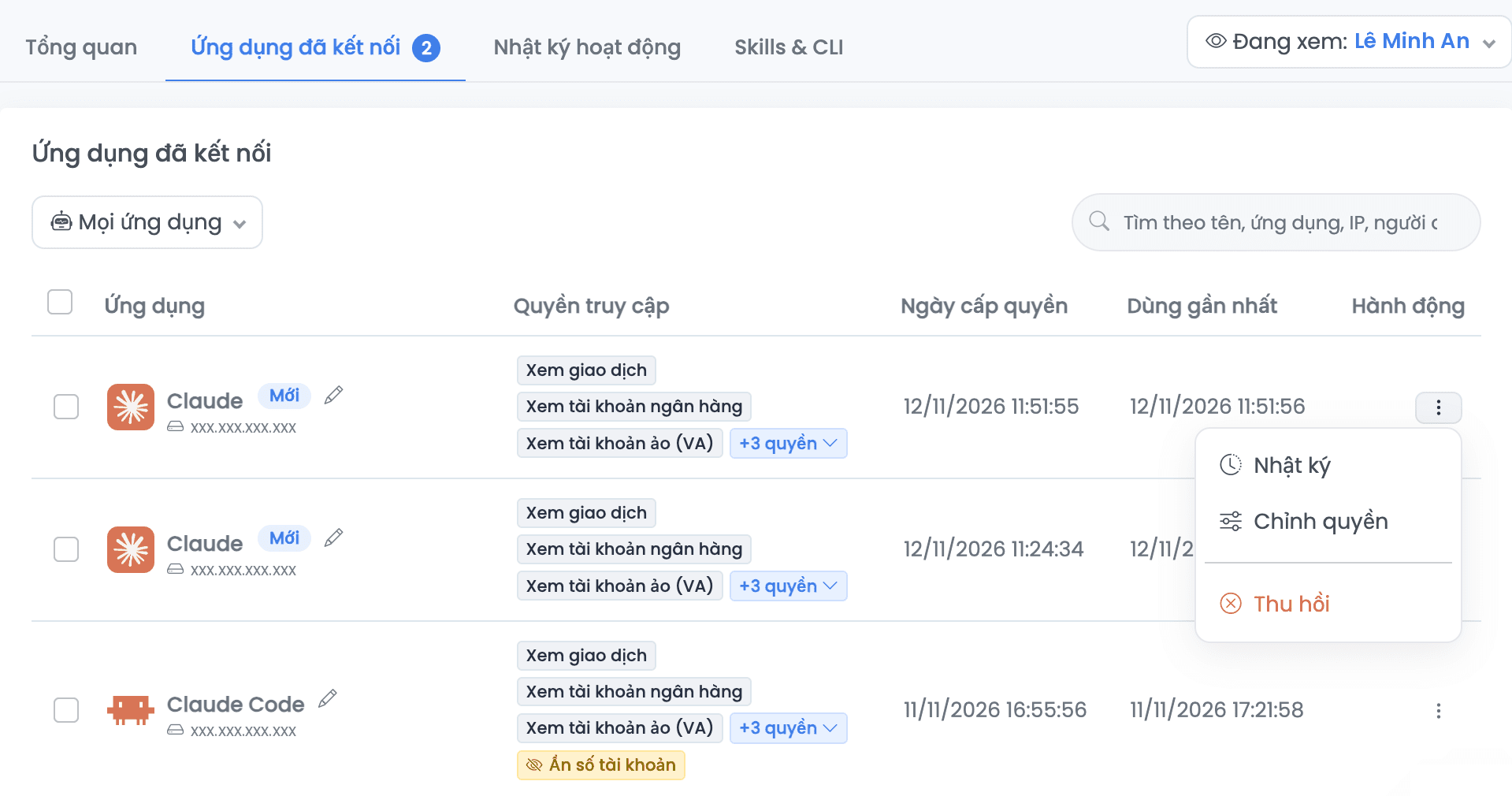
To stop that person from connecting again, turn off their Cho phép kết nối AI qua MCP permission on the user permissions page.
Read limit
Each user gets 120 data reads per minute in one company, shared across all their AI apps. If the AI app reports the limit, wait about a minute and ask again.
Prompt injection risk and safety tips
Prompt injection is when content written by someone else contains instructions the AI app follows as if you gave them. With SePay MCP, a common source is transfer content: the payer types it, and the AI app reads it when listing transactions.
Even so, the AI app may have other tools. The risk is the AI app being led to send SePay data out through another tool in the same conversation, for example a tool that sends email, posts messages or opens URLs.
To lower the risk:
- Turn on only the groups you need for what you ask. Turn on Ẩn nội dung giao dịch if you don't need transfer content.
- Set the AI app to ask you before using tools, especially tools that send data out (for example Claude's Tool permissions).
- Revoke connections on old computers or apps you no longer use from time to time.
- Open the Nhật ký hoạt động (Activity log) tab when the AI app reads data unusually or from an unknown IP.
- If you suspect your account is compromised, change your SePay password: all your MCP connections end at once.
Next steps
- See sample questions for each tool in SePay MCP tools.
- Choose an AI app and manage connections in the SePay MCP overview.