SePay has tools for AI agents:
- SePay Skills so ChatGPT and Claude guide you through the integration, and coding agents write it.
- SePay MCP so AI apps read data in your SePay account.
- SePay CLI to receive webhooks on your machine and work with sandbox and production data from the command line.
Each tool installs separately and runs on its own; none of them needs another. You can pick one or combine several, depending on what you need.
Install SePay Skills so AI guides your integration
SePay Skills helps AI answer from the SePay docs about webhooks, VietQR, the payment gateway and SePay API, from turning things on in my.sepay.vn to integration code. Installing needs no SePay account.
In ChatGPT and Claude
Download the skill file
The file is always the latest version from the official sepayvn/sepay-skills repository. Keep the zip as it is, don't unzip it.
Add it to the app
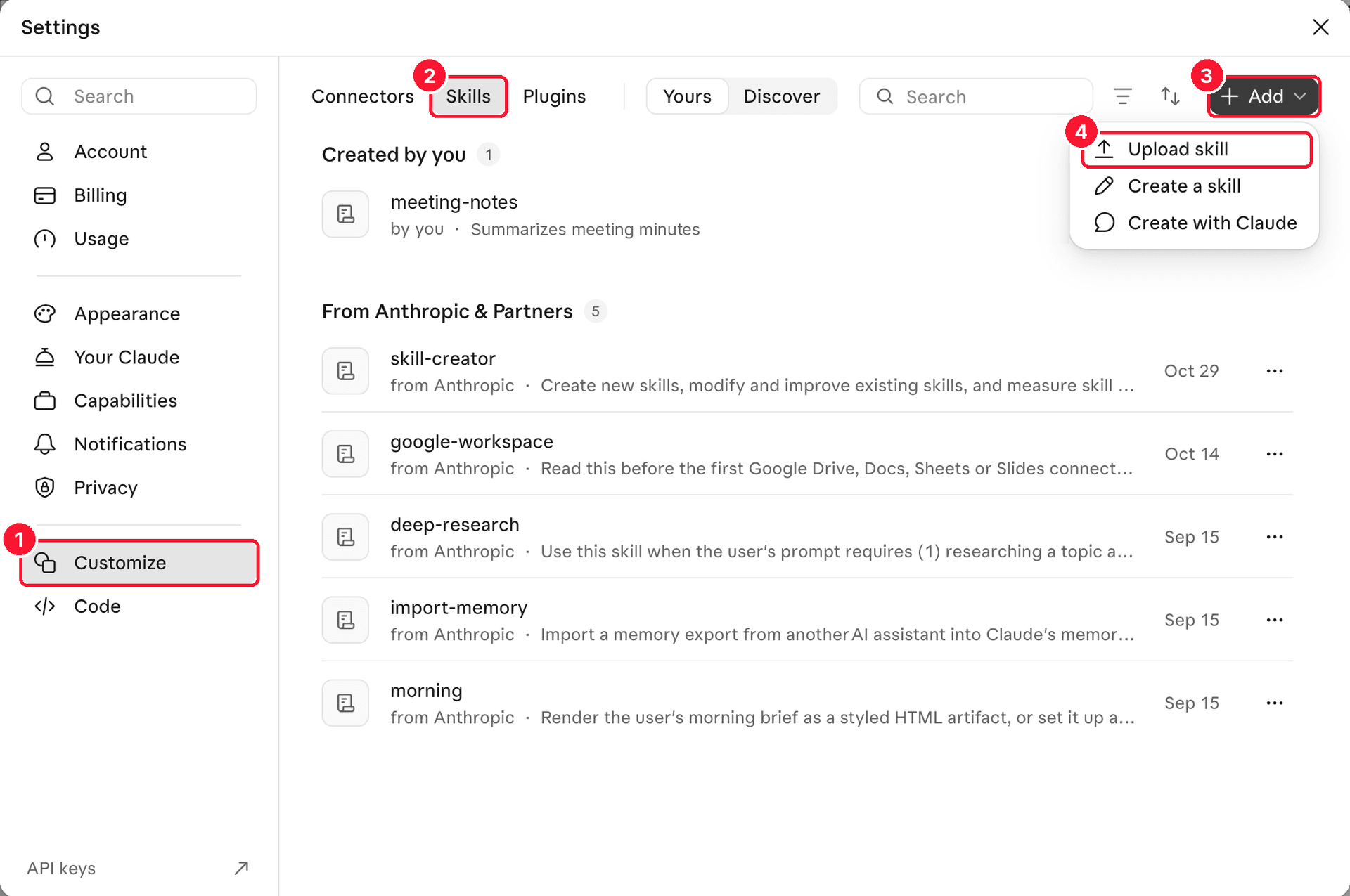
In Claude: click your profile picture at the bottom left → Settings → Customize → Skills tab → Add → Upload skill, pick sepay.zip. Claude turns the skill on as soon as it is uploaded. You can also open Claude's Skills page directly.
For ChatGPT, Gemini and Grok, see Install SePay Skills in AI chat apps.
Try it
Start a new conversation and ask: "I want to set up automatic payment verification for my online store". Claude shows Loaded skill sepay when it uses the skill.
In a coding agent
You need an agent that supports skills, such as Claude Code, Codex or Cursor.
Install the skill
Pick the tab for the agent you use:
Run this in your terminal, no need to open Claude Code first or install Node.js:
$ claude plugin install sepay --marketplace sepayvn/sepay-skillsOr type this inside Claude Code, it does the same as the command above:
 Claude Code
> /plugin install sepay --marketplace sepayvn/sepay-skillsThese commands pull the skill from the sepayvn/sepay-skills repo on GitHub, so you can open the repo to read the skill before installing.
Start a new agent session
The agent reads its skill list at startup, so a session that is already open doesn't see the new skill.
Try it
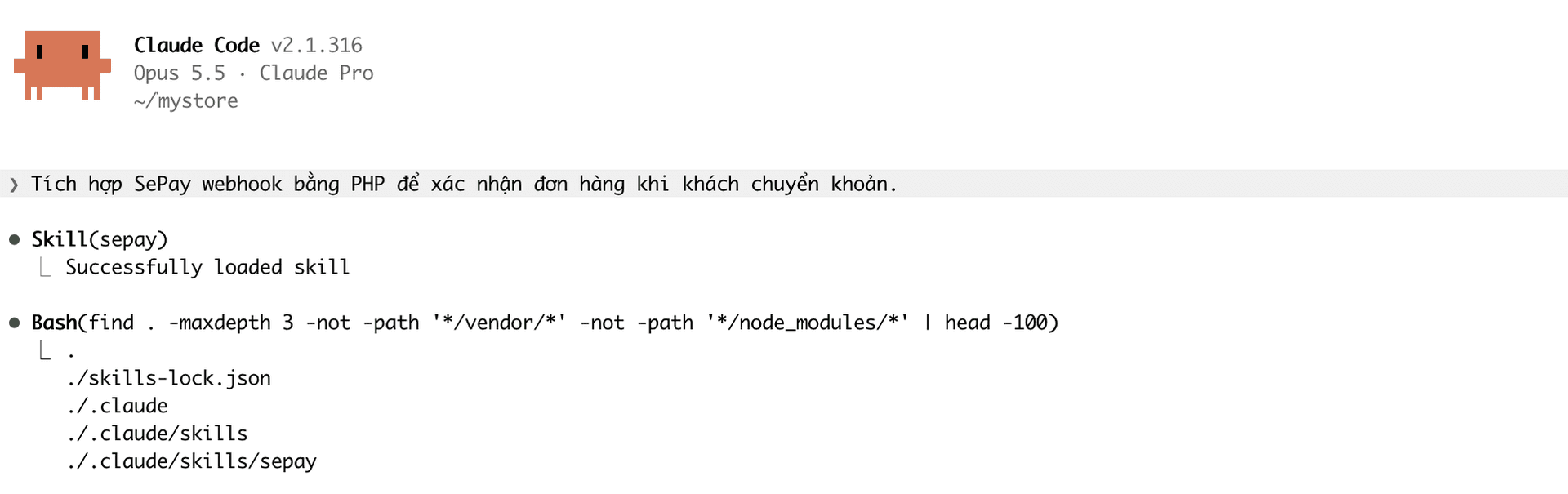
Ask the agent: "Integrate SePay webhooks in PHP to confirm orders when customers pay by transfer." Claude Code shows Skill(sepay) with Successfully loaded skill when it loads the skill.
You can look up install folders per agent and how to update or remove the skill, or what the skill helps with.
Connect SePay MCP to ask about your account data
Ask your AI app in plain language and get answers from your own SePay account: transactions, cash flow reports, whether an order is paid, failed webhooks, plan quota. SePay MCP: Read-only by default. Write actions run only when you grant access and confirm each one. Questions about SePay integration docs work right away, without signing in.
You need:
- An active SePay account at my.sepay.vn.
- Sub-users need the account owner or an admin to grant them permission to use AI Agent.
- An AI app that supports MCP, for example Claude, ChatGPT, Claude Code, Codex, Cursor.
Open AI Agent
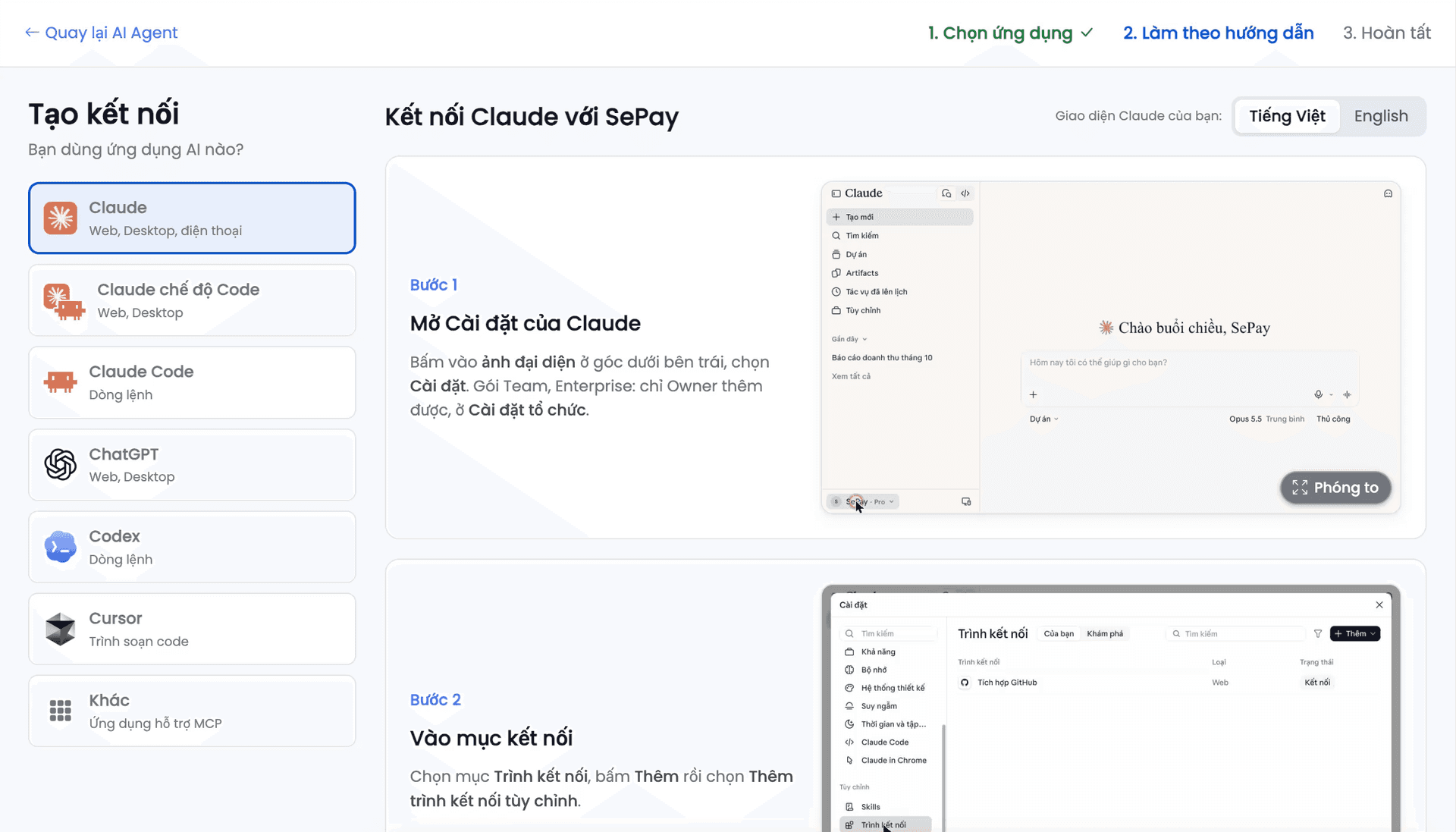
On my.sepay.vn, under Integration & Notifications, open AI Agent, choose Tạo kết nối (Create connection), then pick the card for your AI app.
Follow the steps on the card
Each card has numbered steps for that app: which menu to open in the app, which value goes into which field, which button to press. Do them in order. The server address, Client ID or connect command each has a copy button on the card; use it instead of typing.
For example, the Claude card (claude.ai and the Claude desktop app) has four steps:
- Click your profile picture at the bottom left → Settings → Customize → Connectors, select Add, then Add custom connector.
- Enter any name, for example SePay, paste
https://my.sepay.vn/mcpinto the second field, then select Continue. - Under Authentication, choose Sign in now. Under OAuth client, choose Use your own OAuth client, paste the Client ID from the card and leave OAuth client secret empty.
- Select Add, then Connect.
For Claude Code and Codex, the card gives you a command to copy and run in a terminal. For Cursor, pick the Khác (Other) card and follow Connect Cursor to SePay via MCP.
Sign in and grant access
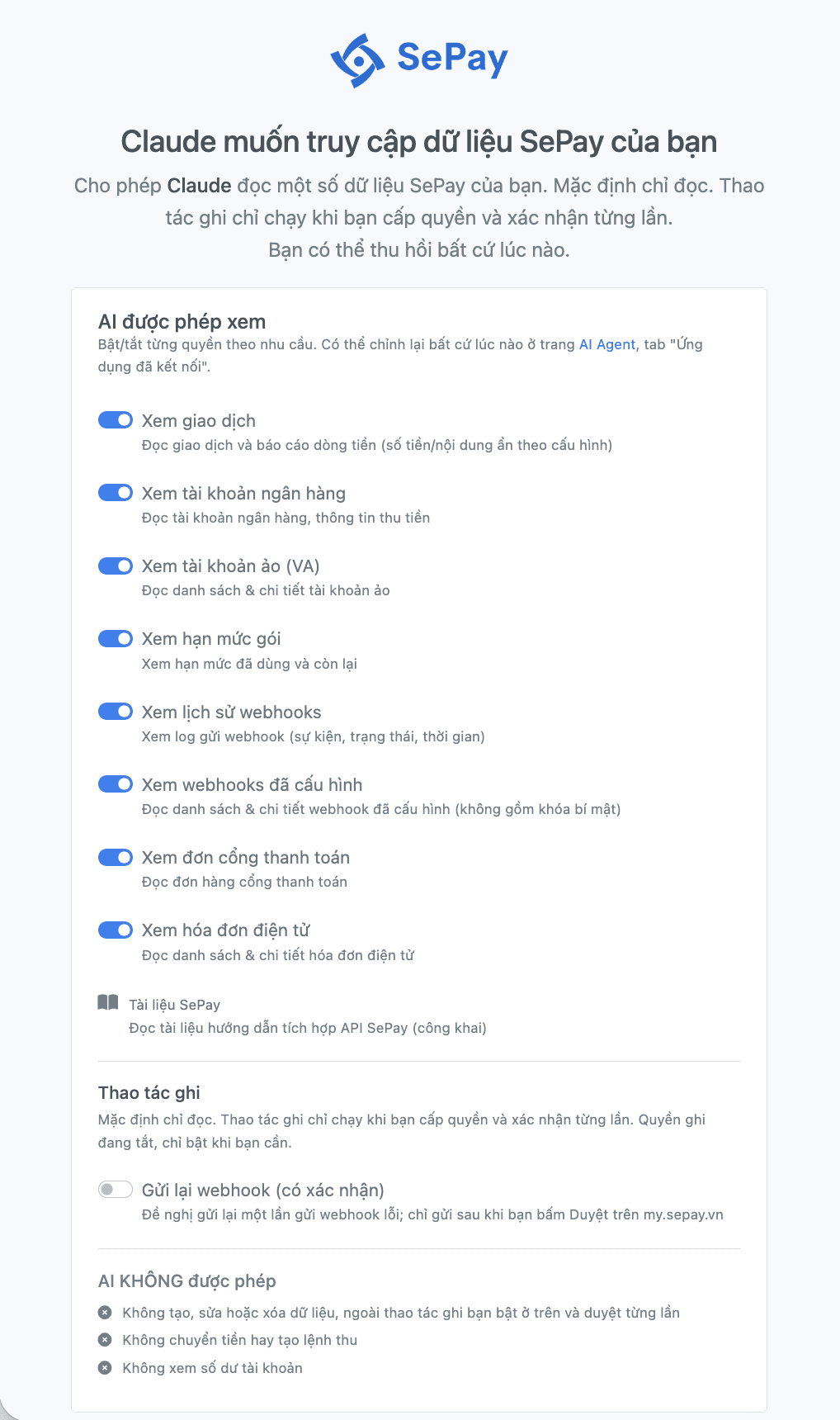
A browser opens the SePay sign-in page when you select Connect, run the sign-in command or first ask about your data, depending on the app. Sign in, turn on the data groups you want to share, then choose Approve access. On the same screen you can hide outgoing transactions, transaction content, reference codes and account numbers. After that you don't sign in again.
Try it
Go back to the AI app and ask, for example: "Chart my 2026 transaction history, with a dashboard of totals and the share of money in and out." The AI app calls SePay MCP tools to fetch the transactions, then answers.
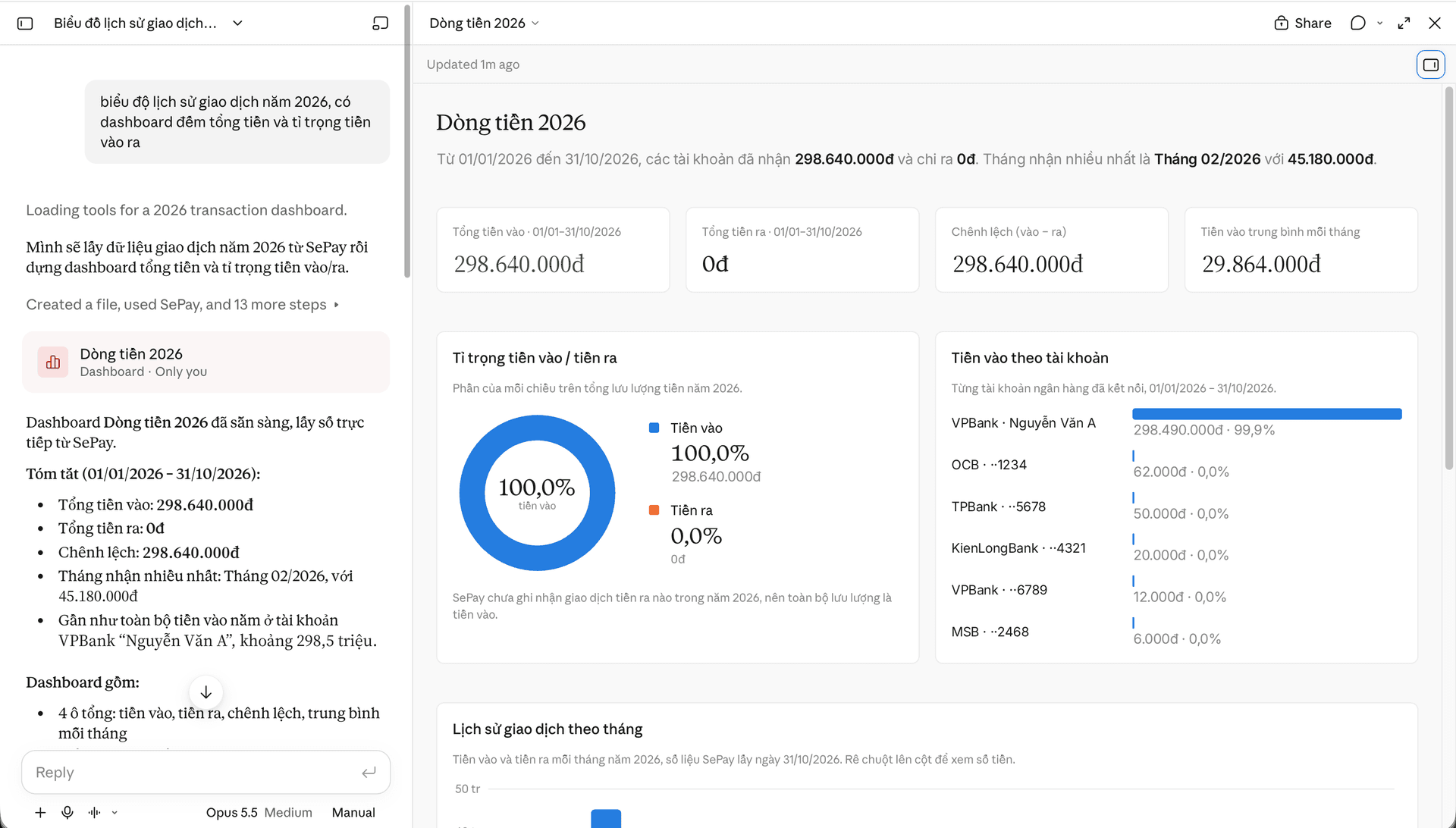
You can change or revoke access any time on the AI Agent page. Step-by-step guides for each app:


You can also look up which tool answers which question and the access it needs.
Install SePay CLI to test webhooks on your machine
The sepay command delivers sandbox webhooks to the code on your machine without a public URL, creates simulated transactions to test your code, and looks up and manages transactions, webhooks and payment codes on production when you add --env production. Results can be printed as JSON, so agents can read them.
You need:
- A macOS, Linux or Windows machine (x64 or arm64).
- A my.sepay.vn account with the SuperAdmin or Admin role, or the Developer permission. The CLI works only for these, on both sandbox and production.
Install the CLI
Pick the tab for your operating system, then one install method:
Homebrew:
$ brew install sepayvn/sepay-cli/sepayOne-line script, no Homebrew needed:
$ curl -fsSL https://get.sepay.vn/sepay-cli-install.sh | shnpm, with Node.js 18 or later:
$ npm install -g sepay-cligo install, installing into a project, updating and uninstalling are in Install SePay CLI.
Check the installed version:
$ sepay versionsepay version x.x.x (xxxxxxx, YYYY-MM-DD)https://github.com/sepayvn/sepay-cli/releases/tag/vx.x.xIf sepay version prints a version number, the install is done.
Sign in
$ sepay loginOpen your browser to authenticate. Your code: XXXX-XXXXOpening https://my.sepay.vn/...✓ Logged in as dev@congty.vnadd another account with: sepay login --profile <name>The CLI prints a code in the terminal and opens the device connection page on my.sepay.vn. Enter the code and select Tiếp tục (Continue); the terminal then shows Logged in as with your account email.
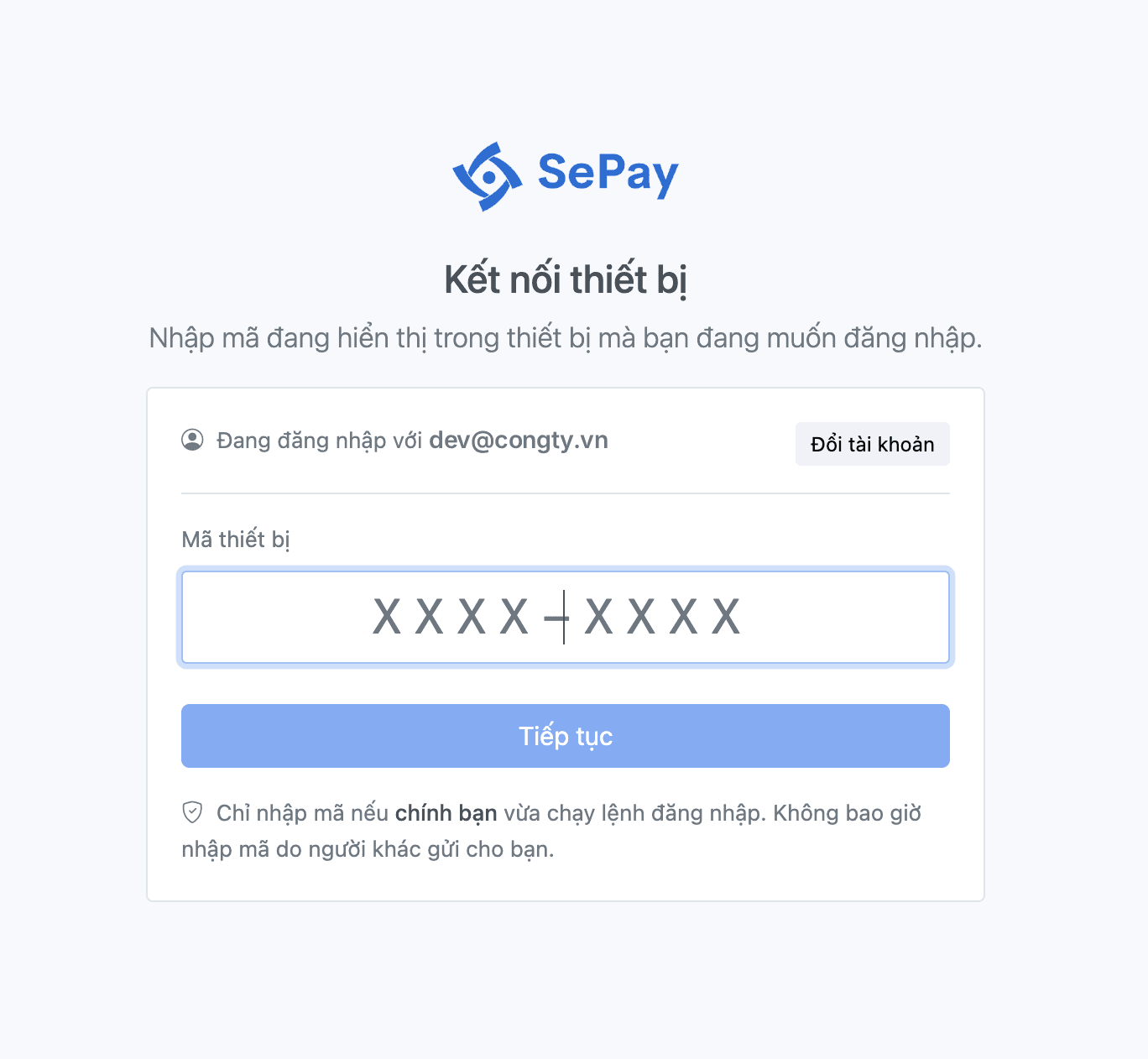
Create sandbox data
$ sepay sandbox init --with-webhook-listen --yesCreated bank account 832529c1-xxxx-xxxx-xxxx-fa163e2f7c98 (ACB).Created listen-only webhook 5f0e2a7b-xxxx-xxxx-xxxx-fa163e2f7c98.832529c1-xxxx-xxxx-xxxx-fa163e2f7c98The command creates a sandbox bank account and a listen-only webhook. The last line is the bank account's xid, which the next step needs. If you lose it, look it up with sepay bank-account list.
Receive your first webhook
Keep your webhook code running on localhost:3000. Terminal 1 receives sandbox webhooks and forwards them to that code. Terminal 2 simulates an incoming transaction of 50,000 VND with order code DH1709 on the account from the previous step:
$ sepay webhook listen --forward localhost:3000env: sandbox Delivering for every bank account of this company.✓ Listening for sandbox events → http://localhost:3000/ (Ctrl+C to stop · retries+enter to manage)14:22:07 payment_in → http://localhost:3000/ 200 12ms txn=a41c9e02-xxxx-xxxx-xxxx-fa163e2f7c98 wh=5f0e2a7b-xxxx-xxxx-xxxx-3c9d81e04b6a$ sepay sandbox simulate payment_in --bank-account 832529c1-xxxx-xxxx-xxxx-fa163e2f7c98 --amount 50000 --code DH1709env: sandboxSimulated payment_in event.a41c9e02-xxxx-xxxx-xxxx-fa163e2f7c98Terminal 1 prints a line for the delivered webhook: 200 is the HTTP status your code returned, txn= is the xid of the new transaction.
No webhook code yet? Ask an agent with SePay Skills installed to build a handler in your language, or use the PHP or Node.js sample handler. You can also install the CLI into a project, update or remove it.
A command that changes data on production runs only when you confirm it on your own terminal. An AI does not confirm it for you: it hands you the command to run yourself. What an agent should do when it uses the CLI is in the SePay CLI conventions for AI agents.