Claude, ChatGPT, Codex and other AI apps connect to SePay MCP at https://my.sepay.vn/mcp to read the SePay data you allow and look up integration docs. MCP (Model Context Protocol) is an open standard Anthropic published in November 2024 that lets AI apps use outside data and tools (modelcontextprotocol.io).
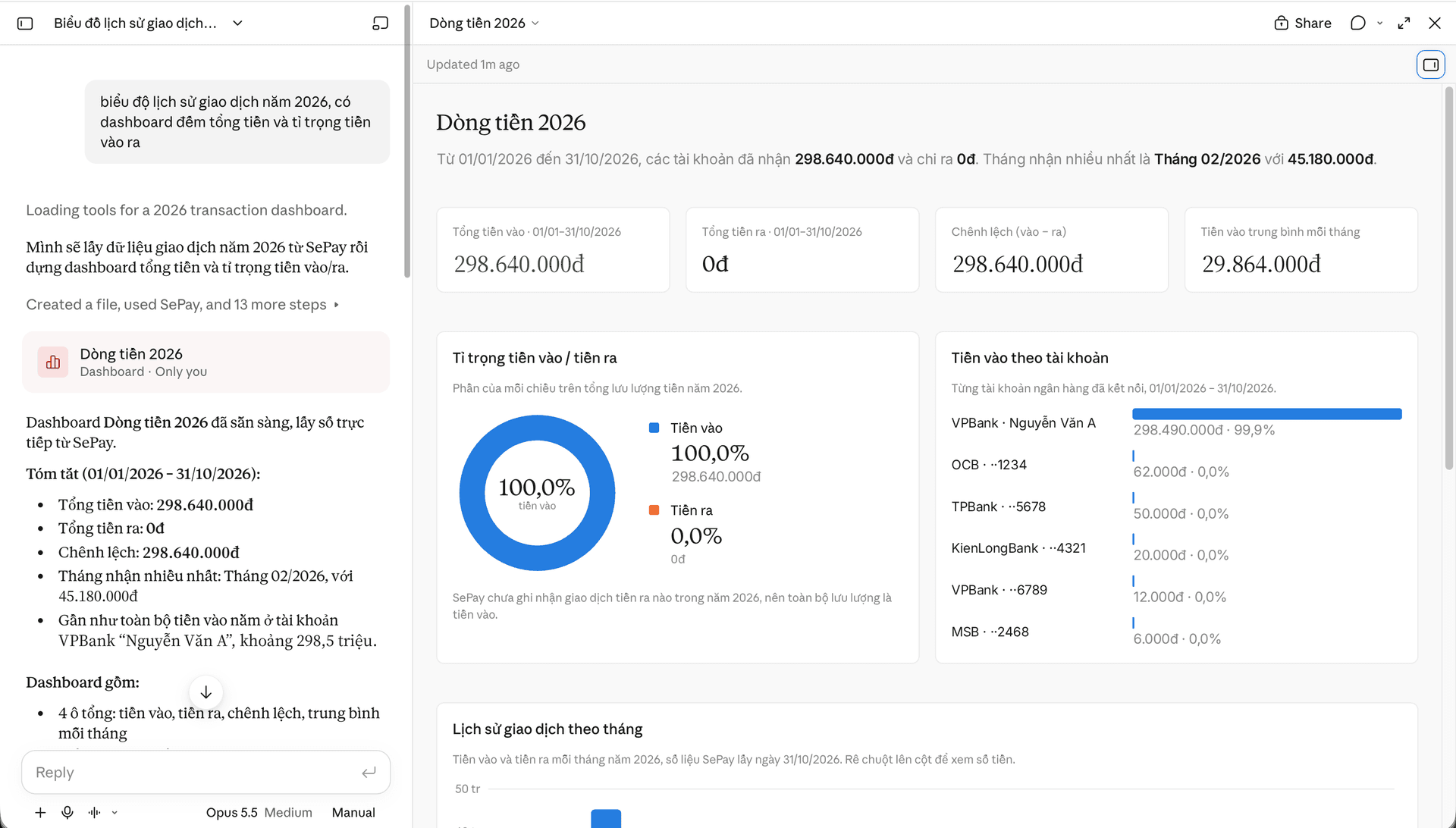
What AI apps can read through SePay MCP
When you connect, you sign in to my.sepay.vn and choose which data the AI app may read:
- Transactions and cash flow reports
- Bank accounts and virtual accounts (VA)
- Plan quota
- Configured webhooks and webhook delivery history
SePay docs are readable right away, without signing in. SePay MCP: Read-only by default. Write actions run only when you grant access and confirm each one. It returns no account balance.
For example, you ask "Has order DH00012 been paid?" and the AI app finds the transaction with code DH00012, then answers with its time and amount. More sample questions are in SePay MCP tools.
You choose which data the AI app reads and can hide sensitive information. Every read is in the activity log, and you can revoke a connection at any time.
Choose an AI app to connect
Claude and ChatGPT are chat apps you use in the browser. Claude Code and Codex run in the terminal, and Cursor is an AI code editor; these are mostly used for coding.


Requirements on SePay
Every connection starts from the AI Agent page on SePay: in the left menu, under Tích hợp & Thông báo, select AI Agent. SePay MCP is on for every company. A staff member with the Người dùng bình thường (regular user) role can connect only after a SuperAdmin or Admin grants them Cho phép kết nối AI qua MCP (allow AI connections through MCP) on the user permissions page, under Kết nối AI (MCP).
With no connection yet, the AI Agent page shows the Dùng AI với SePay (Use AI with SePay) screen. Click Tạo kết nối (Create connection) to open a full-screen app picker: Claude, Claude Code, ChatGPT, Codex, Cursor or Khác (Other). Once you have a connection, the page has 4 tabs: Tổng quan (Overview), Ứng dụng đã kết nối (Connected apps), Nhật ký hoạt động (Activity log) and Skills & CLI (details).
Connect other AI apps (VS Code, Gemini CLI, Cline...)
Cursor has its own guide at Connect Cursor to SePay via MCP. Any app that supports MCP servers over HTTP can connect. On the AI Agent page, select Tạo kết nối (Create connection) → Khác (Other), then Giao diện (GUI) for apps with a window or running on the web, or Dòng lệnh (CLI) for terminal tools. Connections made this way show as SePay MCP in the Ứng dụng đã kết nối tab; rename them to tell them apart.
Apps with a window
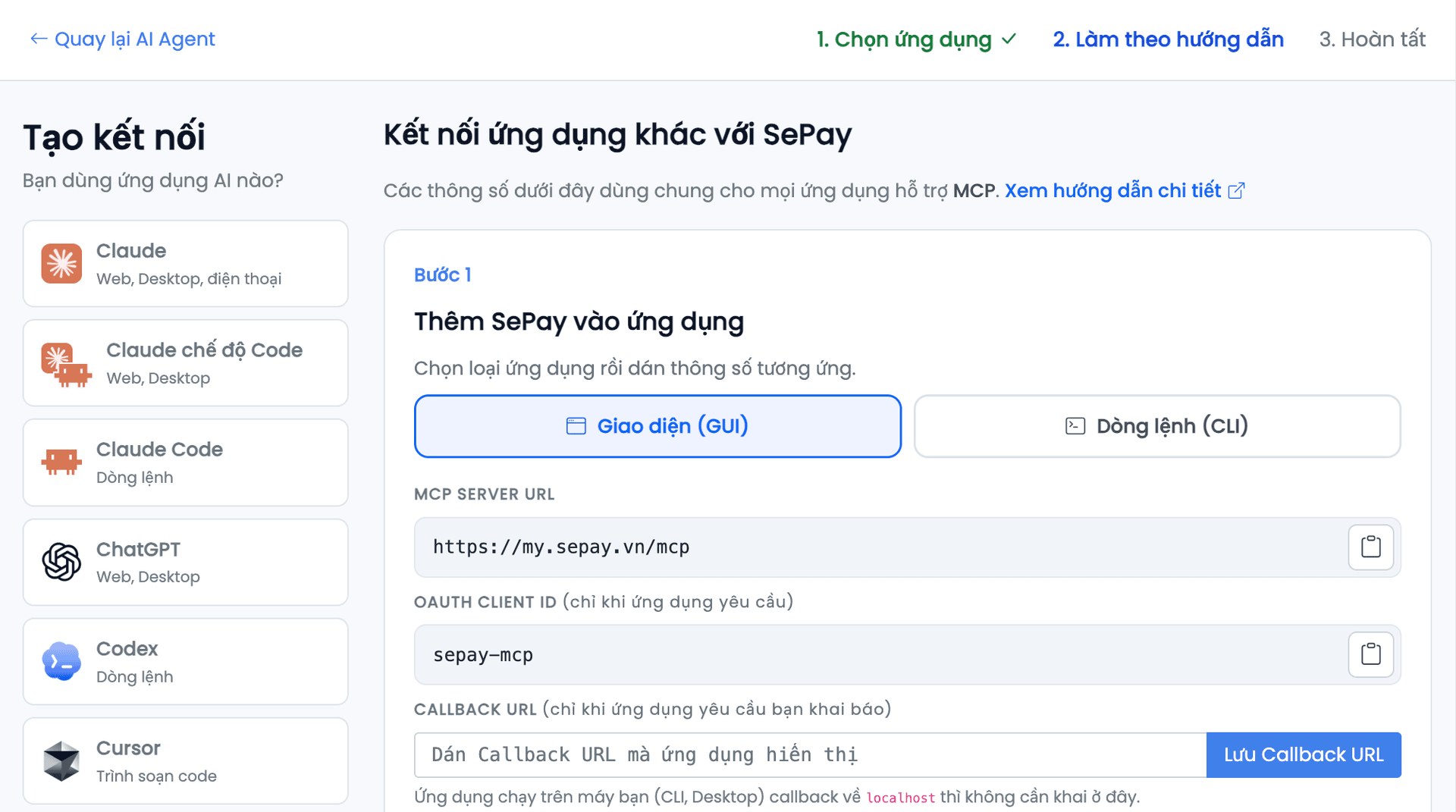
- In the AI app, open the place to add a remote MCP server. Name it
sepayand paste MCP Server URL (https://my.sepay.vn/mcp). If you must pick a connection type, pick Streamable HTTP or HTTP. - If the app asks for a Client ID, paste OAuth Client ID (
sepay-mcp) and leave Client Secret empty. - If the app runs on the web and shows a Callback URL (some call it Redirect URL), paste it into Callback URL on SePay and select Lưu Callback URL. Skip this step for apps that run on your computer.
- When the app opens the browser, sign in to SePay, pick the data groups and select Đồng ý cấp quyền (Grant access).
A Callback URL must start with https://. A saved address works only for your account, in the company currently selected: teammates save their own, and you save it again after switching company. Each account keeps up to 10 addresses; remove extras under Các URL đã lưu trước đó.
Sample setup from each vendor's docs:
VS Code (guide): open the Command Palette, run MCP: Add Server, choose HTTP (HTTP or Server-Sent Events), paste https://my.sepay.vn/mcp and set the ID to sepay. If VS Code asks for a Client ID, paste sepay-mcp.
Cline (guide): Configure tab → Configure MCP Servers → Remote Servers tab. Set Server Name to sepay, Server URL to https://my.sepay.vn/mcp, Transport Type to Streamable HTTP, then select Add Server.
Command-line tools
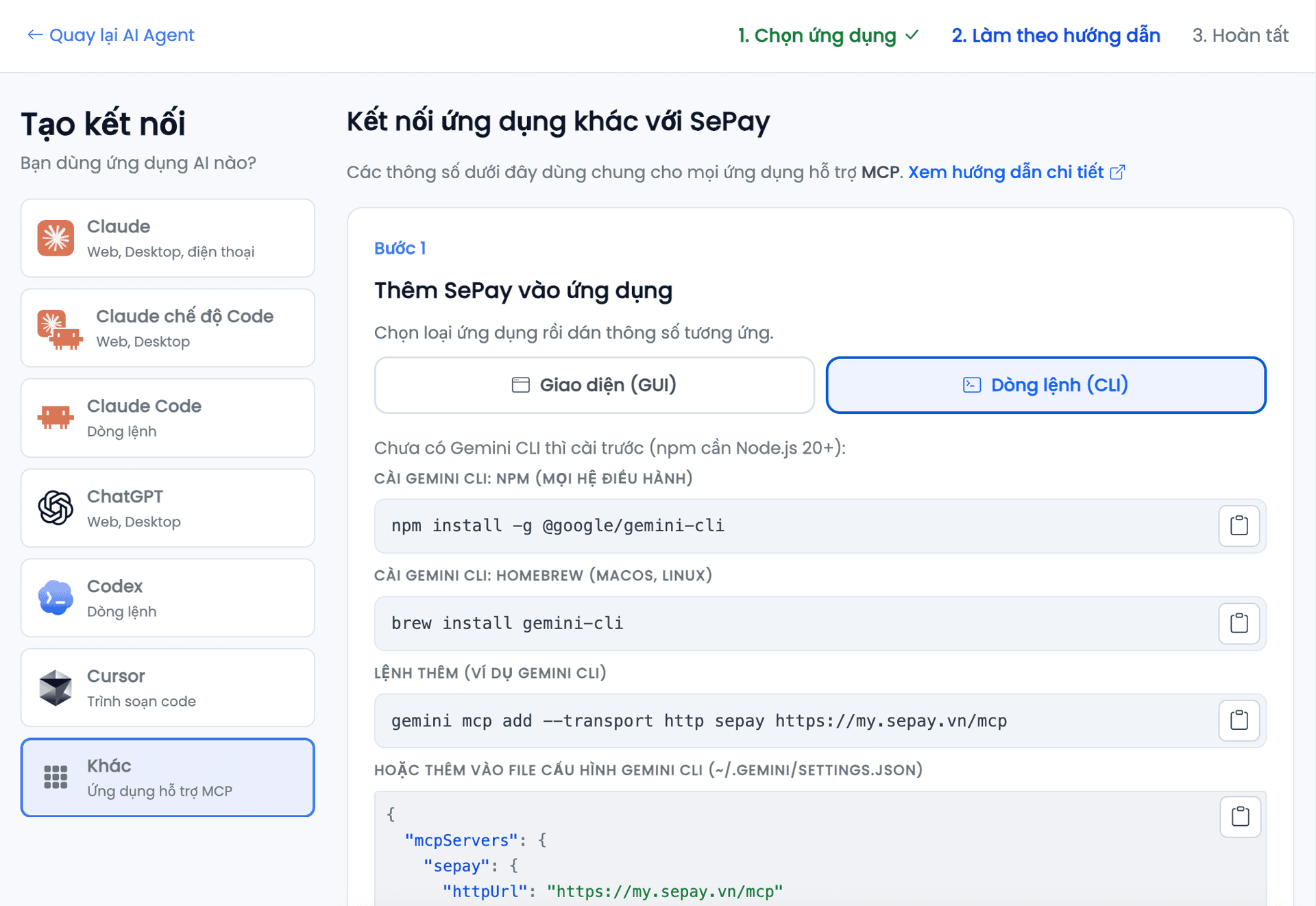
Command-line tools need no Callback URL and usually no Client ID; if a tool asks, paste OAuth Client ID. For example with Gemini CLI, add SePay to the current project folder with:
$ gemini mcp add --transport http sepay https://my.sepay.vn/mcpAdd -s user to use it in every project, or declare it in ~/.gemini/settings.json:
{
  "mcpServers": {
    "sepay": {
      "httpUrl": "https://my.sepay.vn/mcp"
    }
  }
}
To grant access, start Gemini CLI with gemini, type /mcp auth sepay and select Đồng ý cấp quyền in the browser. SePay returns to the tool after a few seconds. Remove SePay with gemini mcp remove sepay.
Common errors with other apps
Terms to know
| Term | Meaning |
|---|---|
| MCP server | The address an AI app connects to, for SePay https://my.sepay.vn/mcp |
| Connector | What Claude and ChatGPT call an added MCP server |
| Client ID | The code SePay issues to each AI app. It is public and needs no protection |
| Grant access | The step where you sign in to SePay and choose the data the AI app may read |
| Connection session | One grant of one app in one place, for example Claude on your work computer |
| Terminal | The command window: Terminal on macOS, PowerShell on Windows |
Manage connections
All connections are on the AI Agent page, which has 4 tabs: Tổng quan (Overview), Ứng dụng đã kết nối (Connected apps), Nhật ký hoạt động (Activity log) and Skills & CLI. A Người dùng bình thường (regular user) sees their own connections only. Everyone's Tổng quan tab shows connected apps, AI lookups in the last 30 days, last use, and recently connected apps with a Thu hồi (Revoke) button. SuperAdmin and Admin also see a company-wide monitoring block in the Tổng quan tab and can view other users' connections with the Đang xem (Viewing) filter. The Skills & CLI tab shows how to install SePay Skills and SePay CLI.
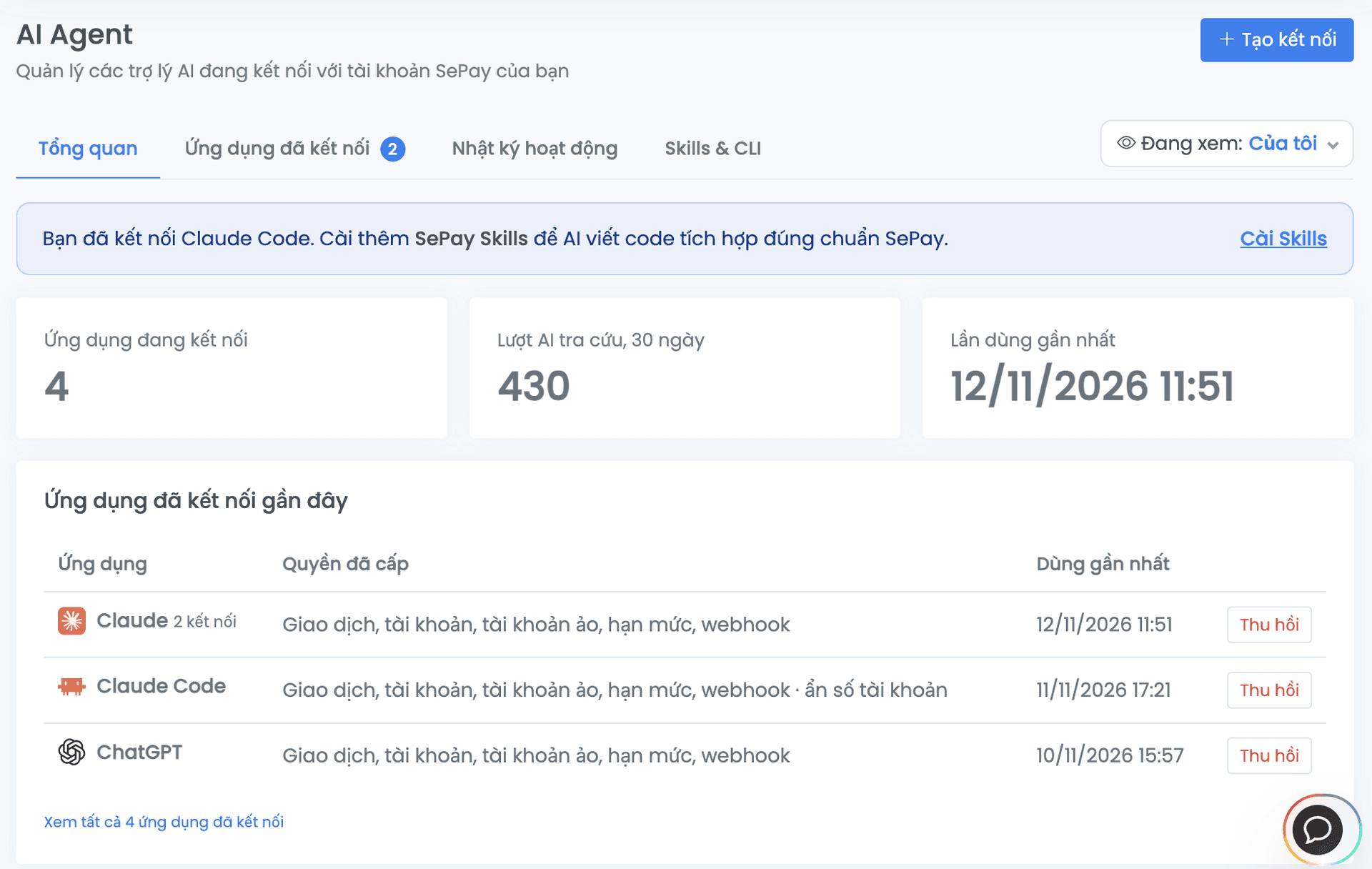
The Ứng dụng đã kết nối tab lists each connection with its access, grant date and last use. On each row:
- Select the pencil icon next to the name to give it a memorable name, for example "Cursor work laptop".
- Open the ⋮ menu to select Nhật ký (Log), Chỉnh quyền (Edit permissions) or Thu hồi (Revoke).
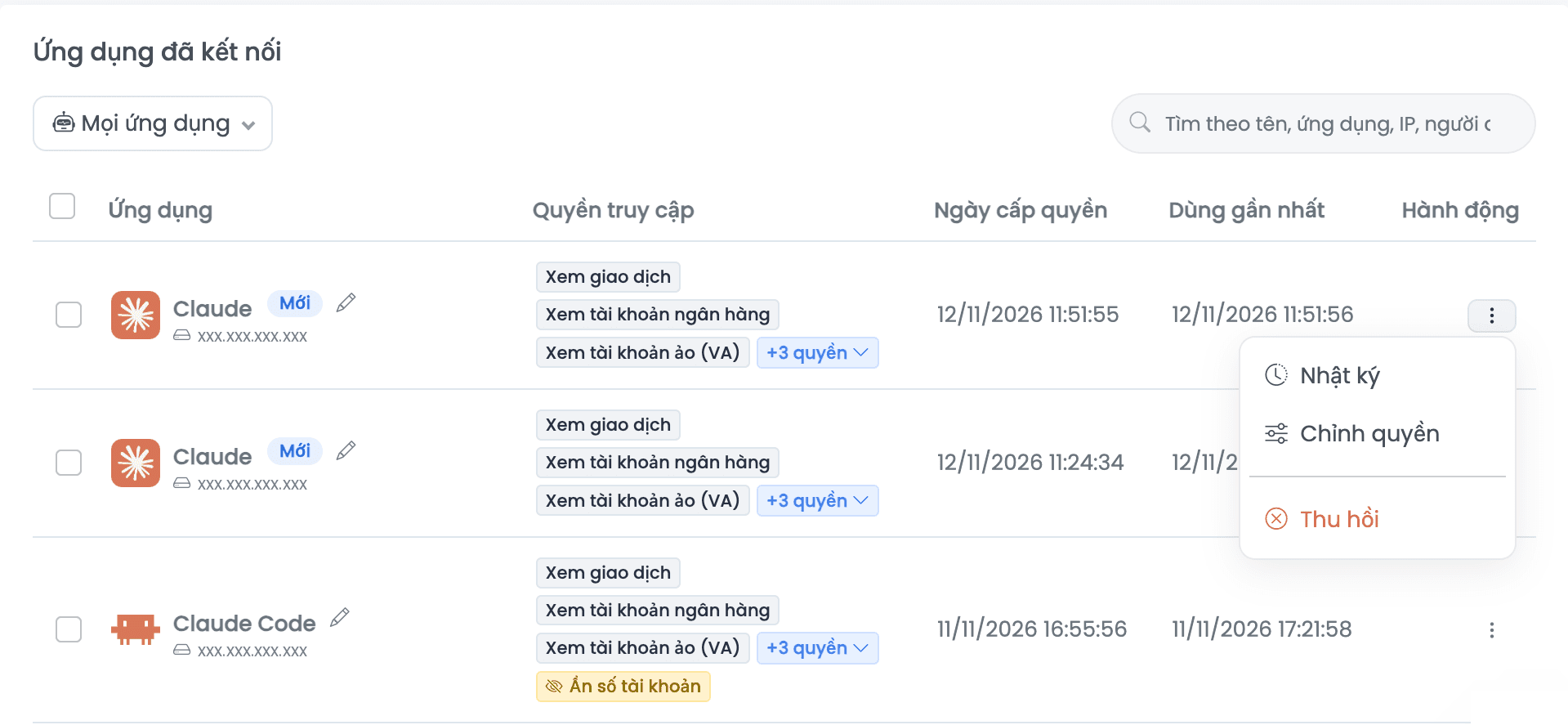
Chỉnh quyền turns each data group and hide option on or off; details in Edit permissions after connecting. Thu hồi ends the connection at once; details in Revoke connections.
Activity log
The Nhật ký hoạt động tab records each time an AI app reads data or resends a webhook: which connection, what action, when, from which IP, and whether it succeeded, failed or was denied. The log is kept for 90 days, including for revoked connections.
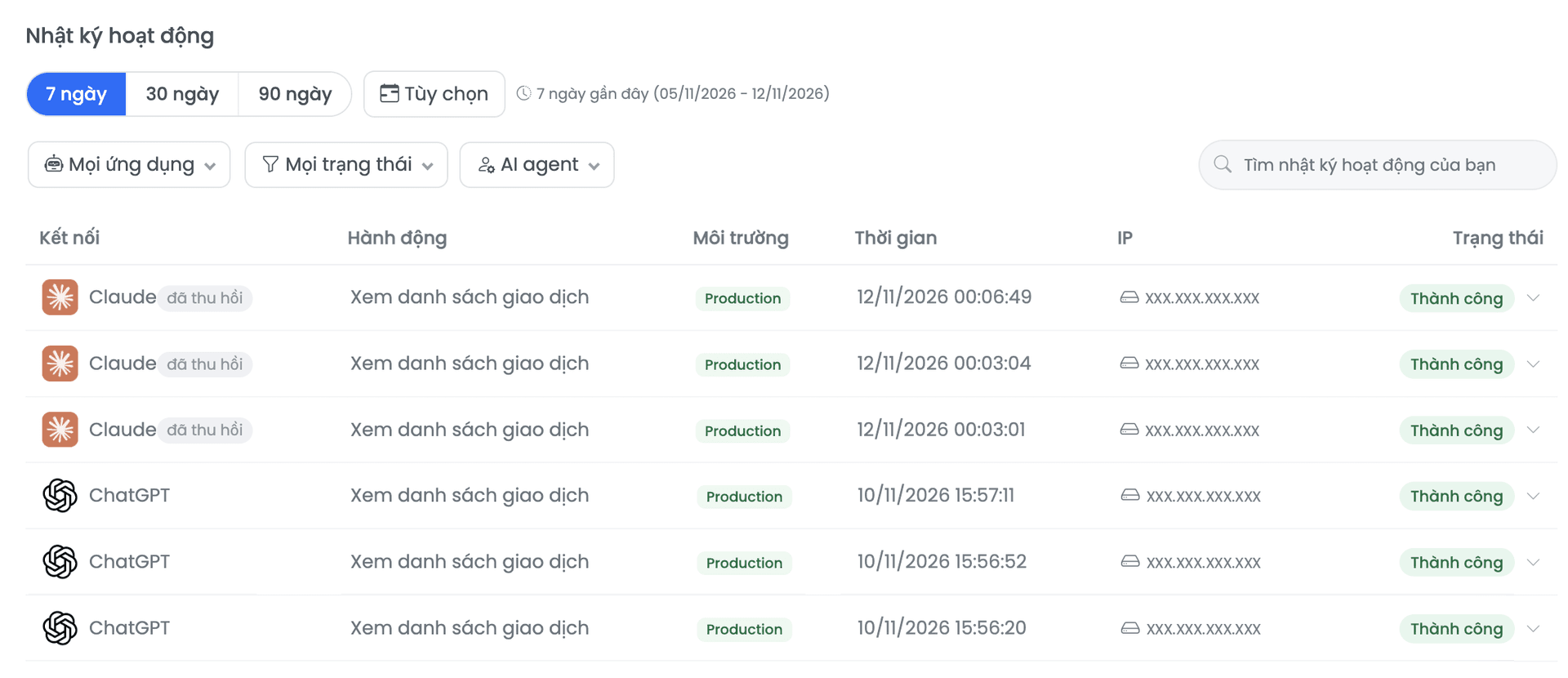
Common errors when connecting SePay MCP
FAQ
Next steps
- Add SePay to claude.ai with Connect Claude to SePay via MCP.
- See sample questions for each kind of data in SePay MCP tools.
- See permission groups, hide options and when a connection ends in SePay MCP permissions and security.