You add SePay to Claude as a connector, which works on claude.ai and the Claude desktop app. You get the server address and Client ID on SePay, enter them in Claude, then sign in to SePay to grant access.
Before you start
- A Claude account on any plan.
- Team or Enterprise plan: only organization Owners can add connectors. An Owner clicks their profile picture at the bottom left → Organization settings → Connectors, then does Steps 1 to 4. Members click their profile picture at the bottom left → Settings → Customize → Connectors and select Connect, then do Step 5.
- Access to the AI Agent page on SePay, see requirements on SePay.
Connection steps
The Claude steps follow the Claude interface as of November 2026 and Anthropic's guide. If the Claude interface changes, look for items with the same meaning or contact SePay for help.
Step 1: Get the server address and Client ID on SePay
- Sign in to my.sepay.vn.
- In the left menu, under Tích hợp & Thông báo, select AI Agent.
- Select Tạo kết nối (Create connection) at the top right.
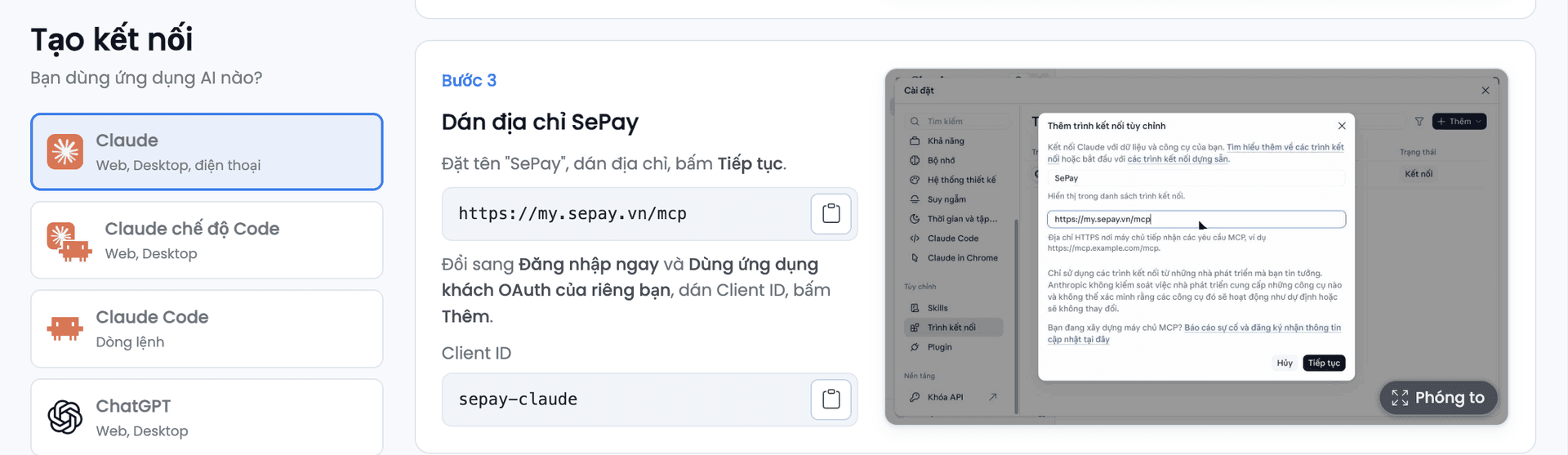
The Tạo kết nối (Create connection) page opens. Under Bạn dùng ứng dụng AI nào? (Which AI app do you use?), choose Claude:
- Địa chỉ SePay (SePay address,
https://my.sepay.vn/mcp): paste it into Claude in Step 3. - Client ID (
sepay-claude): paste it into Claude in Step 4.
Each field has a copy button. Keep the page open for the next steps.
Step 2: Open the add connector dialog in Claude
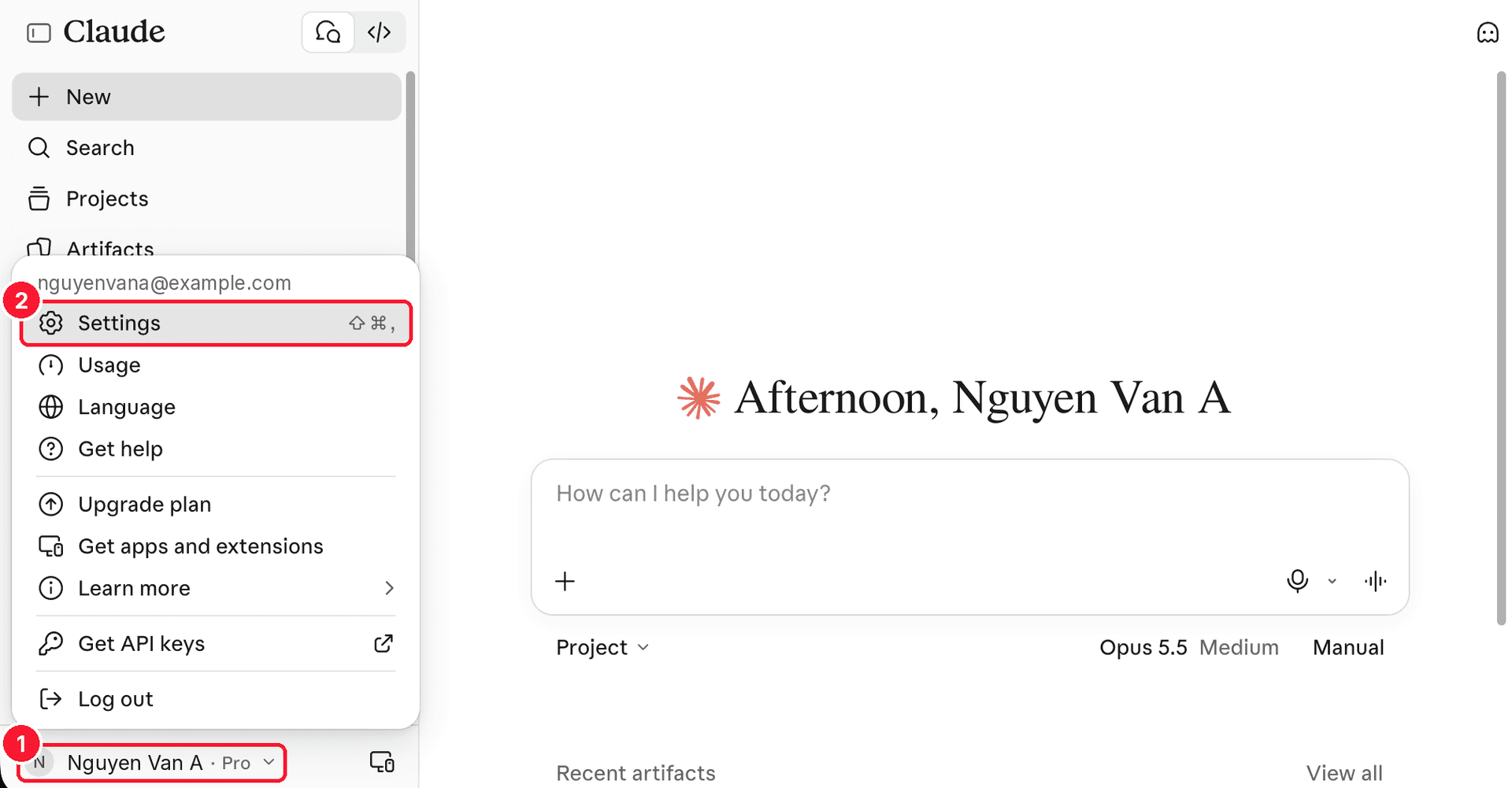
- On claude.ai or the Claude desktop app, click your profile picture at the bottom left.
- Select Settings.
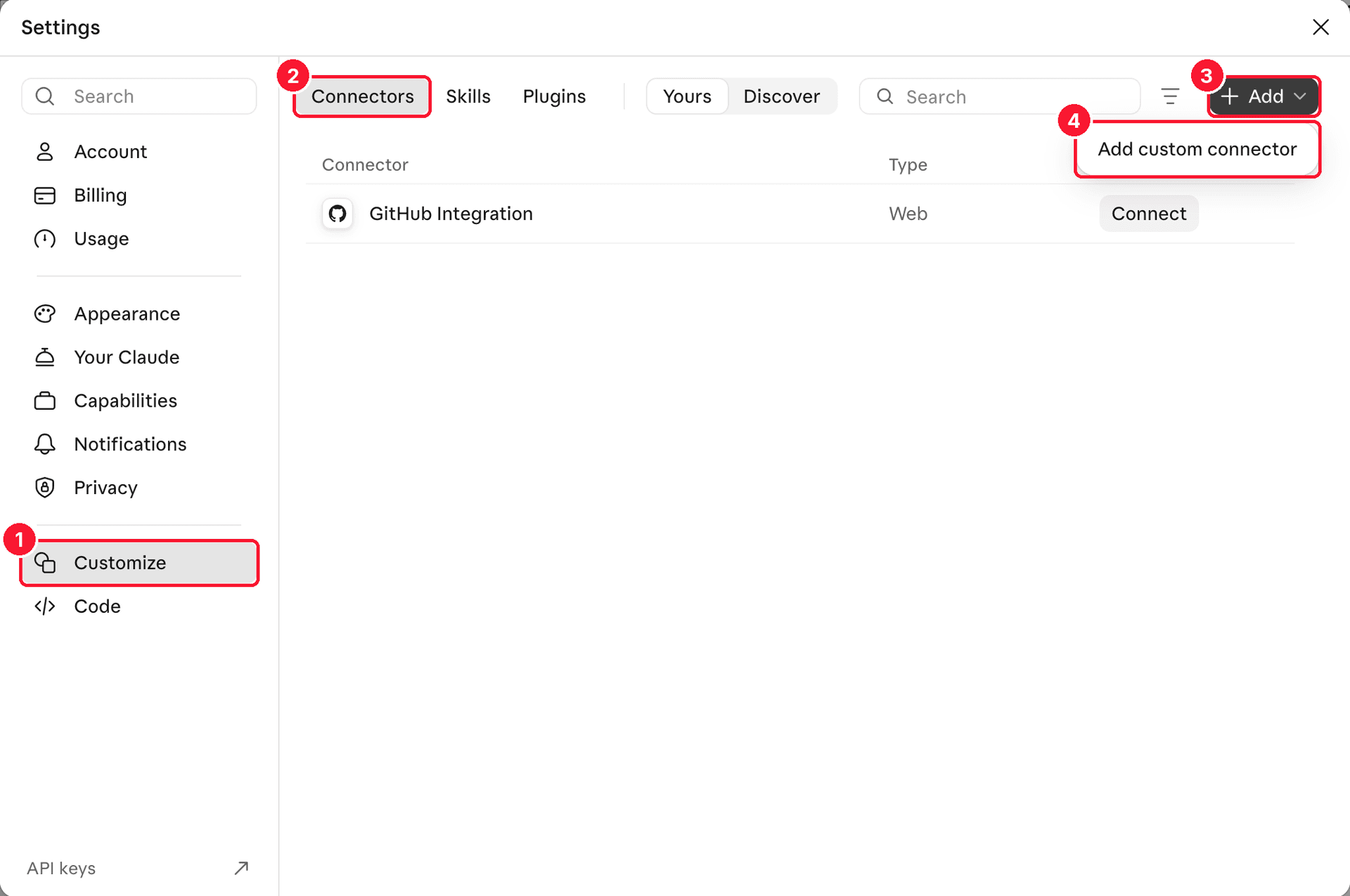
In Settings:
- In the left menu, select Customize.
- Select the Connectors tab.
- Select Add.
- Select Add custom connector.
Step 3: Enter the name and server address
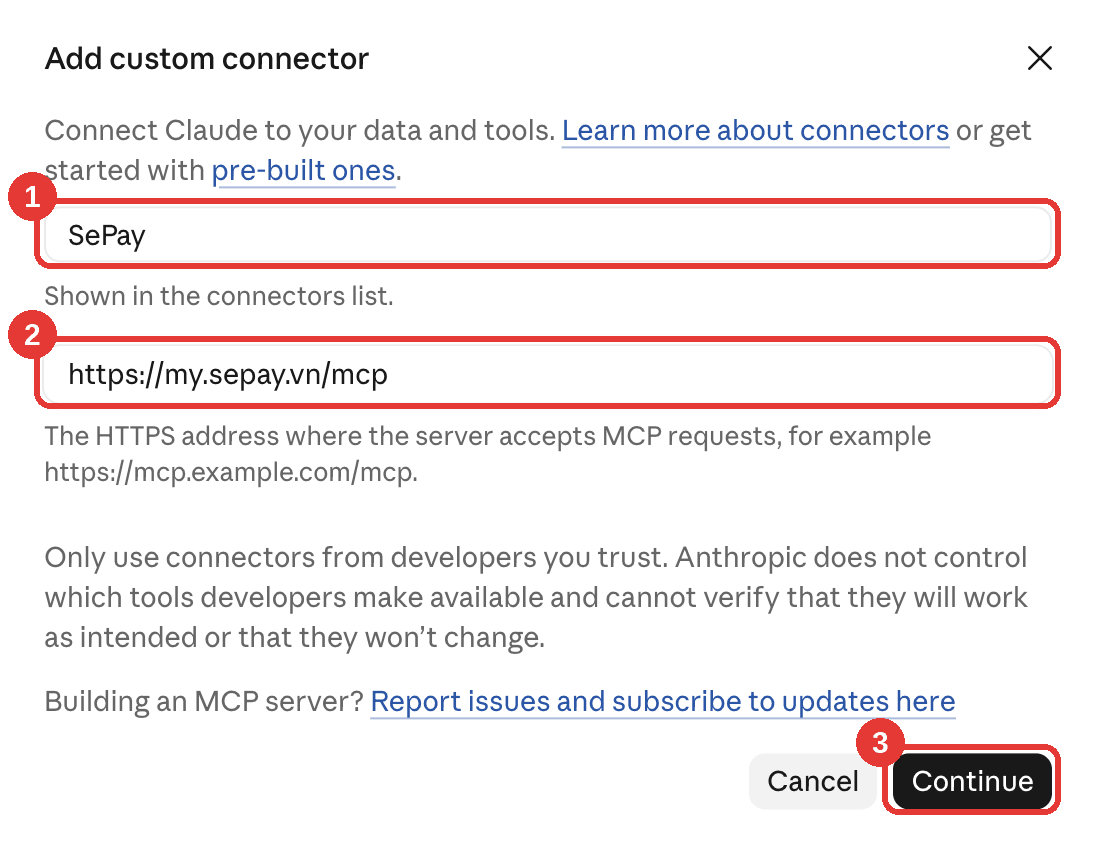
In the Add custom connector dialog:
- In the first field, enter a name you will recognize, for example
SePay. - In the second field, paste the MCP Server URL from SePay:
https://my.sepay.vn/mcp. - Select Continue.
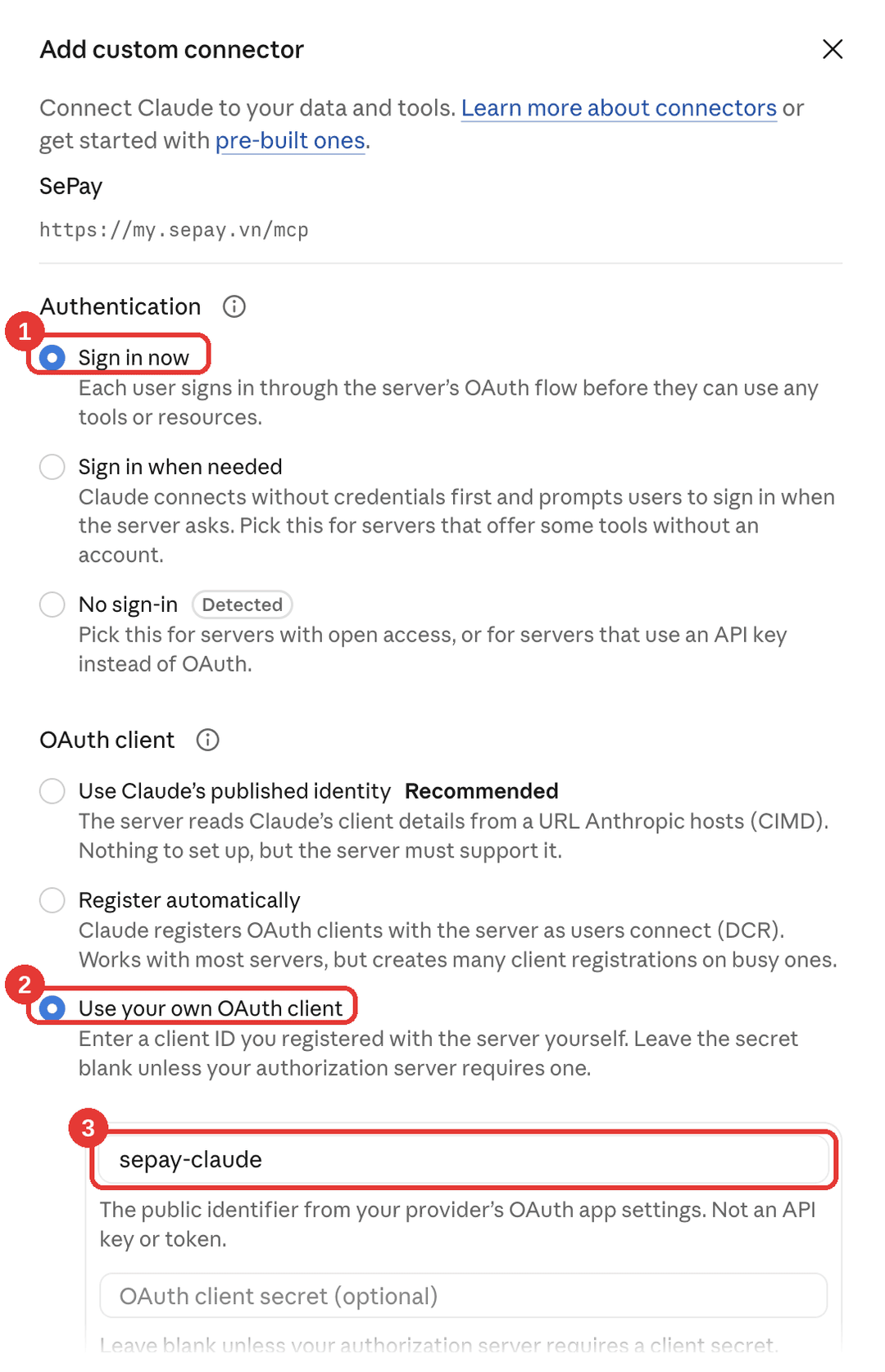
Step 4: Choose sign-in and paste the Client ID
Claude moves to the authentication settings and may preselect No sign-in (marked Detected) and suggest Use Claude's published identity (marked Recommended). SePay does not accept these two choices, so change them as follows:
- Under Authentication, select Sign in now.
- Under OAuth client, select Use your own OAuth client.
- Paste the OAuth Client ID from SePay (
sepay-claude) into the Client ID field. Leave OAuth client secret empty. - Scroll to the bottom of the dialog and select Add.
Grant Claude access on SePay
Step 5: Sign in to SePay and grant access
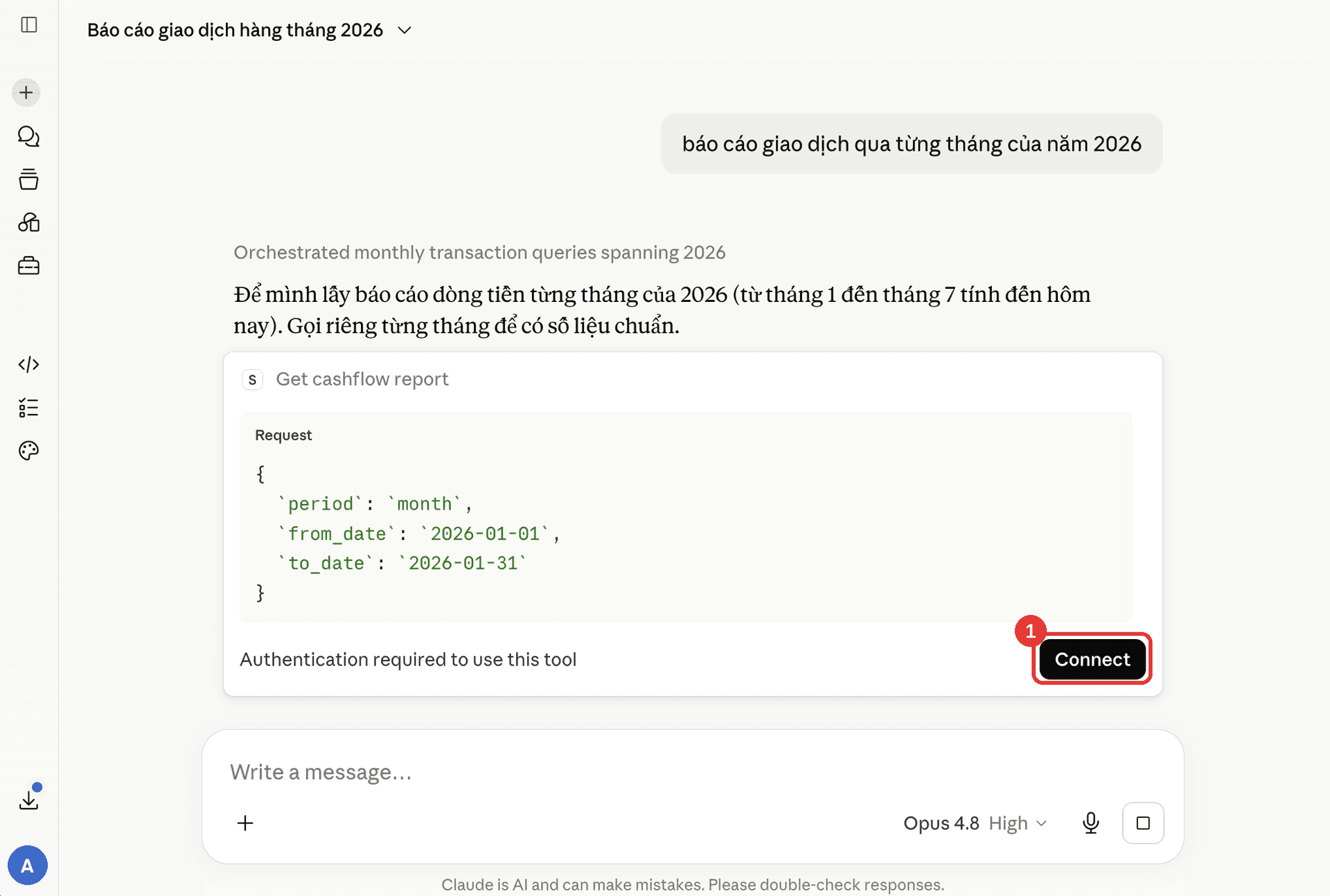
After you select Add, Claude opens the SePay access screen. If you close it, the first time you ask about SePay data Claude shows Authentication required to use this tool with a Connect button: select Connect to open it again.
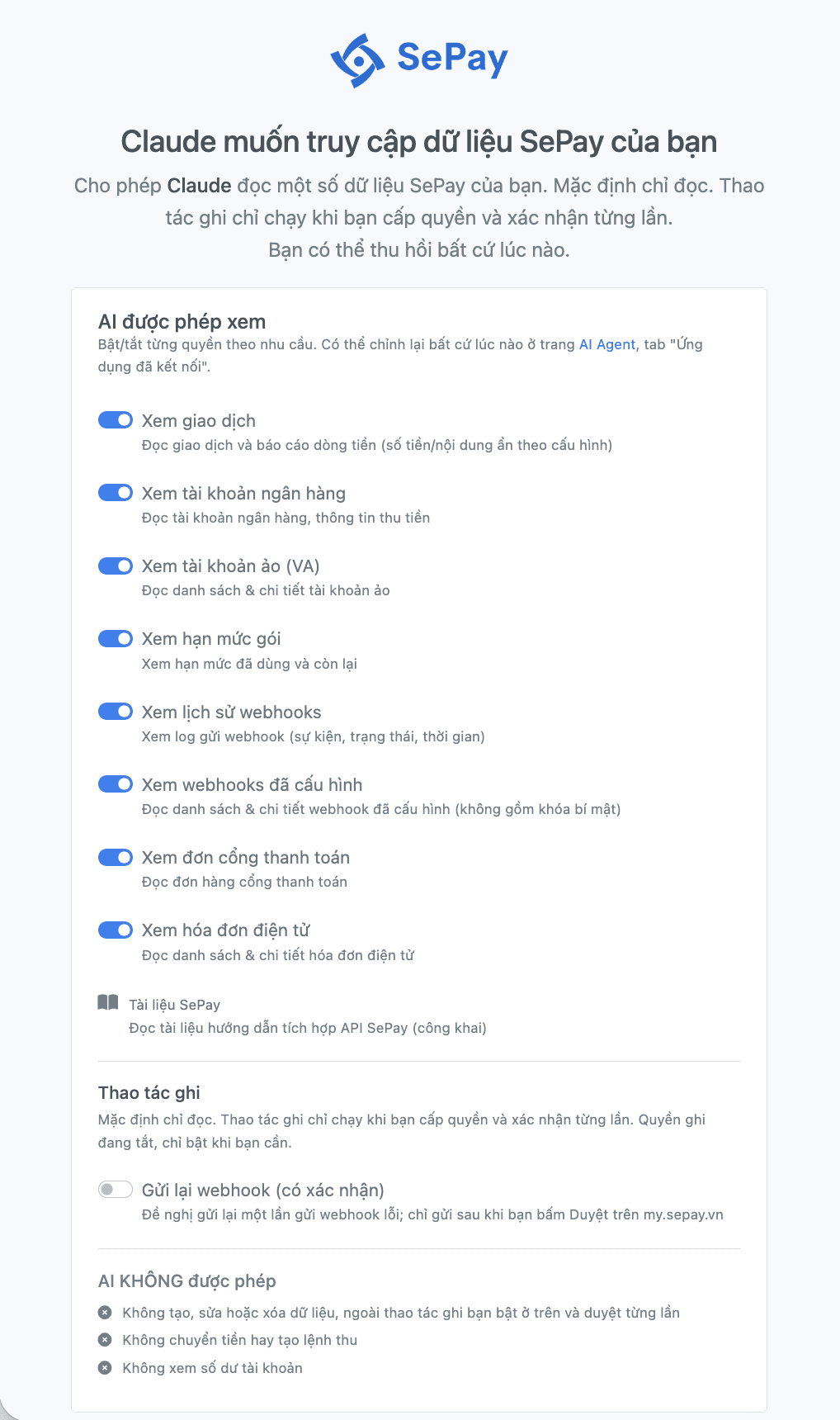
On the Claude muốn truy cập dữ liệu SePay của bạn (Claude wants to access your SePay data) screen:
- Turn each data group on or off under AI được phép xem (AI may view).
- If needed, open Ẩn bớt thông tin cho ứng dụng này (Hide more information for this app).
- Select Đồng ý cấp quyền (Grant access).
Each data group and hide option is explained in SePay MCP permissions and security.
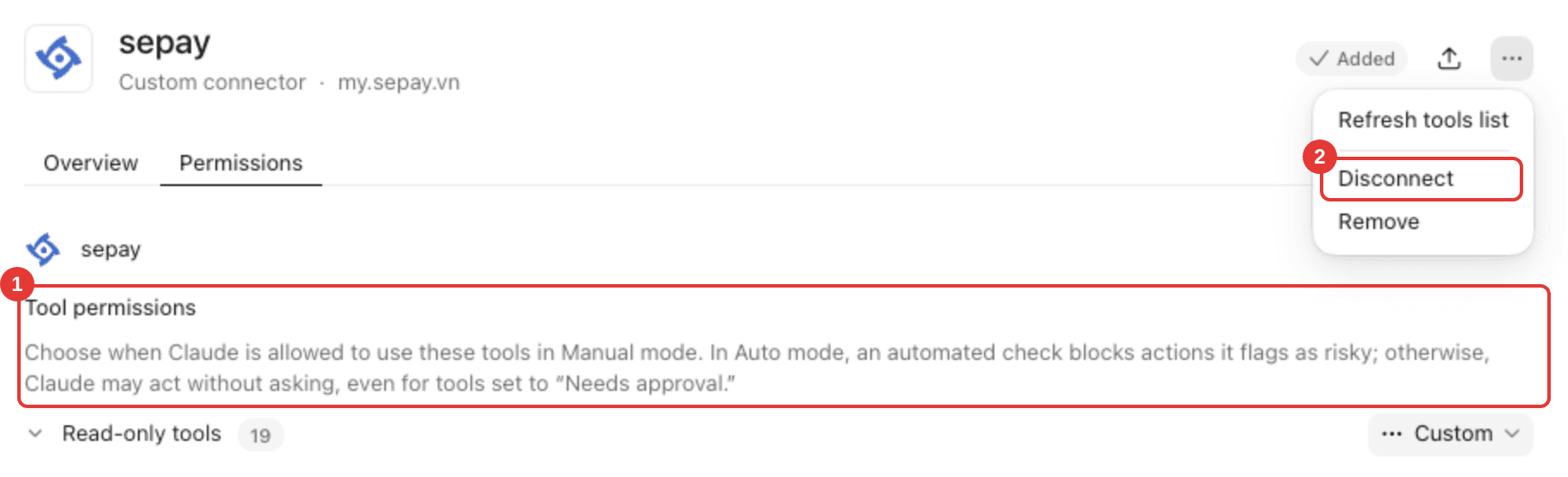
After you grant access, SePay shows up under your profile picture at the bottom left → Settings → Customize → Connectors. Select SePay and open the Permissions tab. Under Tool permissions, you choose whether Claude may use each SePay tool on its own or must ask you first.
Ask Claude about your SePay data
Start a new conversation and ask, for example: "Monthly cash flow report for my SePay account". If Claude returns money in and money out by month, the connection works.
Disconnect Claude
- In Claude: your profile picture at the bottom left → Settings → Customize → Connectors, select SePay, click ⋯ at the top right, then Disconnect.
- On SePay: revoke the Claude connection on the AI Agent page, see Manage connections.
Common errors
Common SePay MCP errors are in Common errors when connecting SePay MCP.
Next steps
- Use SePay MCP in the terminal with Claude Code.
- Add SePay Skills to Claude so Claude guides your SePay integration from the docs.
- See sample questions for each kind of data in SePay MCP tools.