You add SePay to Claude Code with the claude mcp add command from SePay, then sign in to SePay in the browser to grant access.
Before you start
- A Claude account that includes Claude Code: Pro, Max, Team, Enterprise or a Console account (the Free plan has no Claude Code).
- A terminal: Terminal on macOS or Linux, PowerShell on Windows.
- Access to the AI Agent page on SePay, see requirements on SePay.
Connection steps
The steps follow the Claude Code interface as of October 2026 and Anthropic's guide. If Claude Code changes, look for items with the same meaning or contact SePay for help.
Step 1: Install Claude Code
Skip this step if typing claude in a terminal already works. On macOS or Linux, install with:
$ curl -fsSL https://claude.ai/install.sh | bashOn Windows, install with this command in PowerShell:
$ irm https://claude.ai/install.ps1 | iexOther install methods (Homebrew, WinGet, npm) are in the Claude Code setup guide. After installing, open a new terminal, run claude and sign in to your Claude account as prompted.
Step 2: Copy the connect command on SePay
- Sign in to my.sepay.vn.
- In the left menu, under Tích hợp & Thông báo, select AI Agent.
- Select Tạo kết nối (Create connection) at the top right.
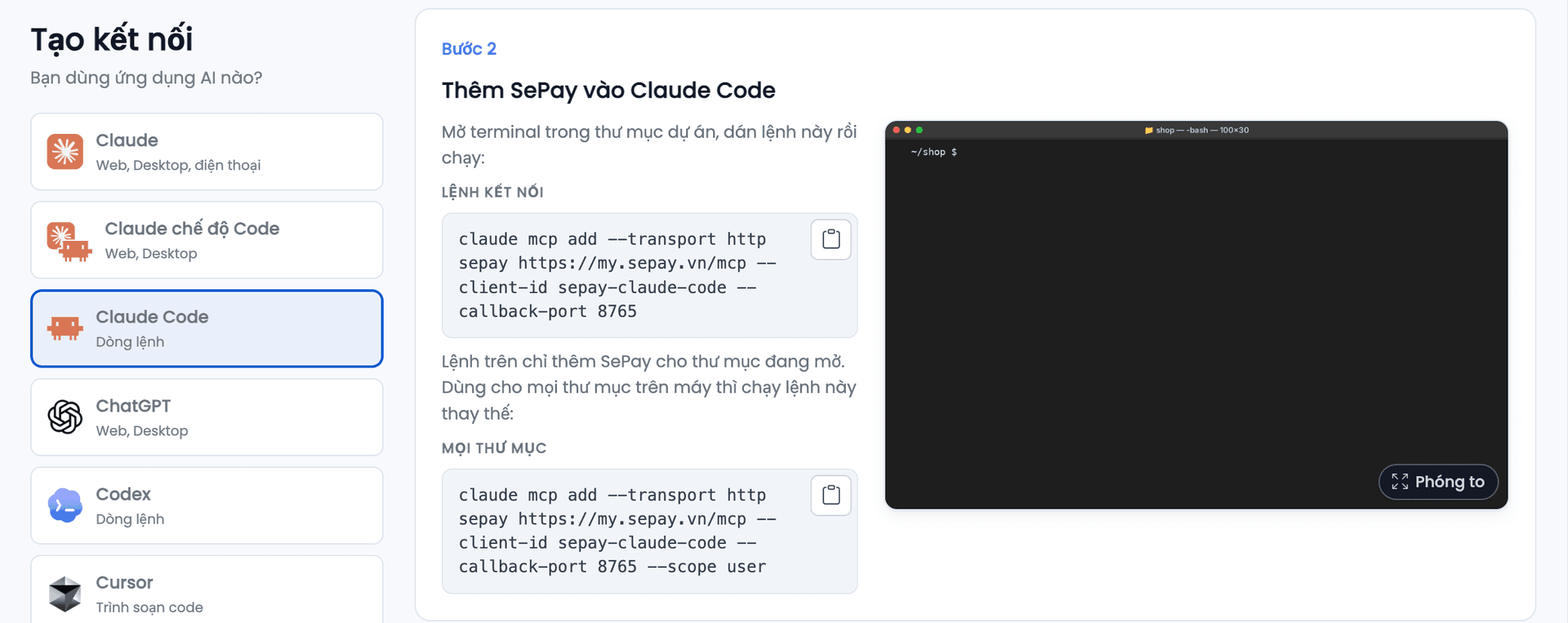
The Tạo kết nối (Create connection) page opens. Under Bạn dùng ứng dụng AI nào? (Which AI app do you use?), choose Claude Code, then in Lệnh kết nối (Connect command), select the copy button.
Step 3: Add SePay to Claude Code
Open a terminal in the project folder, paste the copied command and run it. It looks like:
$ claude mcp add --transport http sepay https://my.sepay.vn/mcp --client-id sepay-claude-code --callback-port 8765The command adds SePay only for the folder you are in. To use SePay in every folder on the computer, add --scope user to the end of the command.
Step 4: Select Authenticate in Claude Code
In that folder, run claude and type /mcp. In Manage MCP servers, select sepay and press Enter:
 Claude Code
> /mcp Manage MCP servers Local MCPs❯ sepay · △ needs authenticationOn the Sepay MCP Server screen, select 1. Authenticate and press Enter:
Claude CodeSepay MCP Server Status: △ needs authenticationAuth: ✘ not authenticated ❯ 1. Authenticate2. DisableClaude Code opens the SePay access screen in the browser. If the browser does not open, copy the link Claude Code prints and paste it into the browser.
Grant Claude Code access on SePay
Step 5: Grant access and paste the authentication code
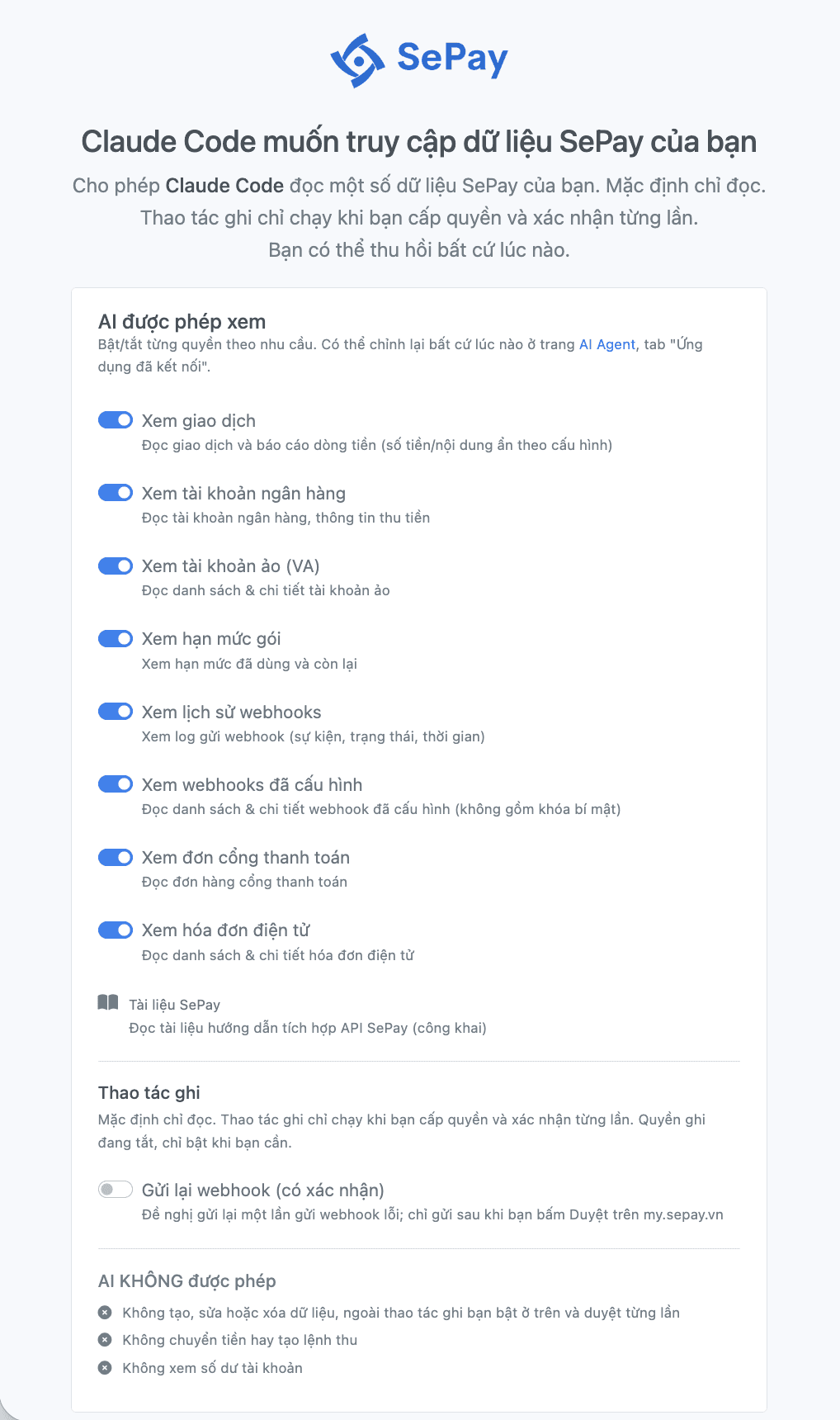
On the Claude Code muốn truy cập dữ liệu SePay của bạn (Claude Code wants to access your SePay data) screen:
- Turn each data group on or off under AI được phép xem (AI may view).
- If needed, open Ẩn bớt thông tin cho ứng dụng này (Hide more information for this app).
- Select Đồng ý cấp quyền (Grant access).
Each data group and hide option is explained in SePay MCP permissions and security.
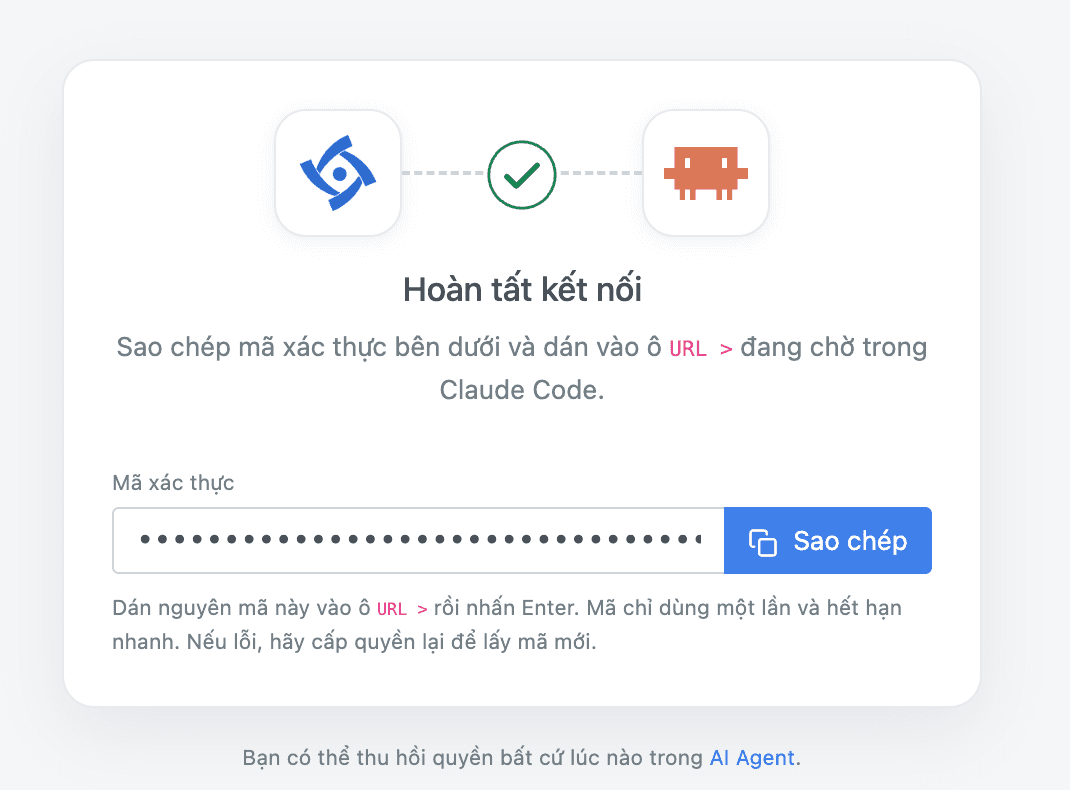
The browser moves to the Hoàn tất kết nối (Finish connecting) page:
- In Mã xác thực (Authentication code), select Sao chép (Copy).
- Back in the terminal, paste it at the waiting
URL >prompt in Claude Code and press Enter.
When Claude Code prints Authentication successful. Connected to sepay. the connection is complete.
Ask Claude Code about your SePay data
In Claude Code, try a question, for example "Show my 10 most recent transactions". The first time, Claude Code may ask whether it may use a SePay tool: select Yes. When Claude Code prints Called sepay and returns a table of transactions, the connection works. Here sepay is the name you gave SePay MCP in the Step 3 command, not the SePay CLI.
Look up SePay integration docs
Claude Code can read the docs on developer.sepay.vn through SePay MCP, even before you grant access. When you ask an integration question, it reads the relevant docs page and answers with a link to it. Open the link to check before using the code. For example:
- "Which fields does a SePay webhook send, and how do I verify it with an API Key?"
- "How do I create a payment QR code with the amount and order code using SePay?"
- ...
Disconnect Claude Code
Remove SePay from Claude Code with this command, run in the project folder where you added SePay:
$ claude mcp remove sepayThis does not revoke the connection on SePay. To revoke it, go to the AI Agent page, see Manage connections.
Common errors
Common SePay MCP errors are in Common errors when connecting SePay MCP.
Next steps
- Add SePay to ChatGPT with Connect ChatGPT to SePay via MCP.
- See sample questions for each kind of data in SePay MCP tools.
- Install SePay Skills as a plugin so Claude Code knows SePay's integration flows and security notes when writing integration code.