The Webhooks page has 3 monitoring tools: Delivery logs (per-delivery details), Dashboard (aggregate metrics), Alerts + Incidents (auto-notify on failures).
Delivery logs
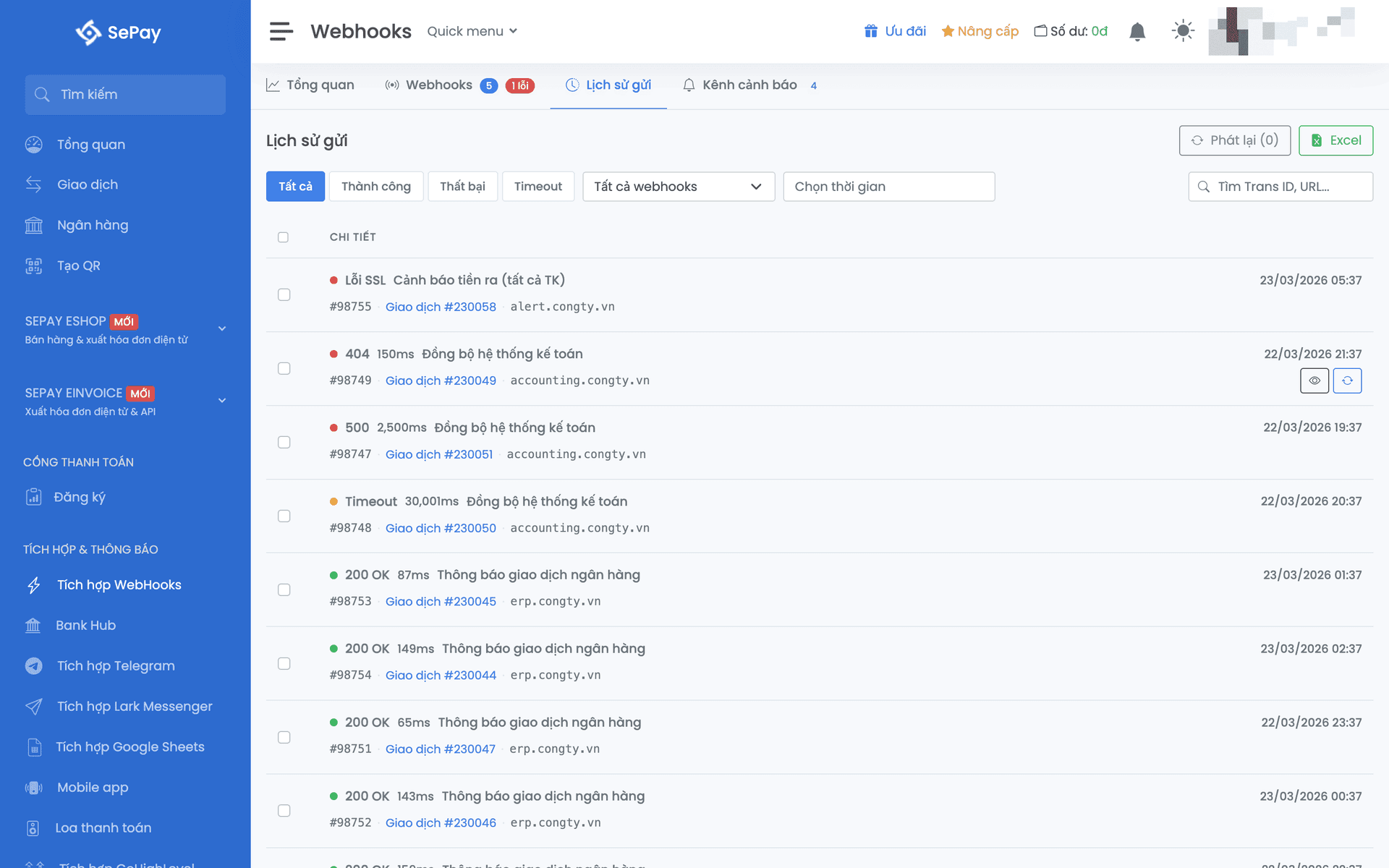
The Delivery logs tab shows every webhook delivery: status, HTTP status, response time, webhook name, related transaction. Filter by webhook, time, status.
Detail panel
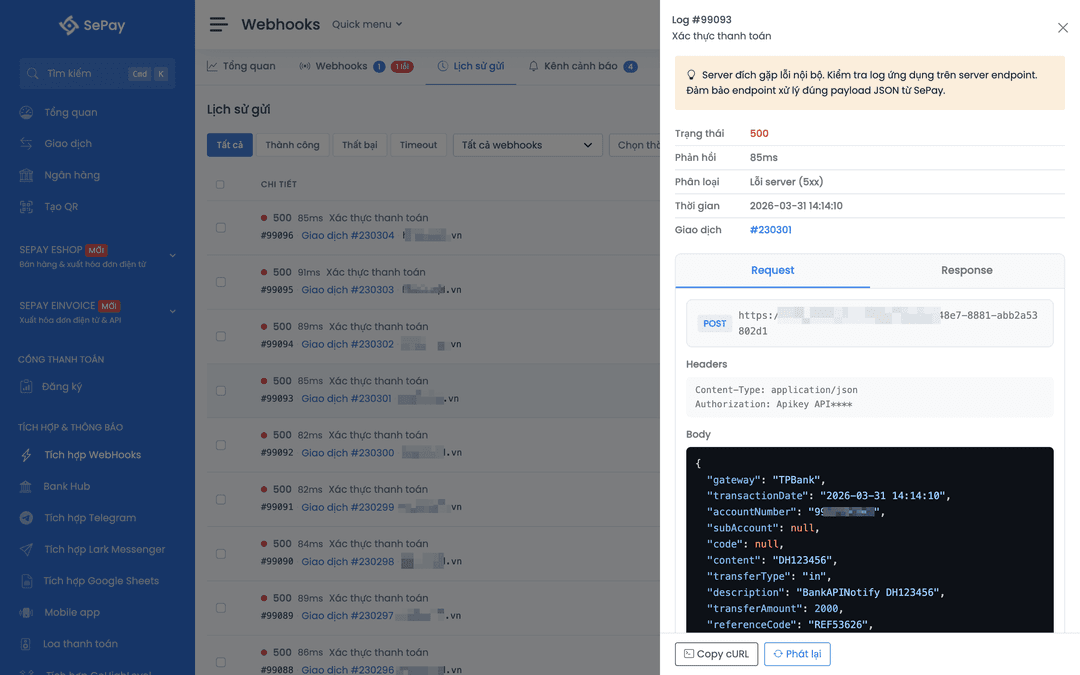
Click a log row to open the panel:
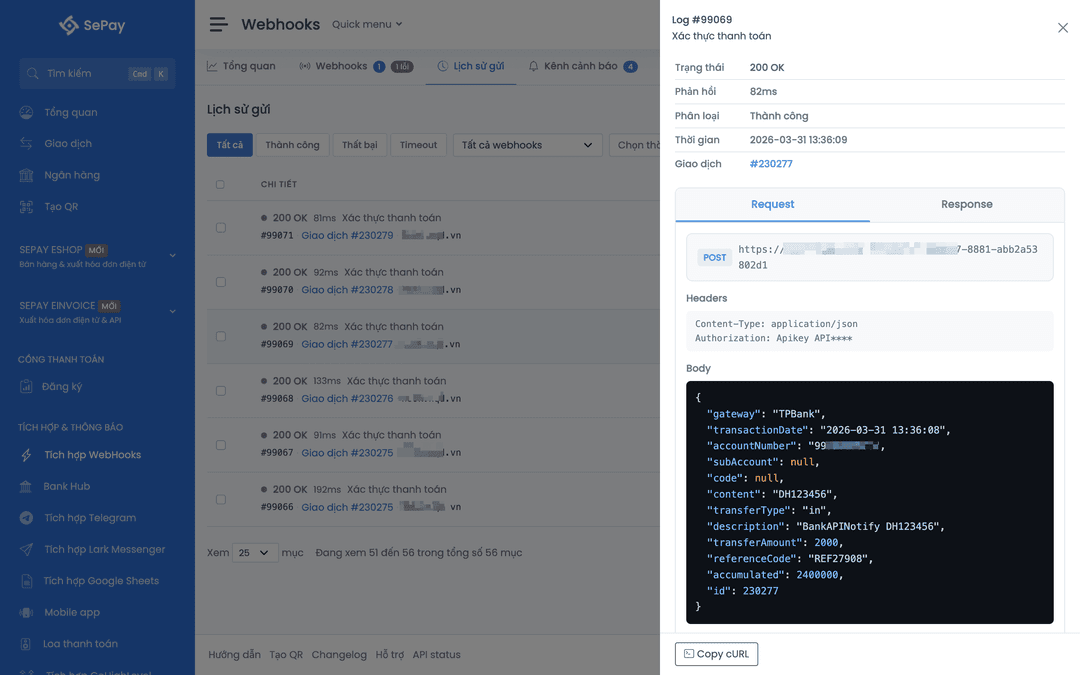
- Summary: HTTP status, response time, error label. Replayed webhooks show the original source.
- General info: connection status, link to the transaction, HTTP method.
- Request tab: URL, headers, JSON body (with highlight and copy button).
- Response tab: response headers and body from your server.
- Copy cURL: get the matching cURL command, handy for debugging from the terminal.
Common error labels
| Error | Cause | Fix |
|---|---|---|
| DNS Error | Domain doesn't resolve | Check URL, DNS |
| Connection Refused | Server rejected connection | Check server, firewall, port |
| Timeout | Response too slow (>30s) | Optimize endpoint, async processing |
| SSL Error | Invalid certificate | Check SSL cert |
| HTTP 401 | Bad auth | Check API Key / Secret Key |
| HTTP 404 | Wrong URL | Check endpoint path |
| HTTP 500 | Server error | Check server logs |
Replay webhook
Manually replay any log, both failed and successful.
Single: detail panel → Replay. SePay sends the same payload to the current endpoint.
Multiple: tick rows → Replay. Up to 20 logs per batch.
Limit: 10 replays per minute per company.
Tracking: replayed webhooks have a "Replayed from #xxx" label linking back to the original log. The original is not modified.
Replays can duplicate the original delivery. Make sure your endpoint is idempotent (safe to call multiple times) and deduplicates by id, especially when replaying logs that already succeeded.
Dashboard
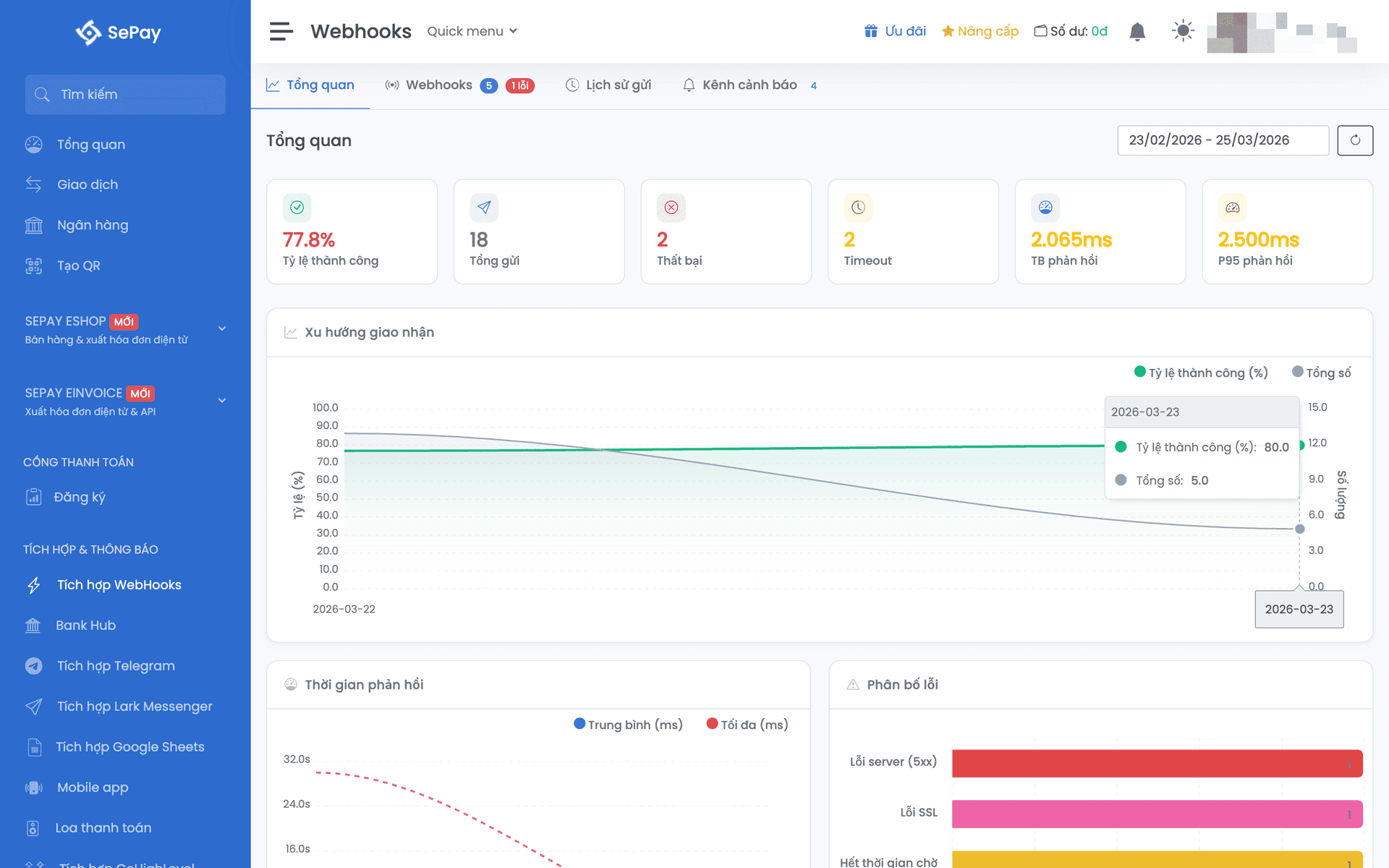
The Overview tab shows aggregate metrics over a selectable time range.
Metrics
| Metric | Meaning |
|---|---|
| Success rate | % of successful deliveries |
| Total deliveries | Total deliveries in the time range |
| Failures | Count of failed deliveries |
| Timeouts | Count of endpoints that didn't respond in time |
| Avg response | Average response time (ms) |
| P95 response | 95% of requests respond within this time |
Charts
- Delivery trend: success and failure by day.
- Response time distribution: how fast the endpoint is.
- Error breakdown: ratio of each type (DNS, timeout, 4xx, 5xx).
- Top failing webhooks: priority list to fix.
Time filter
Top right has a selector: 7 days, 30 days (default), 90 days, or custom. Click ↻ to refresh.
Alerts
Rather than manually checking the dashboard, let SePay send you alerts automatically when a webhook fails several times in a row. Setup takes 2 steps: create an alert channel, then attach the channel to the webhook.
Create an alert channel
Alert channels tab → Add channel.
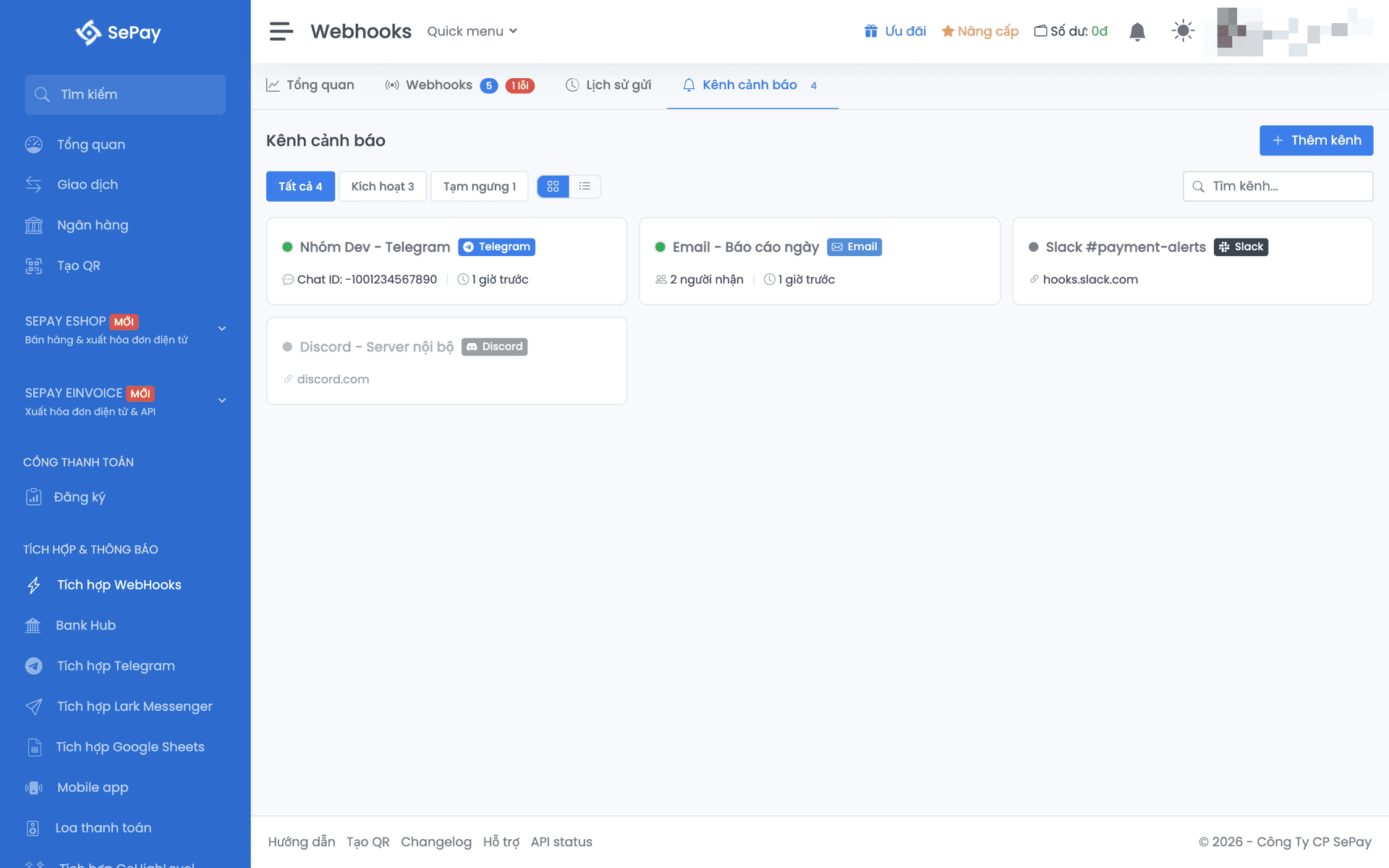
Pick the platform you want to receive notifications on:
After creation, click Test to send a test message. Make sure the channel receives it before attaching to webhooks.
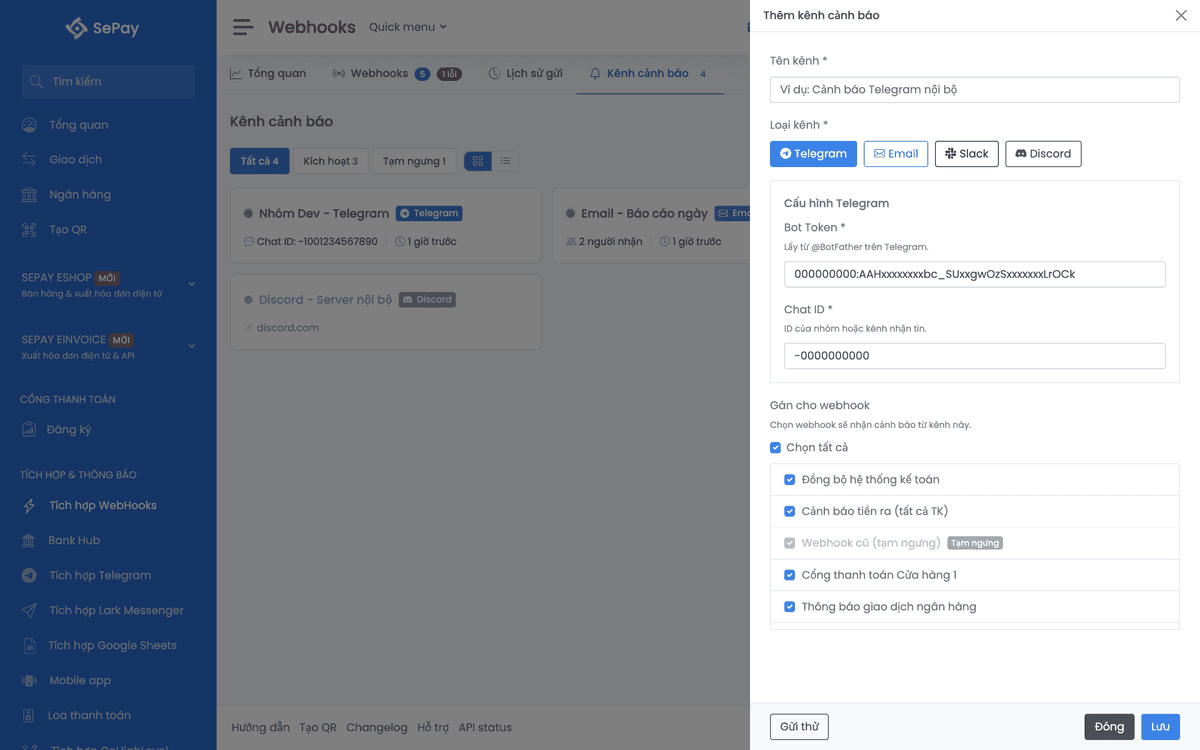
Attach alerts to a webhook
When creating/editing a webhook, in the Alerts step:
- Toggle alerts on
- Set the consecutive-failure threshold (1–20, default 3)
- Pick alert event types
- Tick channels to receive
Paused channels appear dimmed and cannot be selected.
Alert behavior
Failure counter: increments on initial-delivery or auto-retry failures. Manual replays don't increment. Once it reaches the configured threshold (default 3 consecutive failures), SePay sends the alert through the configured channels.
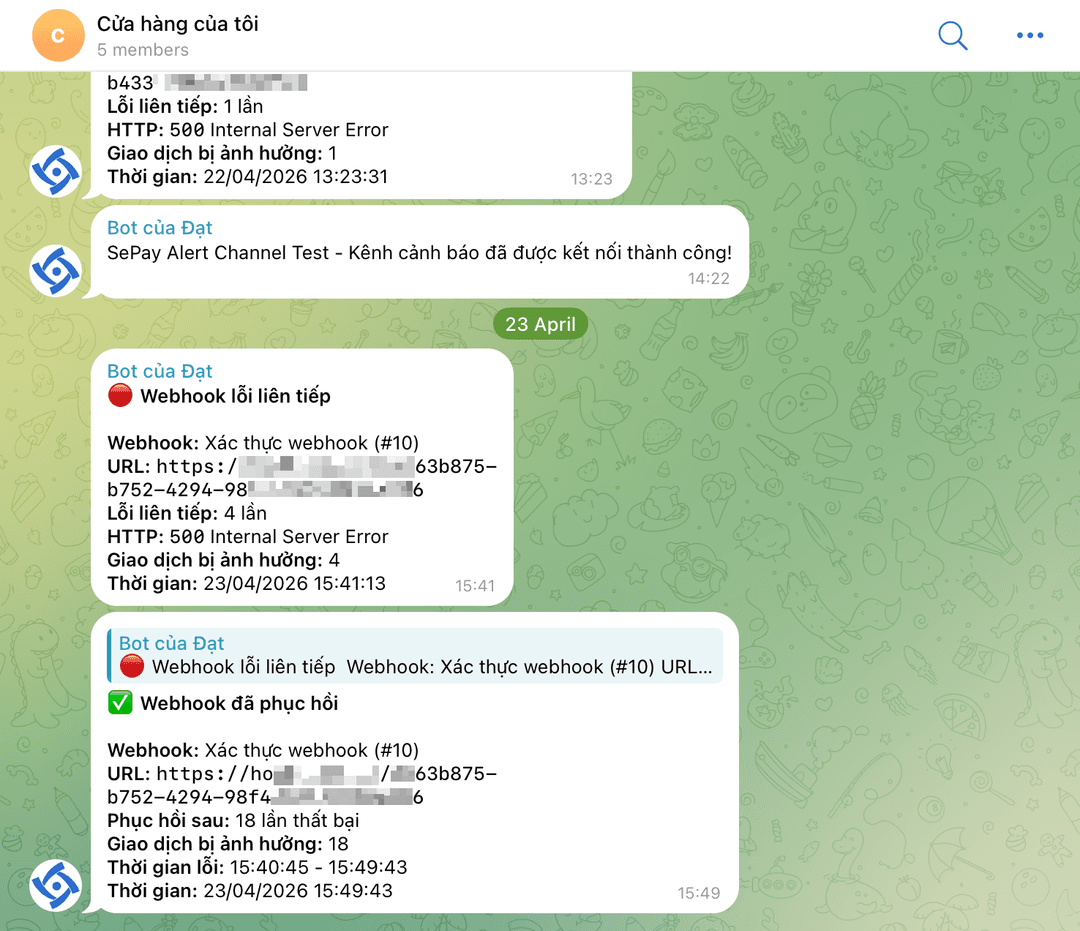
Auto recovery: when a new transaction or retry succeeds, the counter resets and SePay sends a recovery notification with webhook name, URL, failure count, affected transaction count, error duration. Telegram replies into the original error message.
Manual replay recovery: closes the incident and clears the alert mute window (see below). No recovery notification is sent because you already know the endpoint is OK. If the endpoint fails again afterward, a new alert fires immediately.
Alert mute window: after each alert, the same webhook won't send another alert for 60 minutes, even if failures continue — this prevents alert spam during long outages. The mute window clears on recovery.
Notification content
Each notification contains: webhook name, URL, error HTTP status, consecutive failure count, and timestamp. Each channel renders it in its native style.
Incidents
When a webhook fails several times in a row, SePay groups those failures into a single incident for easier tracking. Each incident records the time, error type, and affected transactions. When the webhook starts succeeding again, the incident auto-closes.
Requirement: the webhook must have alerts enabled (see Alerts above).
Lifecycle
1. Open First failure, SePay creates an incident in Open status. Each subsequent failure increments the failure counter (see Alert behavior for threshold and mute-window details).
2. Close 3 ways to close an incident:
- Auto: webhook delivers successfully again. Sends recovery notification if the alert had fired.
- Manual: click Mark as handled after reconciling. SePay records the user, no notification.
- Successful replay: you actively tested successfully. No recovery notification.
A closed incident can be Reopened if you clicked by mistake or found the issue isn't done.
View incidents
Incidents tab. Default filter is Open.
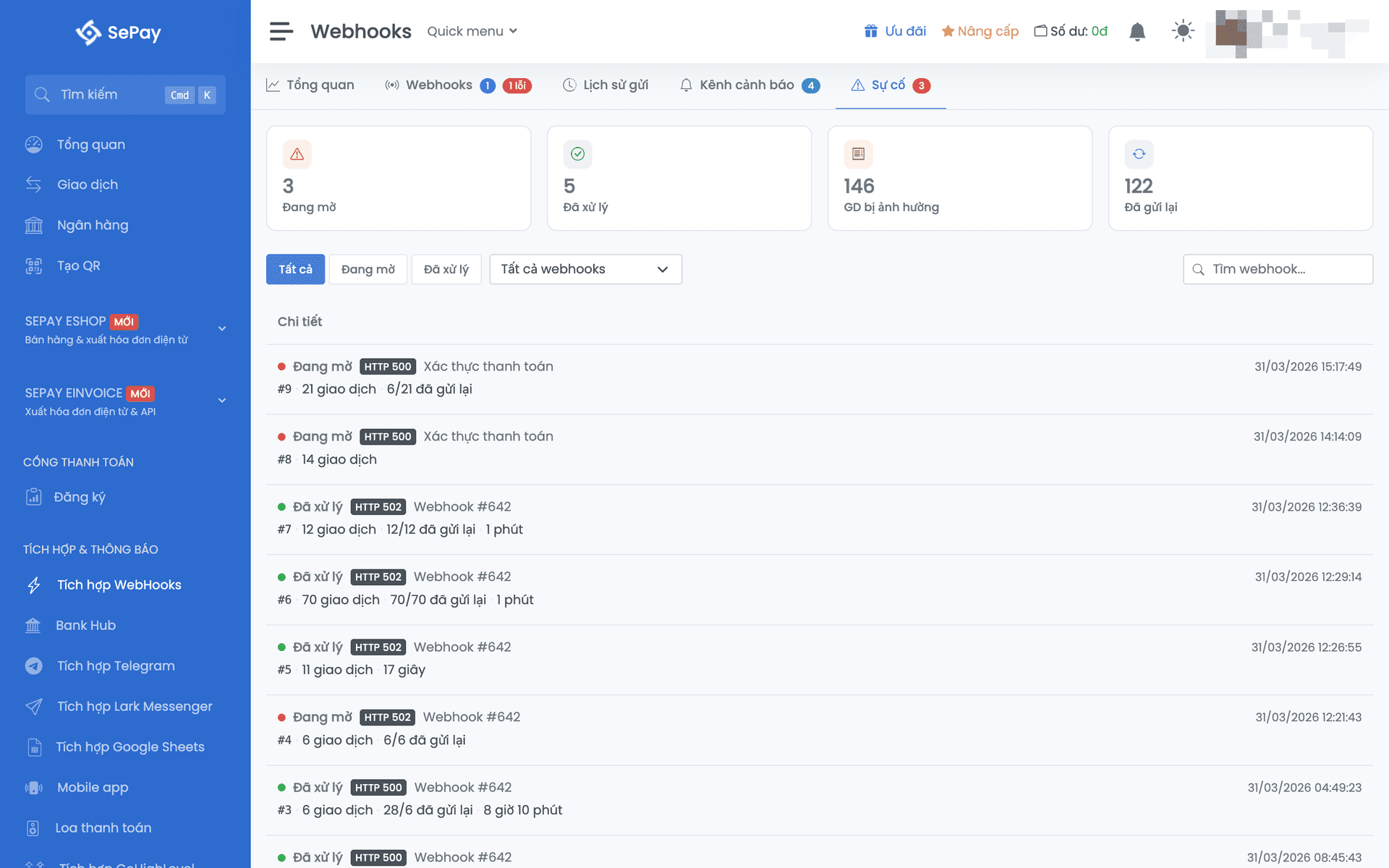
Four 30-day stats:
| Metric | Meaning |
|---|---|
| Open | Not yet resolved |
| Resolved | Closed |
| Affected transactions | Total transactions across incidents |
| Replayed | Webhooks successfully replayed |
Detail
Click an incident to open the panel: status, URL, error time, total amount, error type (HTTP 500, Timeout, DNS, ...).
Below is the list of transactions: code, amount, replay status.
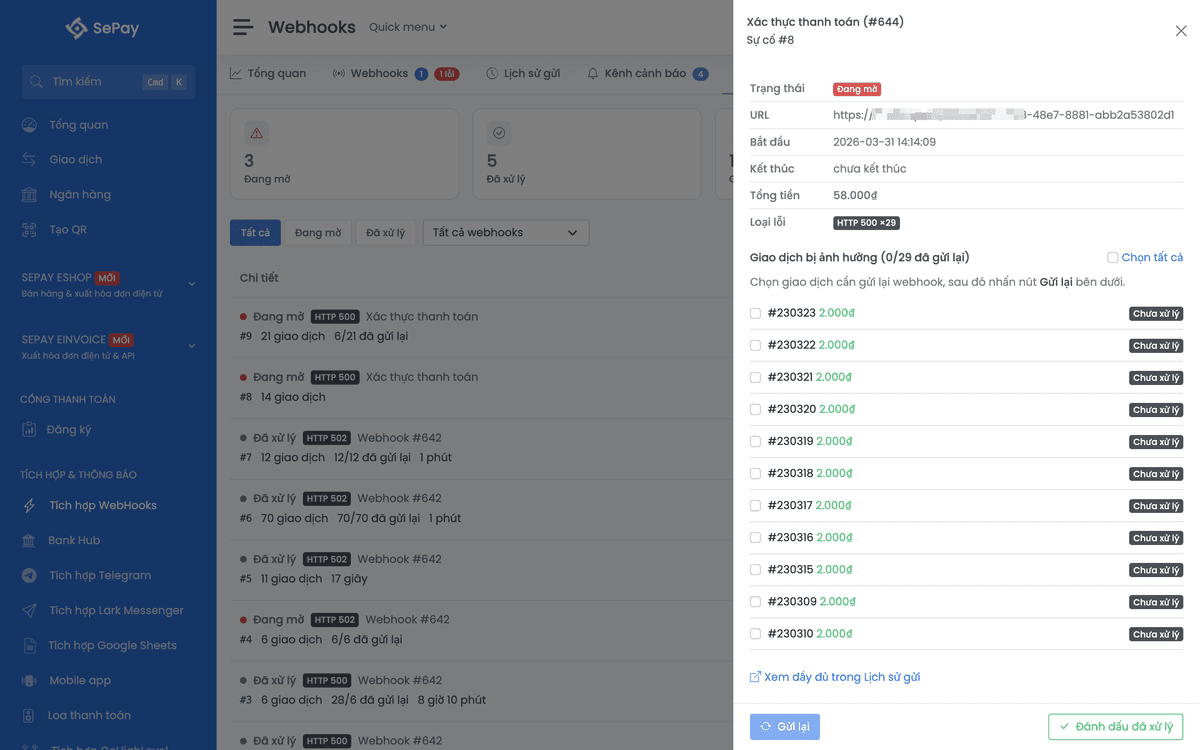
Bulk replay
- Open incident detail
- Pick transactions (or Select all)
- Click Resend
Successful sends lock the checkbox.
Click View full in Delivery logs to switch to the logs view, pre-filtered by webhook and incident time range.
Manage alert channels
In the channels list, you can enable/disable (with confirmation), edit info, delete, or view notification history.
Next
- Error handling: retry schedule, diagnose when webhook doesn't fire
- Integrate webhook: deduplication, handling retry / replay
- Security: production endpoint checklist