Integrating SePay with WooCommerce automatically confirms a payment as soon as the customer transfers money — orders also flip to paid status without any manual review.
If you run a WordPress + WooCommerce store, this guide shows how to plug SePay in so payment confirmation happens automatically over bank transfer.
Download the SePay Payment Gateway plugin from WordPress.org.

What you get after the integration
1. The shopper's experience
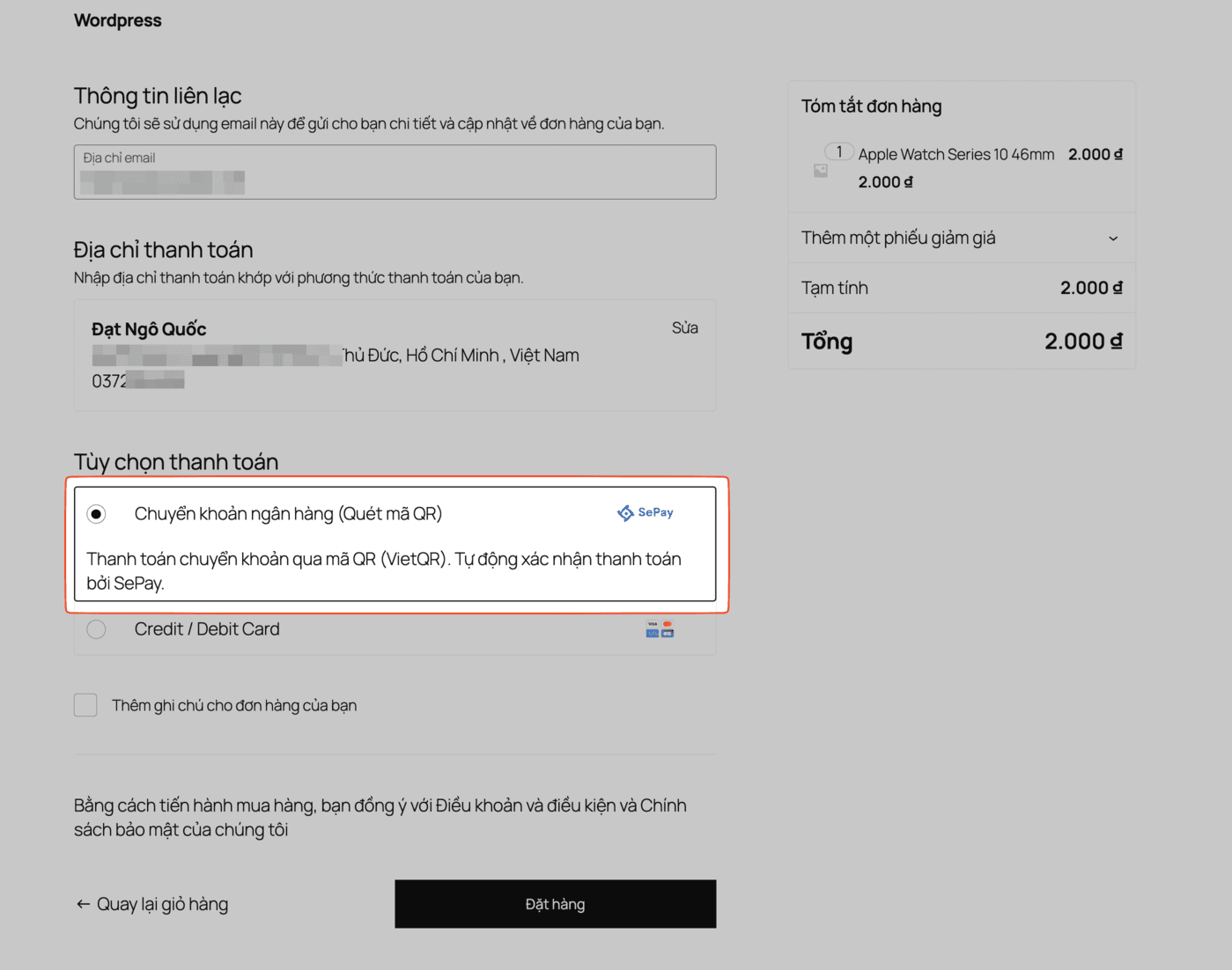
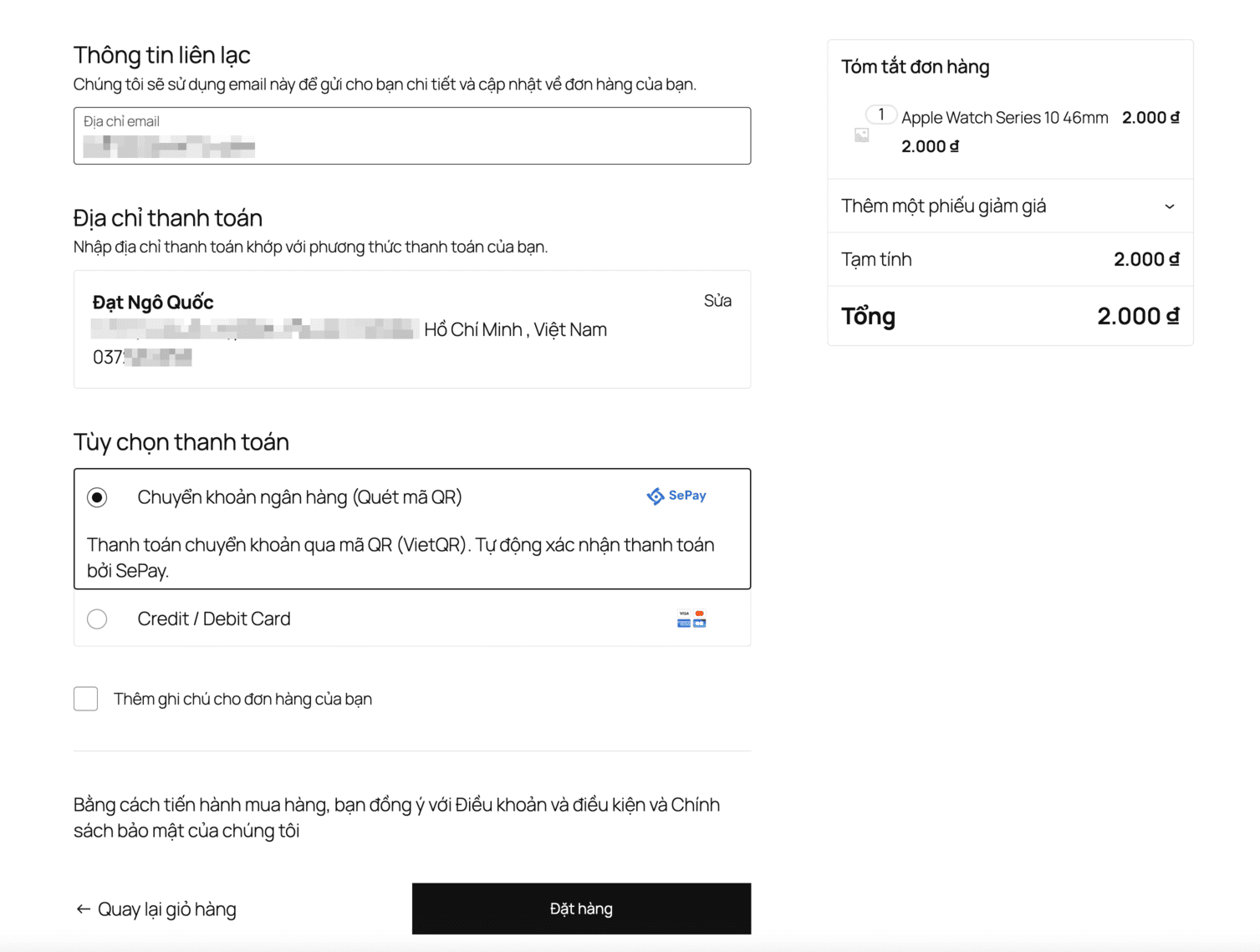
Step 1: Pick a payment method
On checkout the shopper sees a new Bank transfer option.
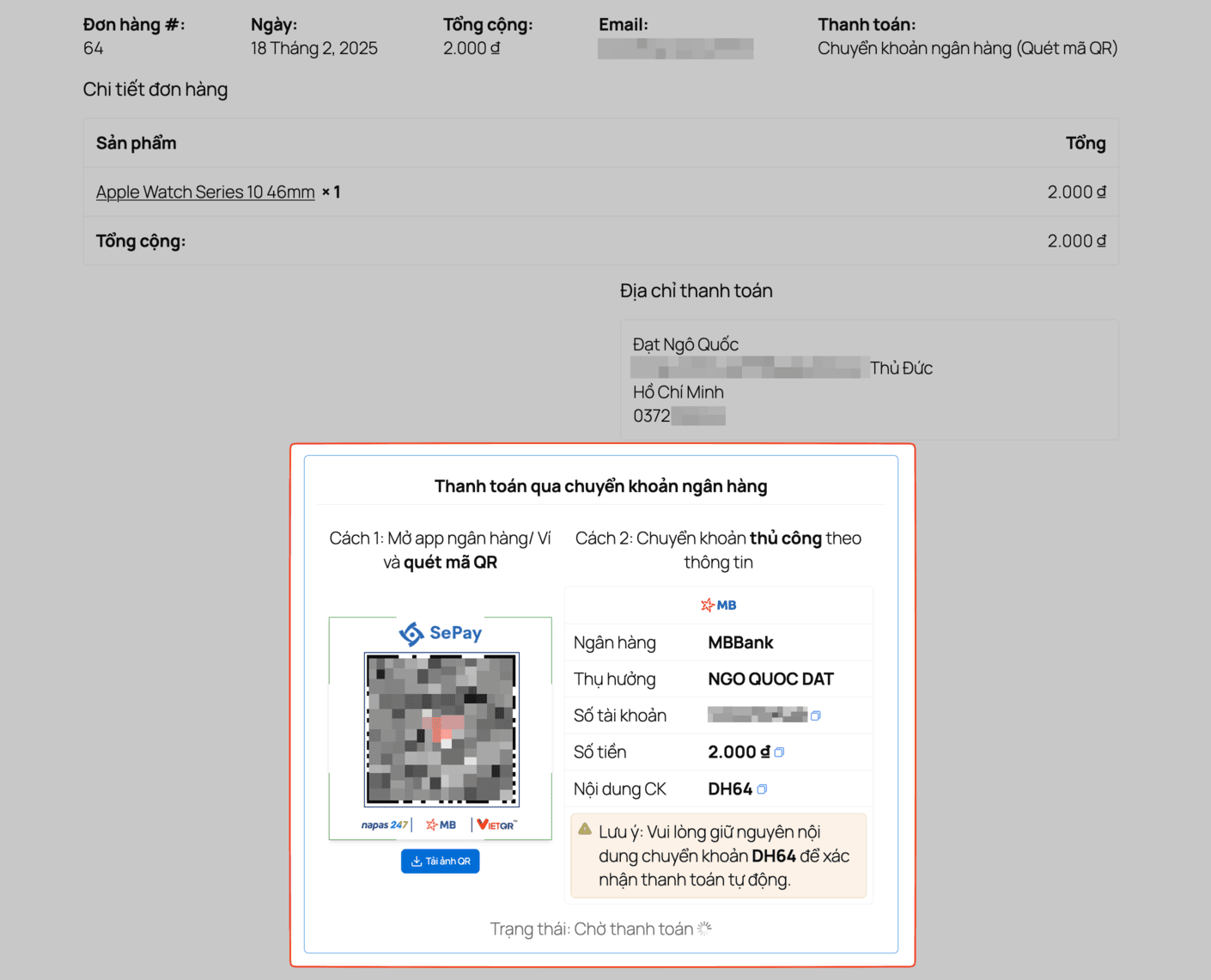
Step 2: QR code and payment details
A QR code together with the payment details is rendered after the shopper picks the bank-transfer option.
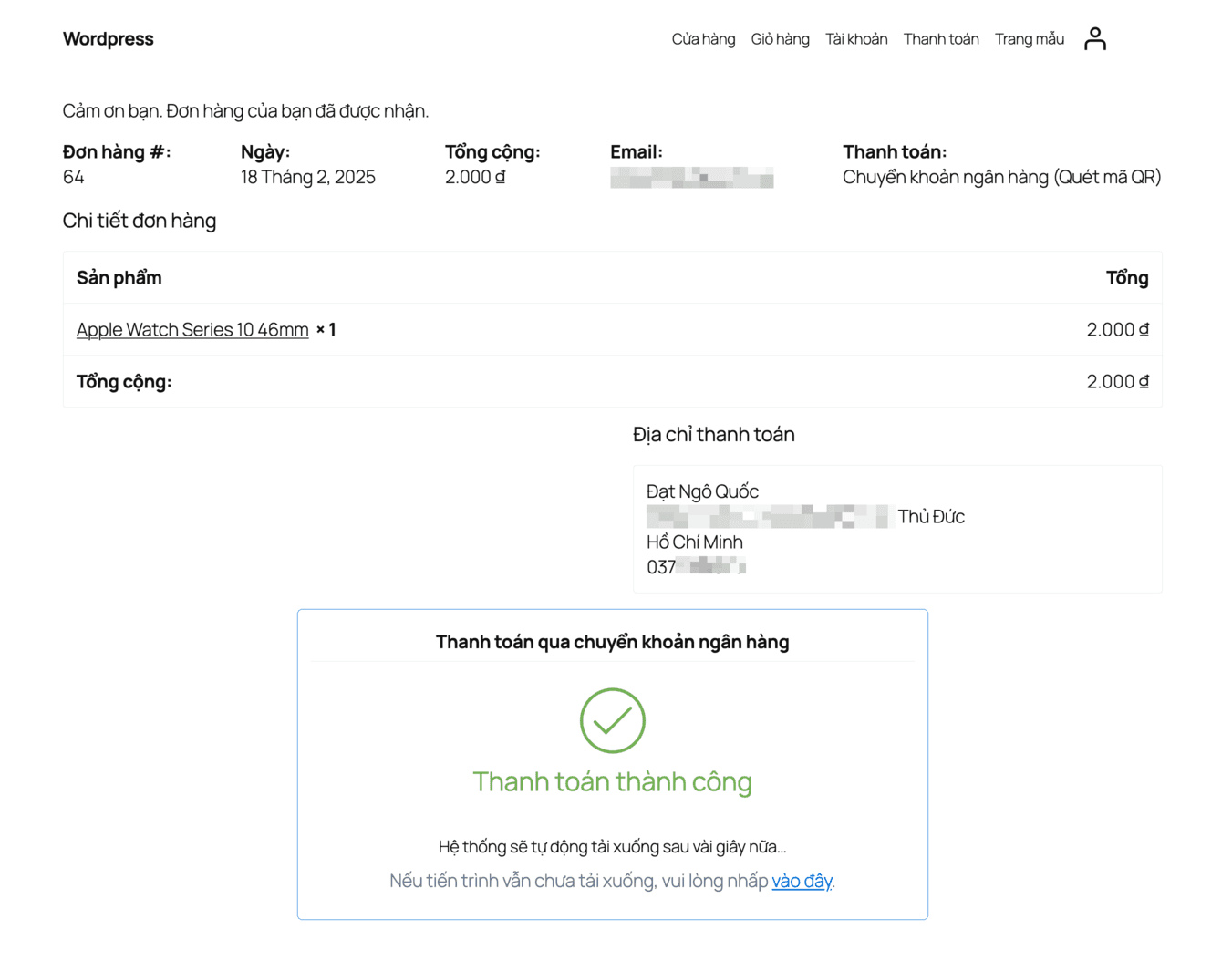
Step 3: Success notification
"Payment successful" appears on the storefront within seconds of the shopper completing the transfer.
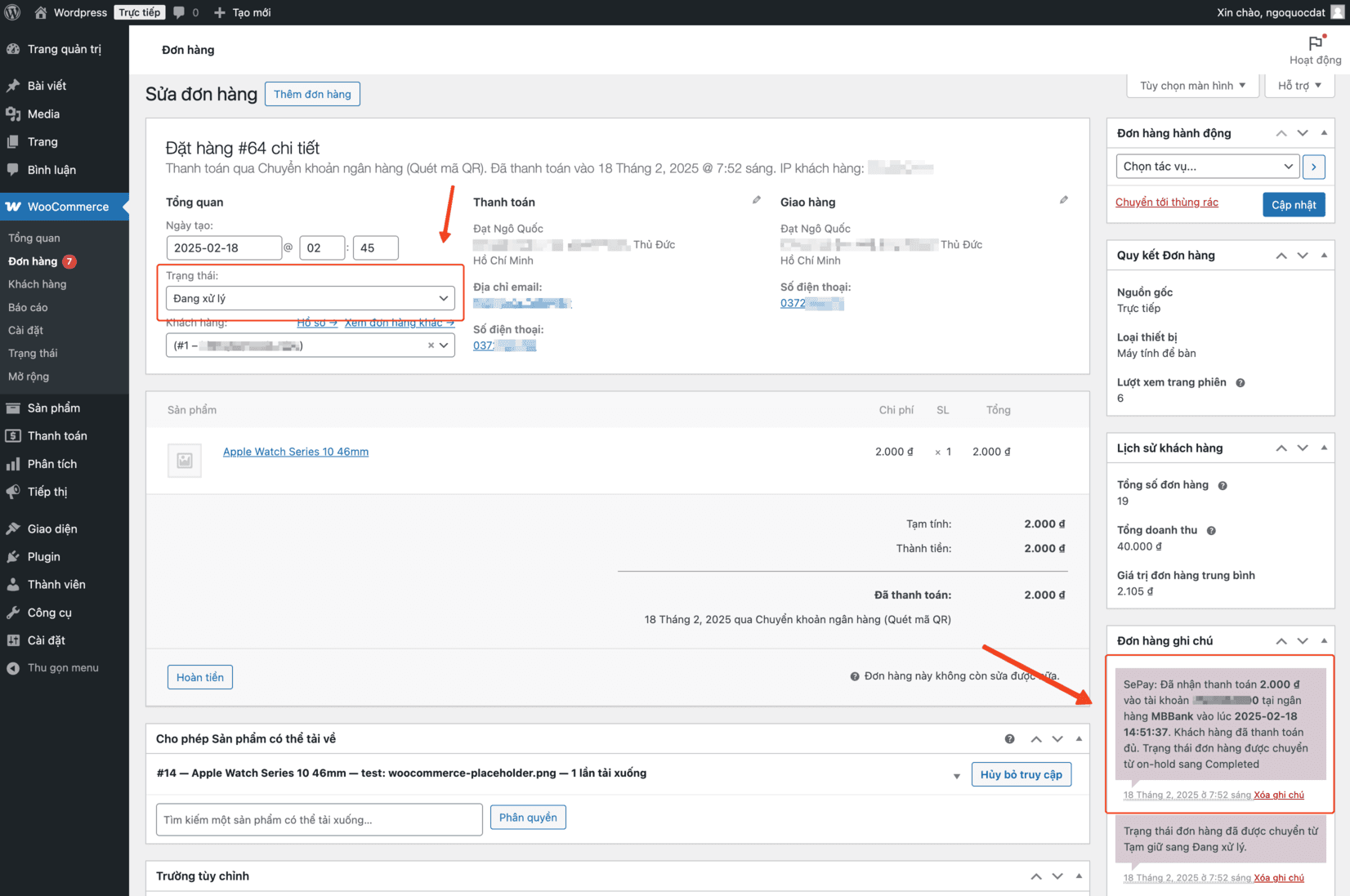
2. The WooCommerce order admin
The order is reconciled automatically and moves from On-Hold to Processing when the shopper has paid the full amount.
Integration walkthrough
Step 1: Install the SePay Gateway plugin on WordPress
To install the SePay Gateway plugin on your WordPress site:
Go to WP Admin → Plugins → Add New, search for sepay, click Install Now then Activate.
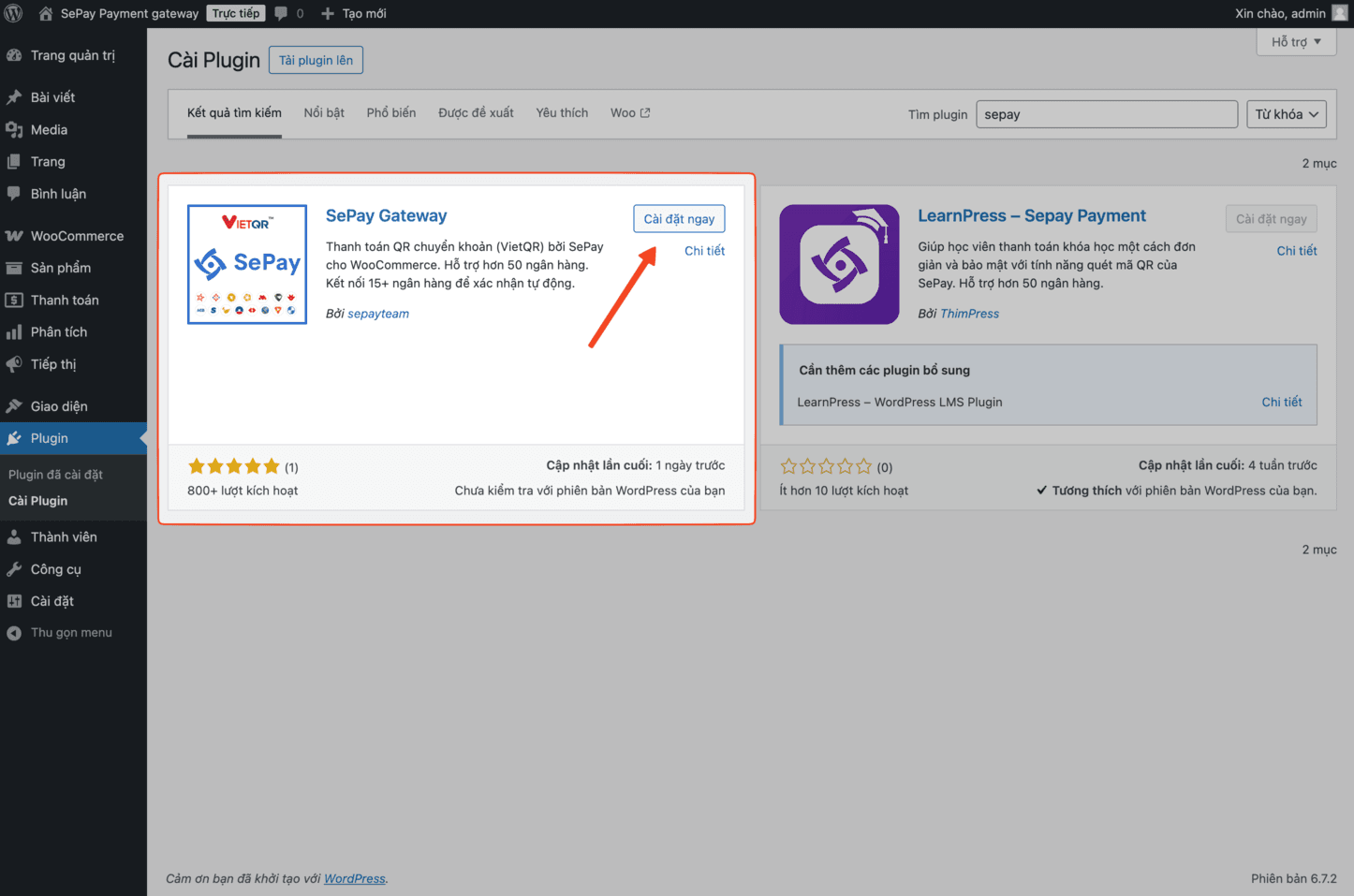
After installation you are redirected to the SePay Gateway plugin setup page.
Step 2: Connect your SePay account
On the SePay Gateway setup screen, click Connect account to start.
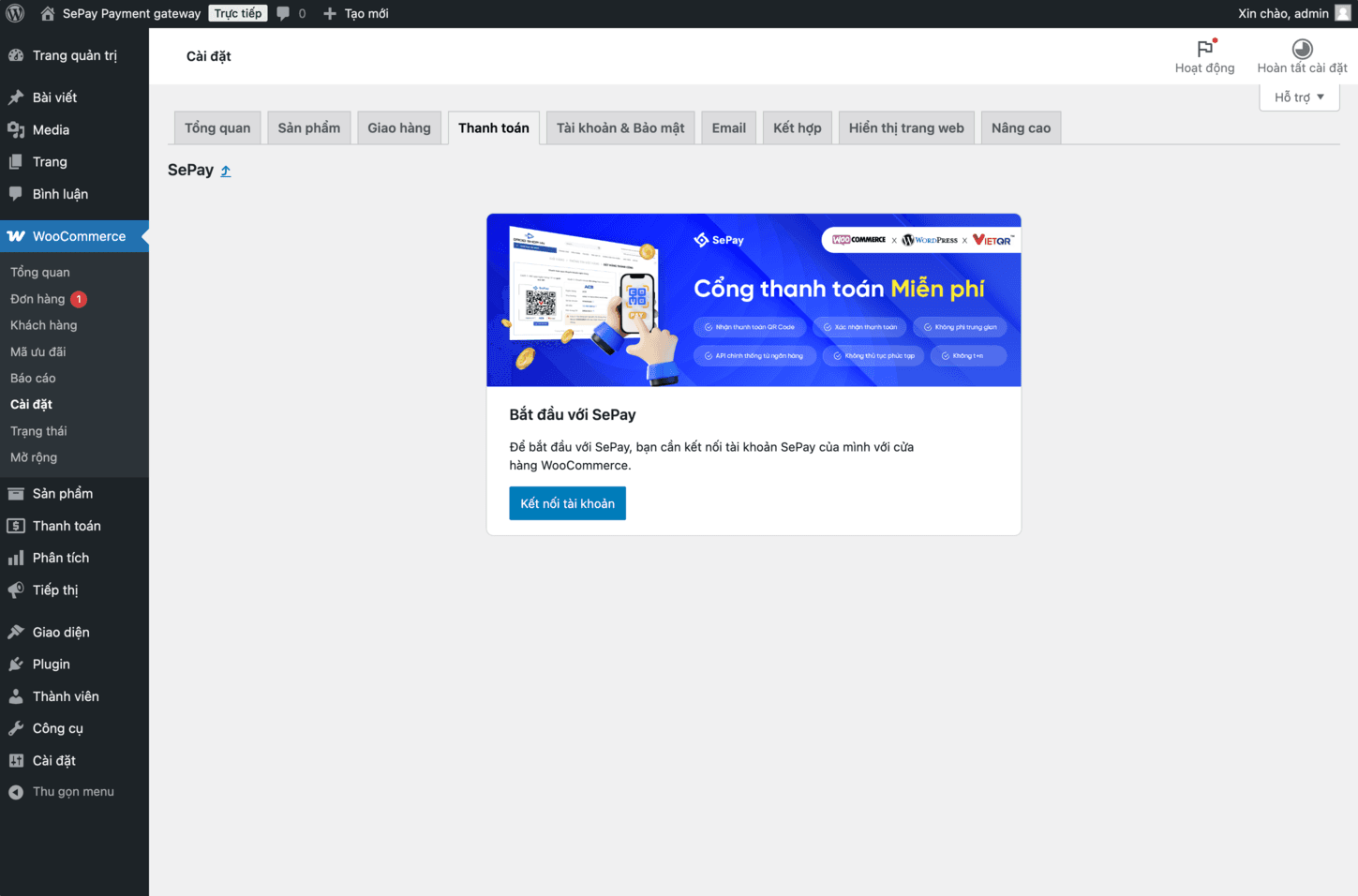
You are redirected to the WooCommerce authorization page that asks for access to your SePay account — sign in to my.sepay.vn if you are not signed in already.
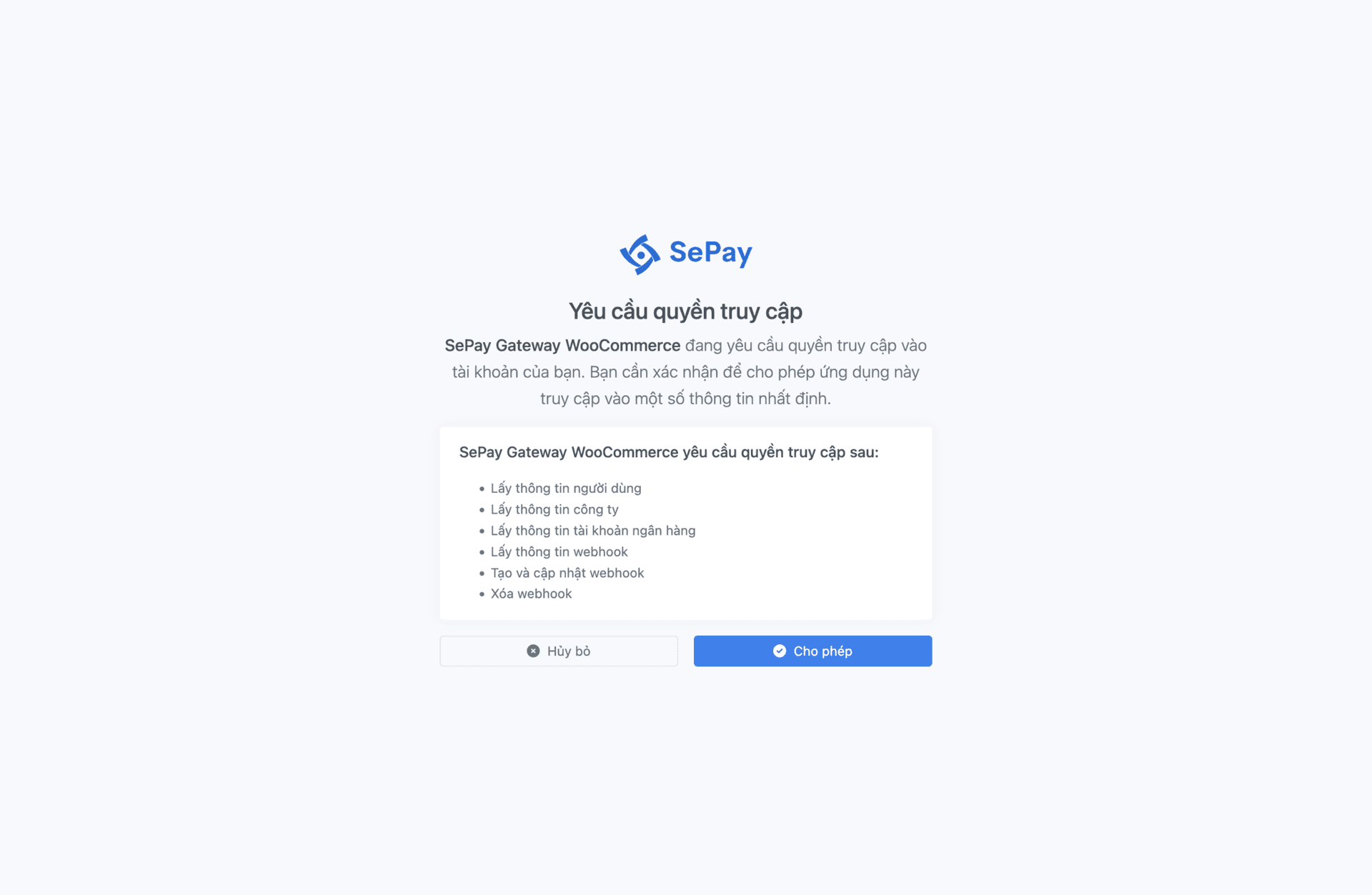
Click Allow to continue and pick a bank account.
Step 3: Configure the bank account
Pick the bank account you want shown on the checkout — shoppers transfer money to this account, and SePay verifies the payment against it.
If you have not added a bank yet, go to Connect bank on SePay to add a new one.
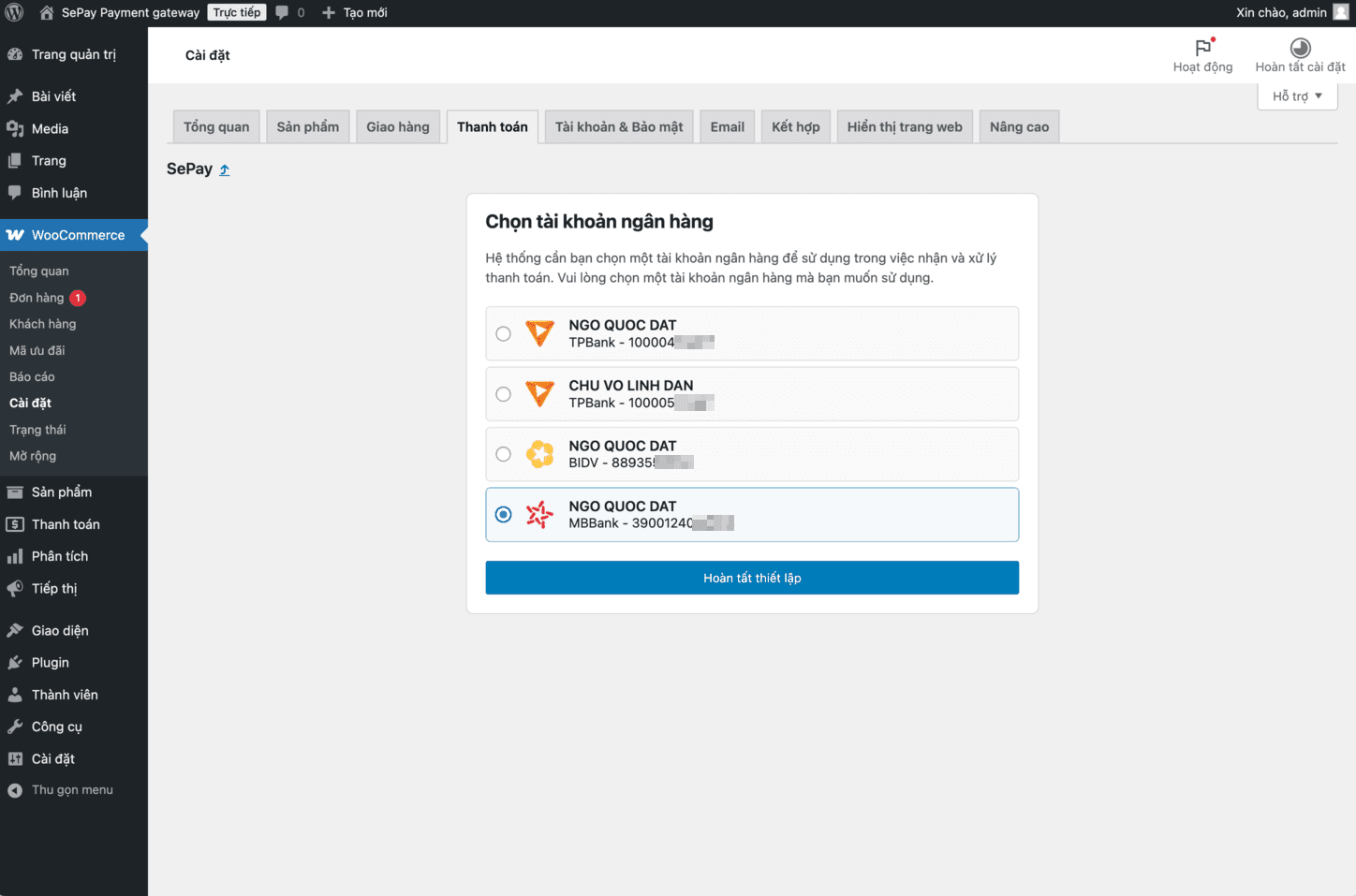
Pick the bank account you want to integrate and click Finish setup.
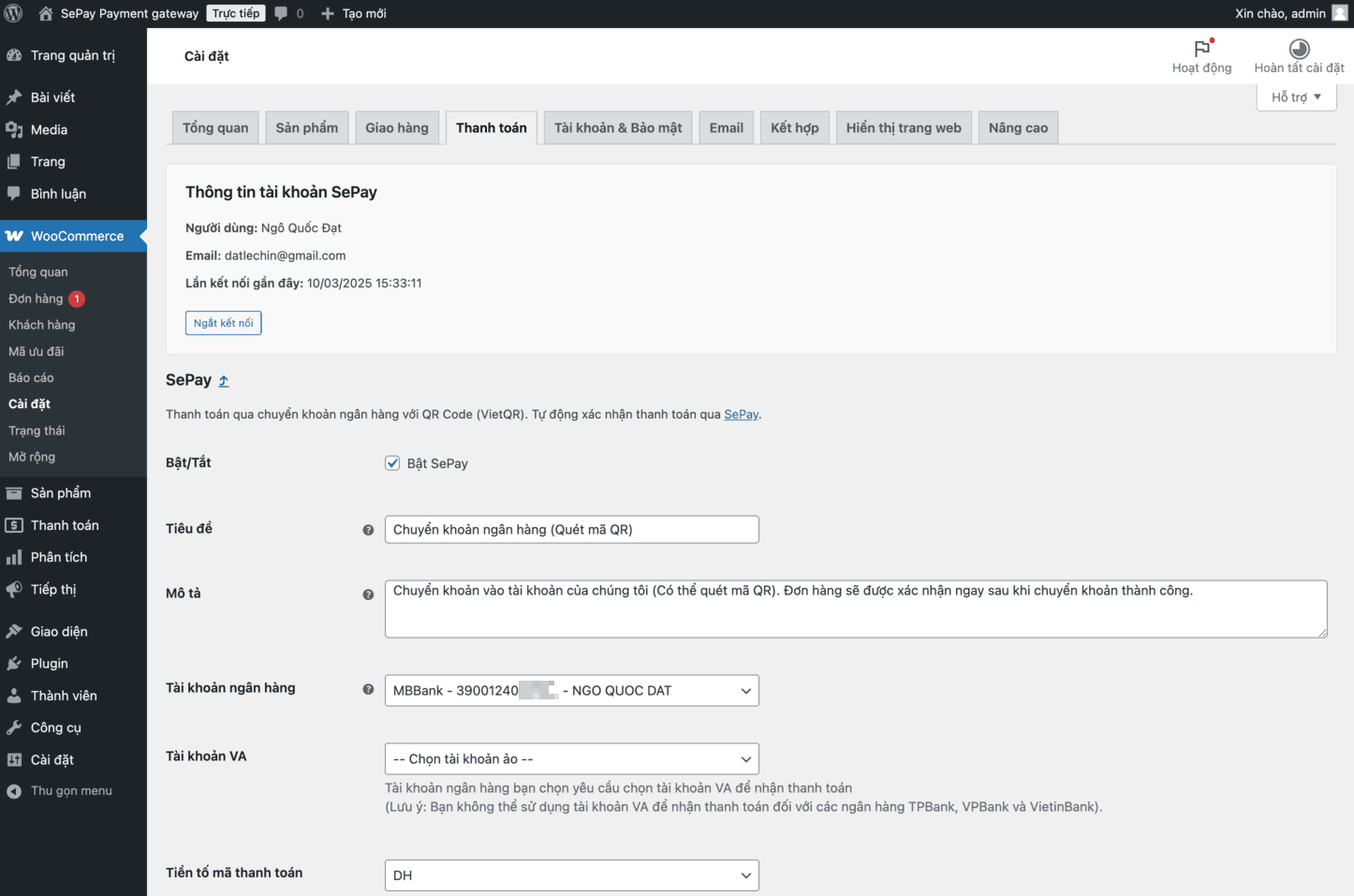
Once setup completes, SePay automatically creates a Webhook integration tied to the bank account you picked, so SePay can notify your WordPress site whenever money lands in that account.
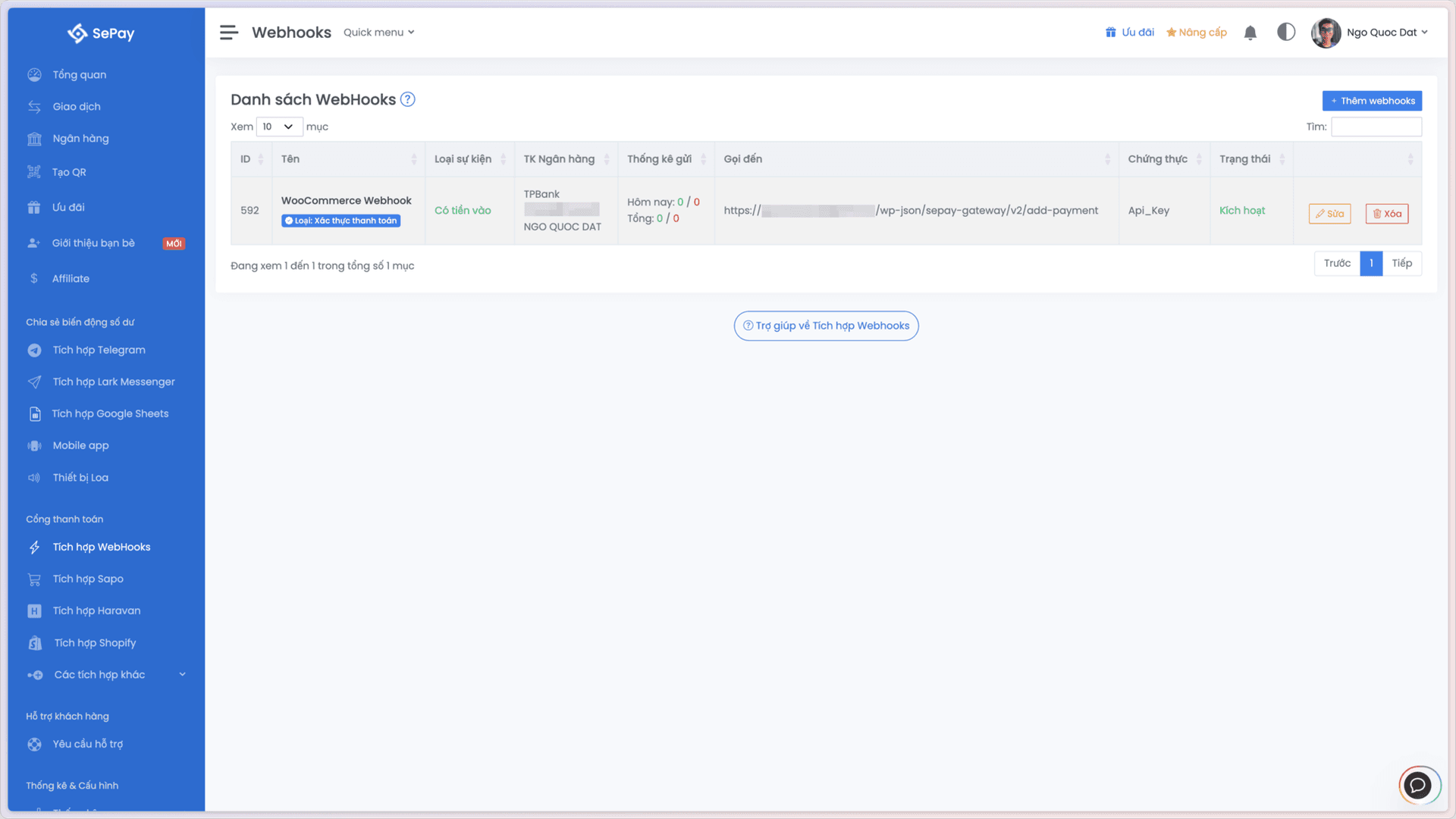
That's it — the SePay × WooCommerce integration is wired up.
SePay Gateway settings
This section walks through every setting in the plugin admin UI.
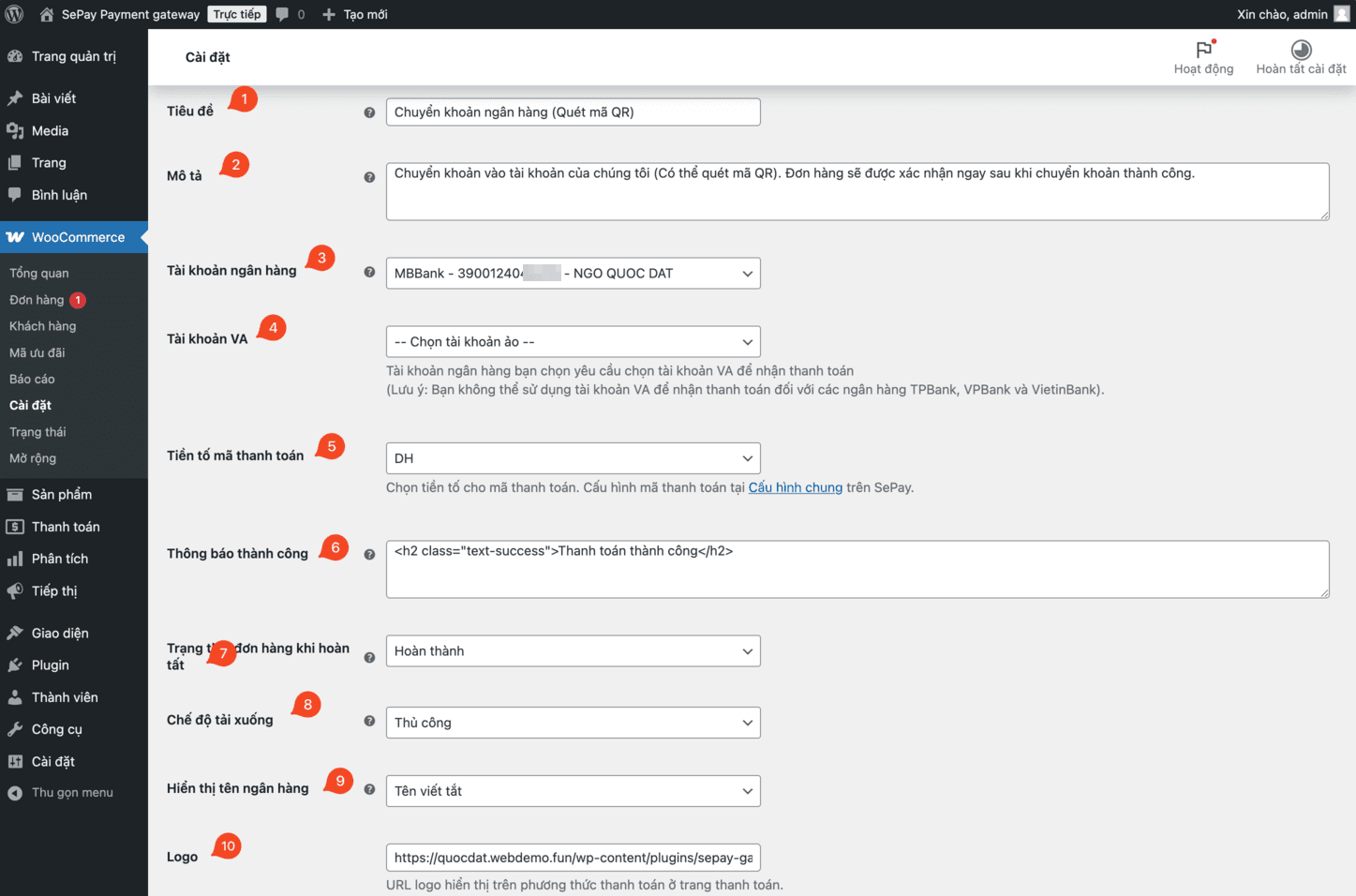
1. Enable / Disable
Toggle the SePay payment method on or off.

2. Title
Display name of the payment method.

3. Description
Description shown to the shopper.

4. Bank account
The bank account shown on the checkout — shoppers transfer money to this account, and SePay verifies the payment against it.

5. VA account
For banks that only verify payments via VA number (BIDV, OCB, MSB, KienLongBank) you must pick a VA account that matches the bank account selected above.

6. Payment code prefix
A 2–5 character prefix prepended to the payment code. SePay uses this prefix to distinguish and verify your orders.

Example: With prefix DH, the payment code on the QR transfer reads DH1234, where:
DHis the prefix you chose.1234is the WooCommerce order ID.
Go to Company configuration → General configuration to manage your payment code structure.
7. Success message
Content displayed on the storefront after a successful payment.

Plain text, HTML and JavaScript are all supported. If you want to fire JavaScript events into trackers like Google Analytics, drop the script in here.
8. Order status on completion
The WooCommerce order status applied once the shopper has paid in full. If you do not set it, WooCommerce decides.
You can also pin it to:
- Processing
- Completed

9. Download mode
For digital-product orders, control how the shopper gets their files:
- Manual
- Automatic

10. Bank name display
The bank name format on the checkout. SePay supports three options:
- Full name
- Short name
- Full name with short name

11. Logo
URL of the logo shown next to the payment method.

Verify the configuration
To confirm everything is wired up correctly:
- Place a real order on your store with the smallest possible amount (e.g.
2000). - At checkout, pick Bank transfer (QR scan).
- If a QR code renders, the configuration is wired up correctly.
- Complete the transfer. If the storefront shows "Payment successful", the configuration is correct. The matching order should also move to Processing in the WooCommerce order admin.
Upgrading from v1.0.x to v1.1.0
Version 1.1.0 introduces direct SePay account linking, syncing the bank account, payment code prefix and webhook automatically. Here is the safe upgrade path.
Step 1: Back up
Before upgrading, back up:
- Your WordPress site (files + database).
- The current SePay Gateway plugin settings (write them down).
Step 2: Install the new version
Option 1: Auto-update
If you installed the plugin from WordPress.org, go to Plugins → Installed Plugins and check for updates to "SePay Gateway".
Option 2: Manual install
- Download v1.1.0 from WordPress.org.
- Go to Plugins → Installed Plugins.
- Deactivate the current "SePay Gateway".
- Go to Plugins → Add New → Upload plugin and pick the zip file you downloaded.
- When WordPress asks about overwriting, choose Replace current with uploaded.
- Activate the plugin once installation is complete.
Step 3: Connect your SePay account
- After activation, go to WooCommerce → Settings → Payments → SePay.
- You will see a new Connect account button — click it.
- Sign in to your SePay account if asked.
- Grant WooCommerce access to your SePay account.
- Pick the bank account you want to use and finish setup.
Step 4: Verify the configuration
Once linked, double-check that these synced correctly:
- Bank account selection.
- Payment code prefix.
- Webhook auto-created on SePay.
Step 5: Smoke test
Place a small test order and complete the transfer to make sure:
- The QR code renders correctly.
- The order status moves correctly after payment.
Troubleshooting
1. Cannot connect the SePay account
- Check internet connectivity.
- Make sure the SePay account is still active.
- Try signing out and back in to SePay.
2. Webhook not firing
- Check the Webhooks tab on SePay.
- Make sure the callback URL is reachable from the internet.
3. Roll back to the previous version
If you need to revert, uninstall the current plugin and reinstall v1.0.x.
Change log
Track every WooCommerce plugin release on the Changelog — WooCommerce tab.