Integrating SePay with HostBill confirms payments automatically as soon as the customer transfers money — invoices flip to paid without manual review.
If you run HostBill, this guide walks through wiring SePay in so payment confirmation happens automatically over bank transfer.
What you get after the integration
1. The shopper's experience
- Pick a bank to pay with.
- See a QR code to scan and pay.
- Auto-notification once the payment lands.
2. The HostBill admin
- Configure receiving bank accounts.
- Show banks conditional on invoice amount.
- Auto-flip invoices to paid once a transaction lands.
- Many other tunable options.
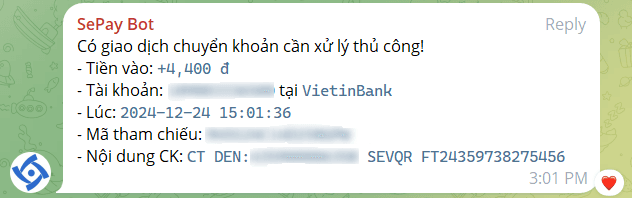
- Optional Telegram notification on SePay — only fires when SePay can't add the transaction to HostBill (so the accountant sees what needs manual handling).
1. Install and configure the SePay module
1.1. Install the module
Step 1: Download and unzip the module
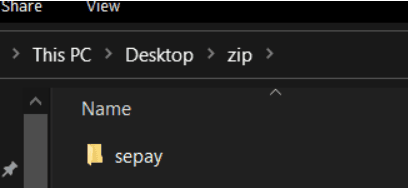
Download the .zip and unzip — you should see a sepay folder containing class.sepay.php.
Step 2: Upload the module to the right path
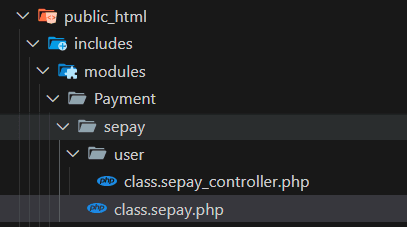
Open the HostBill source and go to public_html/includes/modules/Payment/. Copy the sepay folder there.
Step 3: Sign in to HostBill admin
Open your browser and log in to the HostBill admin panel.
Step 4: Open Payment Modules
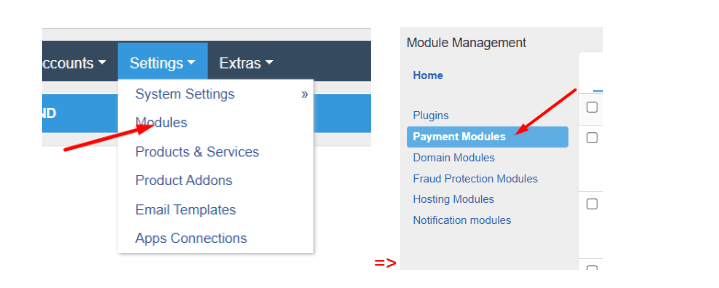
In the menu pick Settings → Modules → Payment Modules.
Step 5: Verify install
The screen has two tabs — Active and Inactive. A freshly installed module shows up in Inactive. Scroll to find SePay.
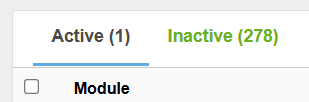

If it's there, the install worked.
1.2. Configure the module
1.2.1. Activate the module
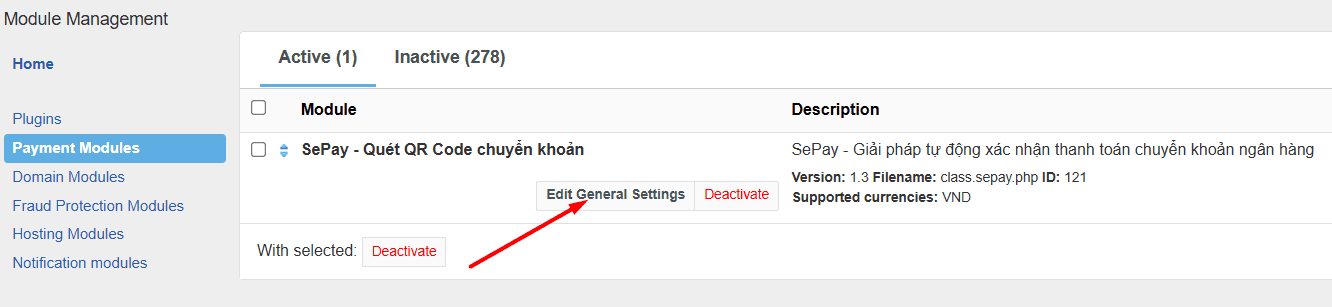
Open Payment Modules, find SePay in Inactive, click Activate. The module then moves to Active.

1.2.2. Configure payments
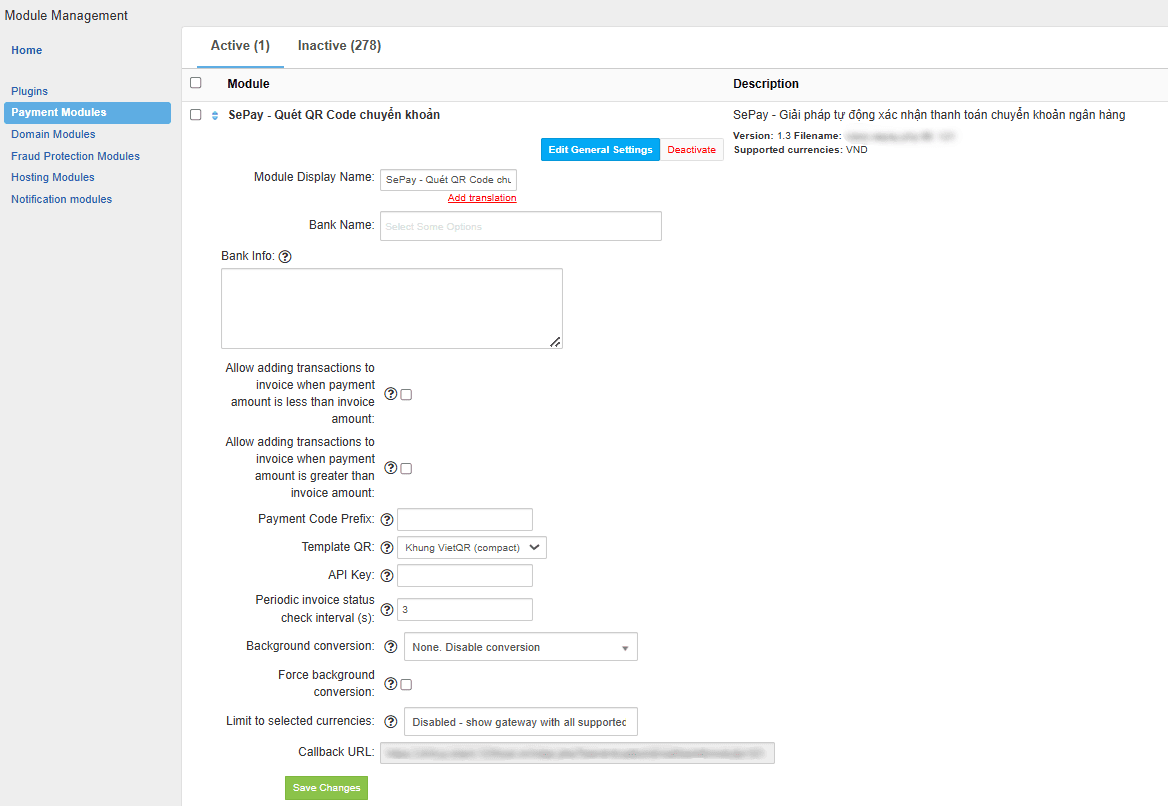
Go to Payment Modules → pick the activated SePay module → click Edit General Settings.
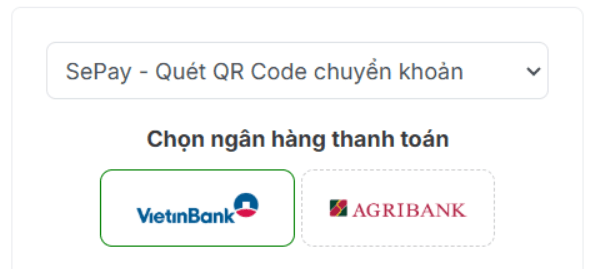
1.2.2.1. Module Display Name
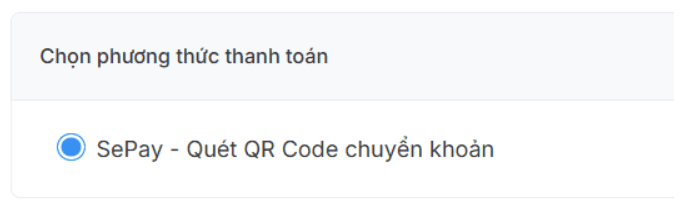
The display name shown on the checkout — customise to your liking.

Shown in the cart at order time:
And on the checkout page:
1.2.2.2. Bank Name
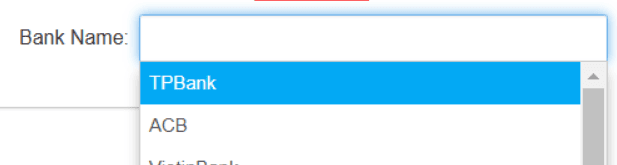
A list of banks SePay supports. You can pick one or several — but each chosen bank must be linked on SePay before it works.
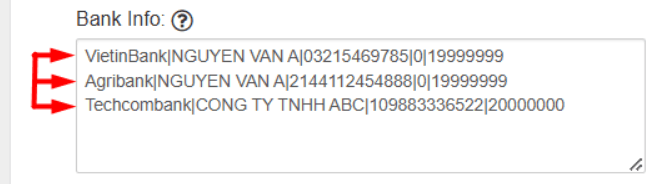
1.2.2.3. Bank Info
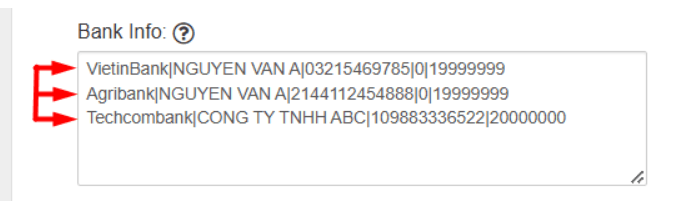
Fill in the bank-account details so customers can transfer. The format:
Bank_name|Account_holder|Account_number|Min_invoice_amount(optional)|Max_invoice_amount(optional)
Fields are pipe-separated, one bank per line.
Bank_name — must match what you picked in Bank Name (1.2.2.2).

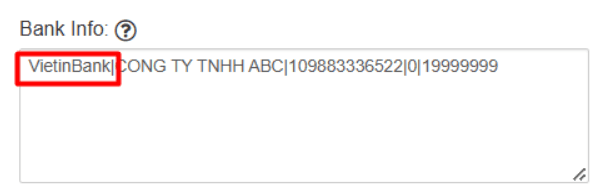
Account_holder — Personal/business name registered on the account.
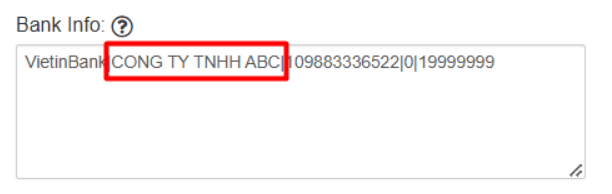
Account_number — The number issued by the bank when you opened the account.
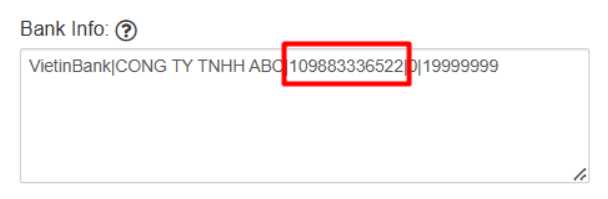
For these four banks, use the VA number instead of the regular account number.
Min_invoice_amount (optional) — minimum invoice amount for this bank to show on checkout.
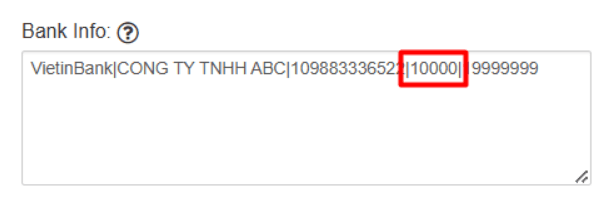
Max_invoice_amount (optional) — maximum invoice amount for this bank to show.
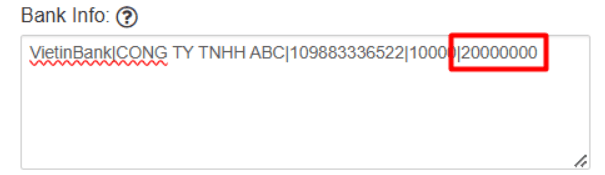
When picking multiple banks, put each bank on its own line.
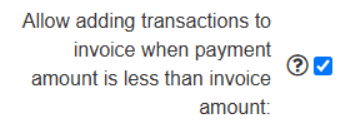
1.2.2.4. Allow adding transactions when payment < invoice
Allow recording a transaction even when the payment is less than the invoice total.
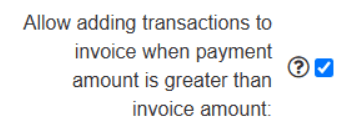
1.2.2.5. Allow adding transactions when payment > invoice
Allow recording a transaction even when the payment is greater than the invoice total.
1.2.2.6. Payment Code Prefix
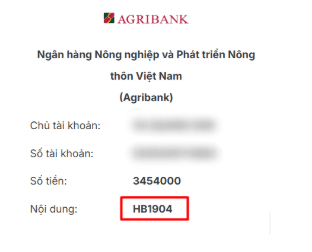
Required. A prefix prepended to the payment-code transfer description. Must match the prefix configured on SePay.

Example with prefix HB:

The checkout shows it accordingly:
1.2.2.7. Template QR
Three options:
- VietQR compact frame
- QR with V logo
- QR only (qronly)




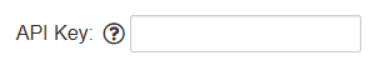
1.2.2.8. API Key
Required. A random string — must match the webhook authentication on SePay.
1.2.2.9. Callback URL
The URL SePay calls after a successful transaction so HostBill can update the invoice status. Copy this into the SePay webhook configuration.

1.2.2.10. Periodic invoice status check interval (s)
How often the system polls invoice status — between 1 and 10 seconds, default 3. Lower for faster responses, higher to reduce load.

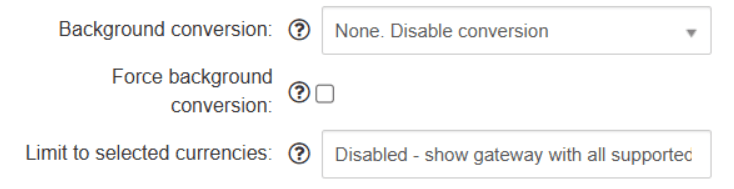
1.2.2.11. Background conversion / Force background conversion / Limit to selected currencies
HostBill defaults around currency. SePay only supports VND, so you can ignore these fields.
1.2.3. Create a webhook on SePay
So SePay can notify HostBill of incoming transactions.
If you don't have one yet, register here. Then add a bank account.
1.2.3.1. Create the webhook
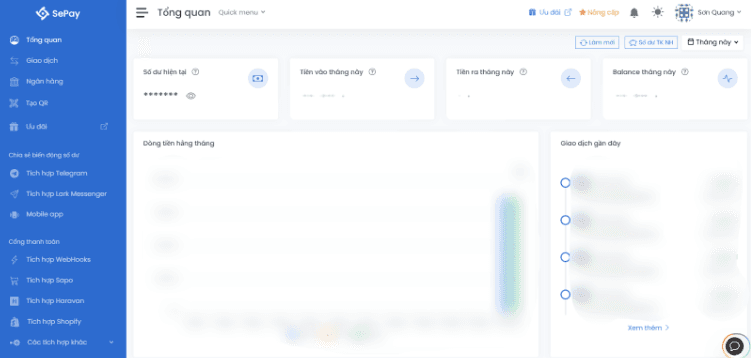
Step 1: Sign in to My SePay
Visit https://my.sepay.vn/ and sign in.
Step 2: Open Webhooks
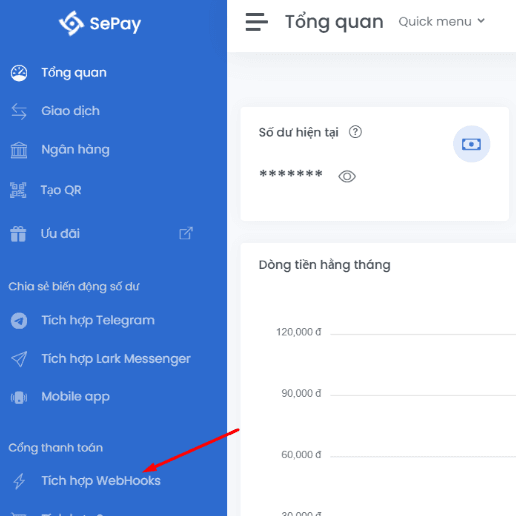
In the left menu, pick Tích hợp Webhooks (Webhooks).
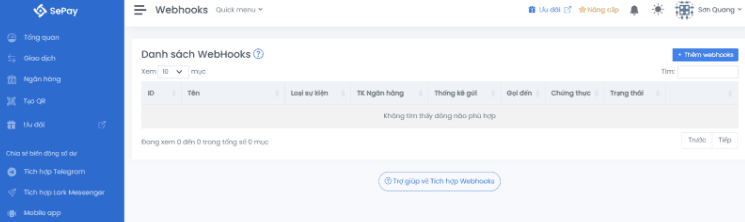
Step 3: Add a new webhook
Click Thêm webhooks (Add webhook) — a modal opens.

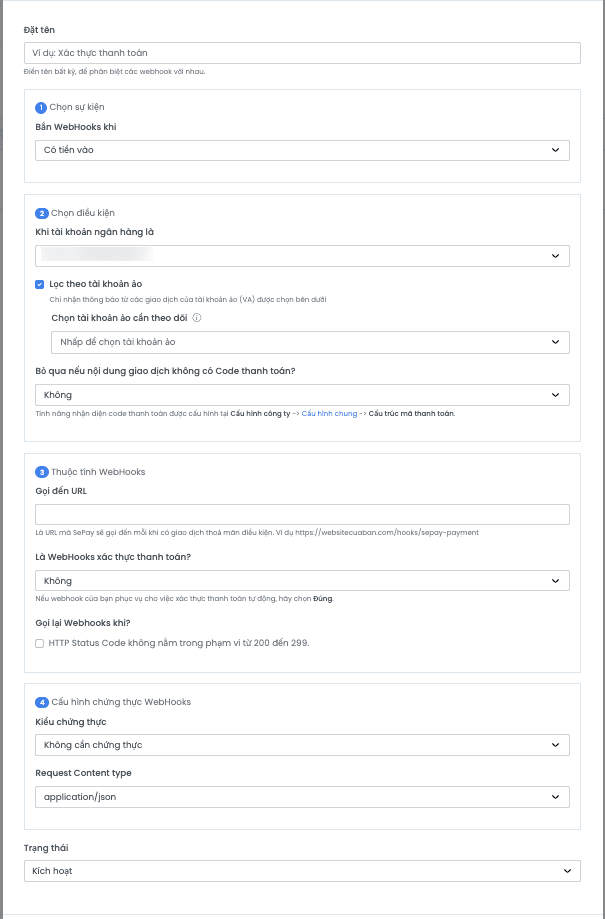
If HostBill has 3 banks configured, create 3 webhooks (one per bank).
Step 4: Fill in the form
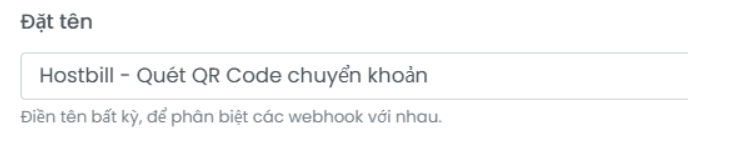
Name — anything memorable. e.g. HostBill - QR transfer.
Event — pick Có tiền vào (Money in).

Conditions — pick the bank account configured in Bank Name (1.2.2.2). The bank must be linked to SePay first.
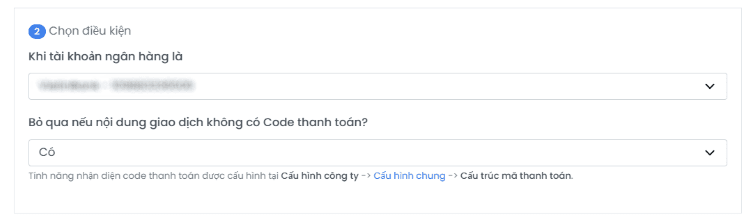
Skip transactions without a payment code? — pick Yes if you only want filtered-by-prefix transactions (1.2.3.2). Or No to receive all and combine with a Telegram alert on failure.
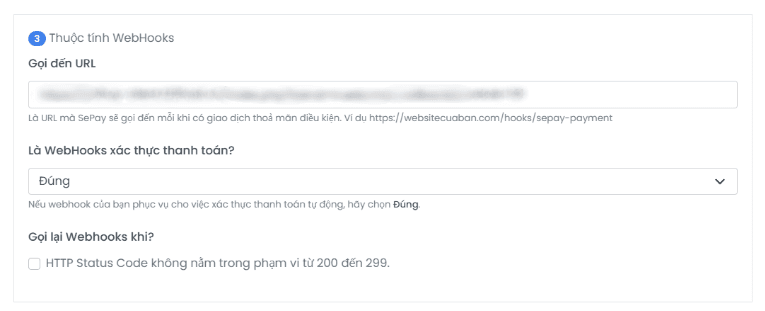
Webhook attributes:
- URL — copy from HostBill module's Callback URL (1.2.2.9).
- Payment-verification webhook? — pick Yes.
- Retry? — SePay retries on HTTP responses outside [200, 299]. You can skip and rely on Telegram alerts instead.
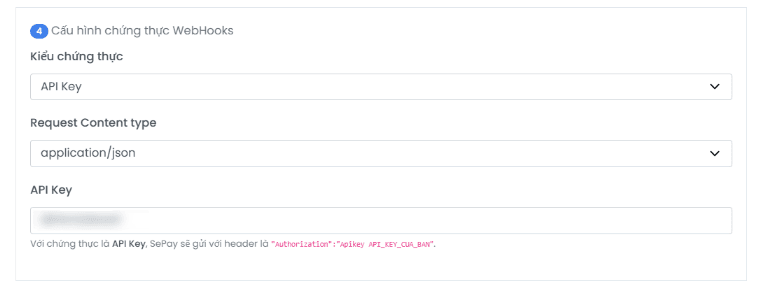
Authentication — pick API KEY, paste the key from HostBill module (1.2.2.8). Request Content-Type = application/json.
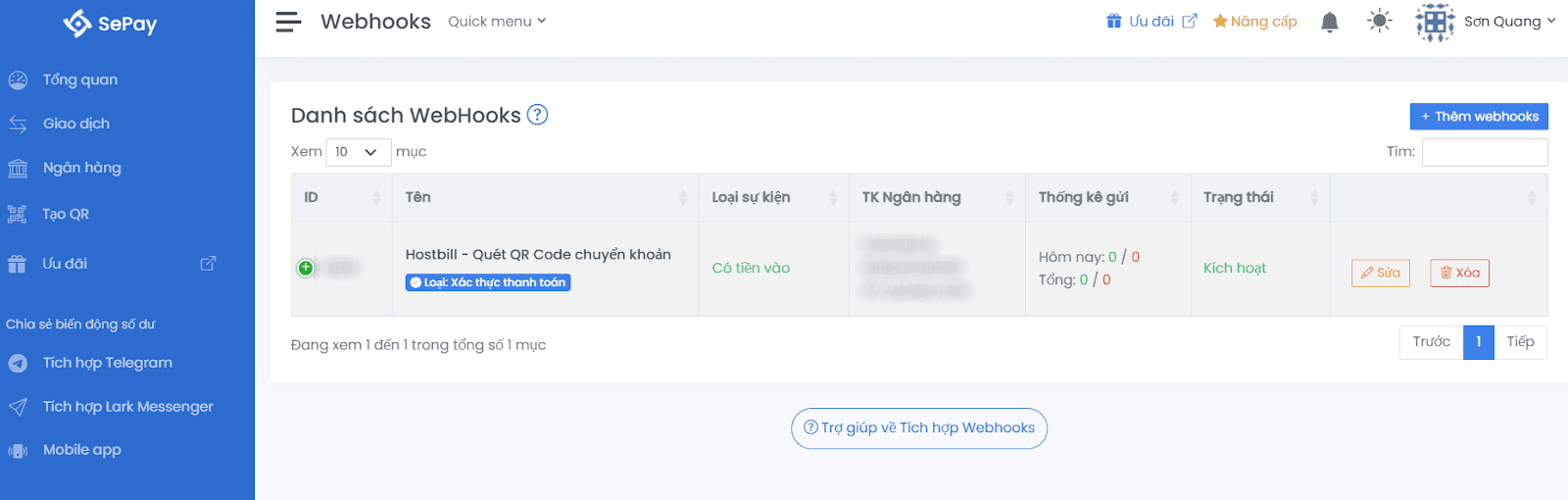
Status — pick Active.
Step 5: Save
Click Add in the modal.

1.2.3.2. Payment-code structure
Configure the prefix on SePay (matching the one in HostBill at 1.2.2.6) so webhooks fire correctly.
Step 1: Open General Configuration
In the left menu of My SePay, scroll to Statistics & Configuration → Company Configuration → General Configuration.
Step 2: Add a new code template
In Payment-code structure, click Add new template.

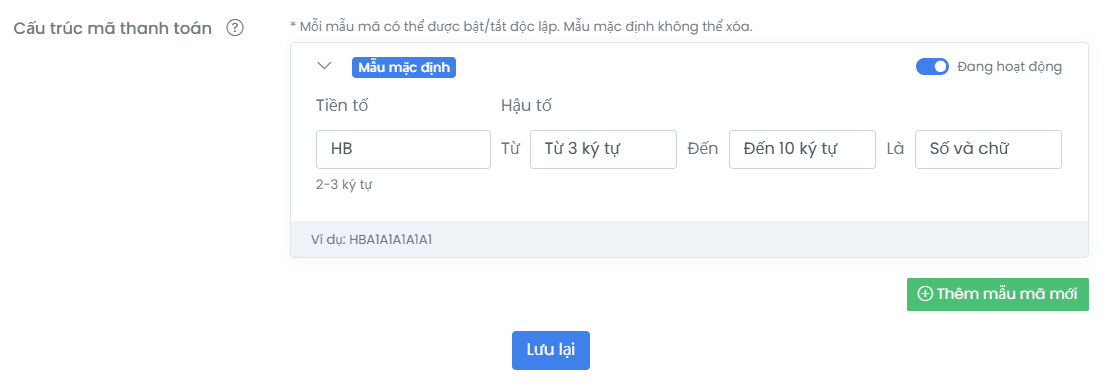
Step 3: Enter the prefix and save
Type the prefix you set in 1.2.2.6 (e.g. HB) into Prefix, click Update.
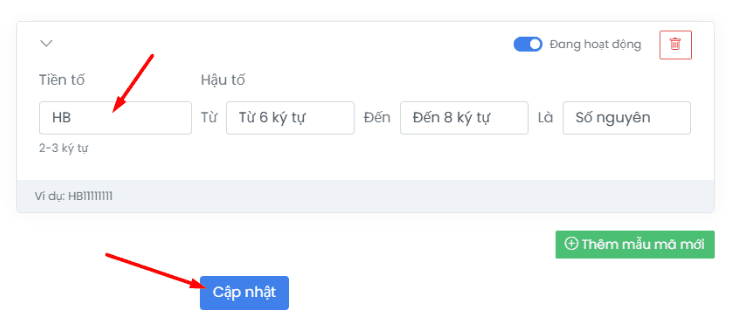
1.3. Smoke-test the integration
1.3.1. Place a test order
Step 1: Place a small order
Place a test order on HostBill with the cheapest product — e.g. NVMe VPS - P1 — and click Continue.
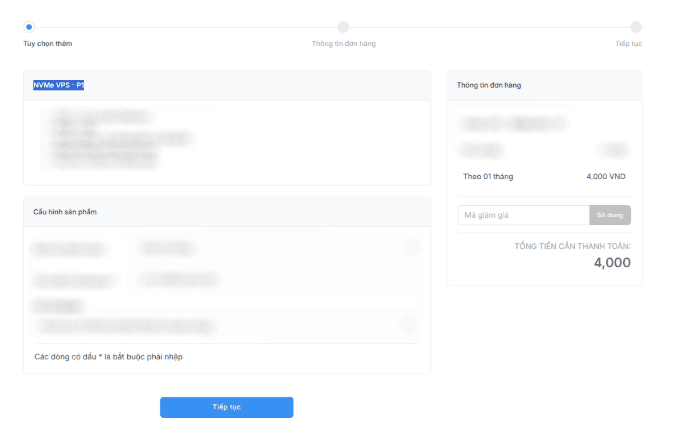
Step 2: Pick the SePay payment method
Pick the payment method using the display name from 1.2.2.1.
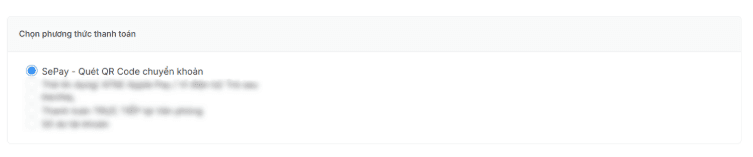
Step 3: Scan QR and transfer
The checkout page renders the QR + transfer details (the layout depends on your HostBill template).
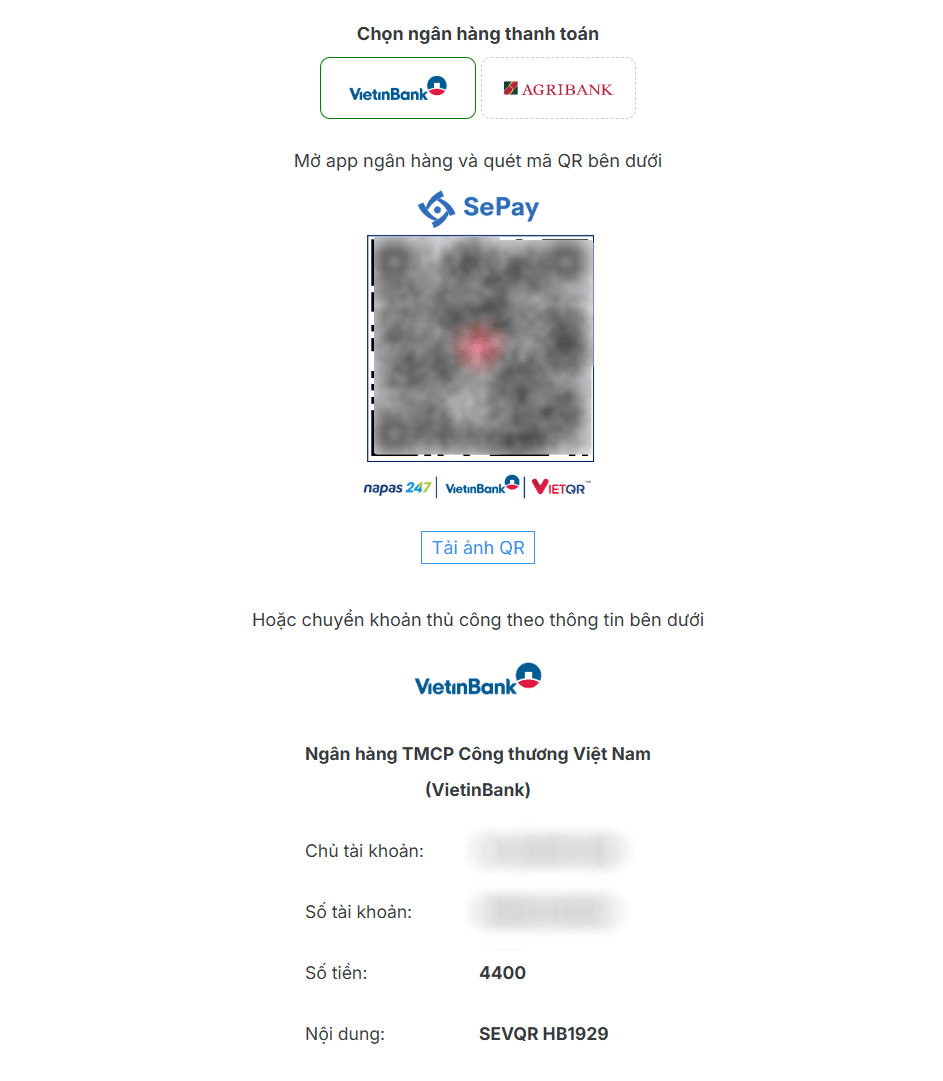
The customer scans the QR or transfers manually. Once the transfer lands, SePay processes it and calls back HostBill.
1.3.2. Verify the transaction and webhook status
Step 1: Open Transactions on My SePay
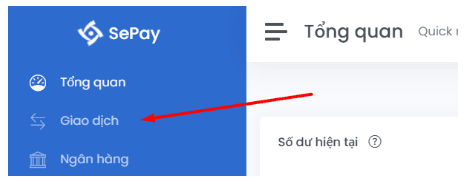
In the left menu pick Giao dịch (Transactions) — you'll land on the transactions list.
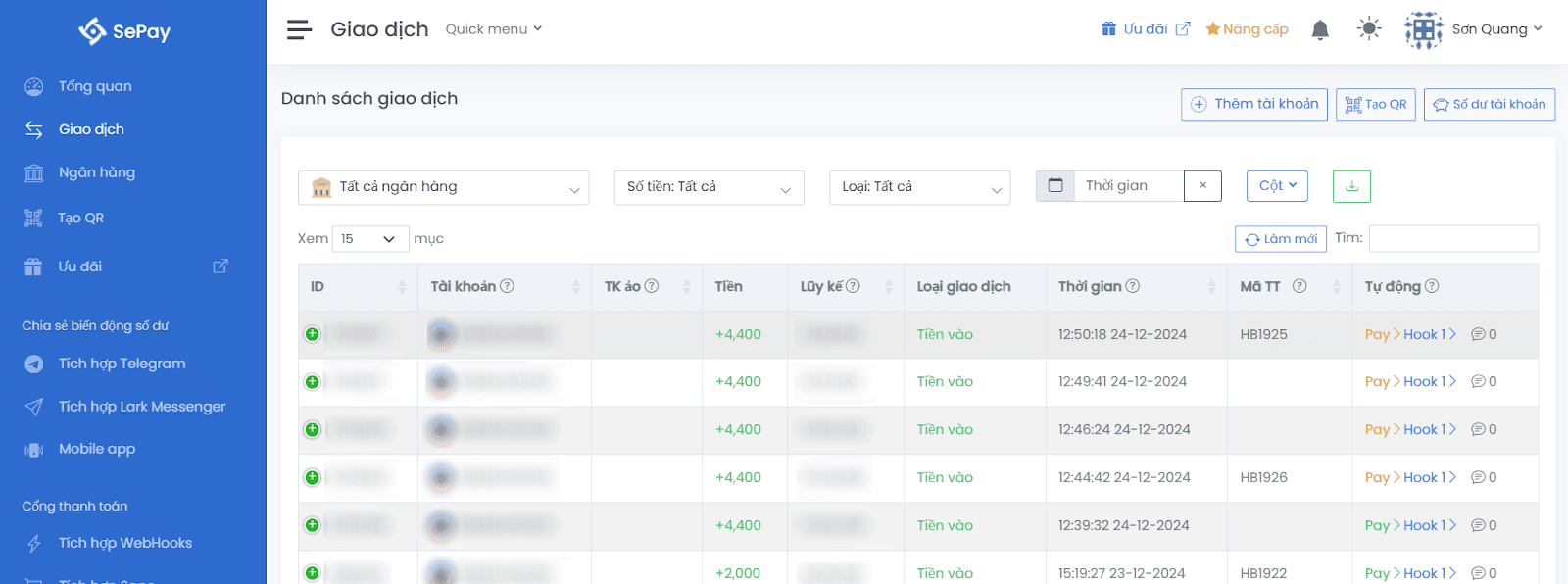
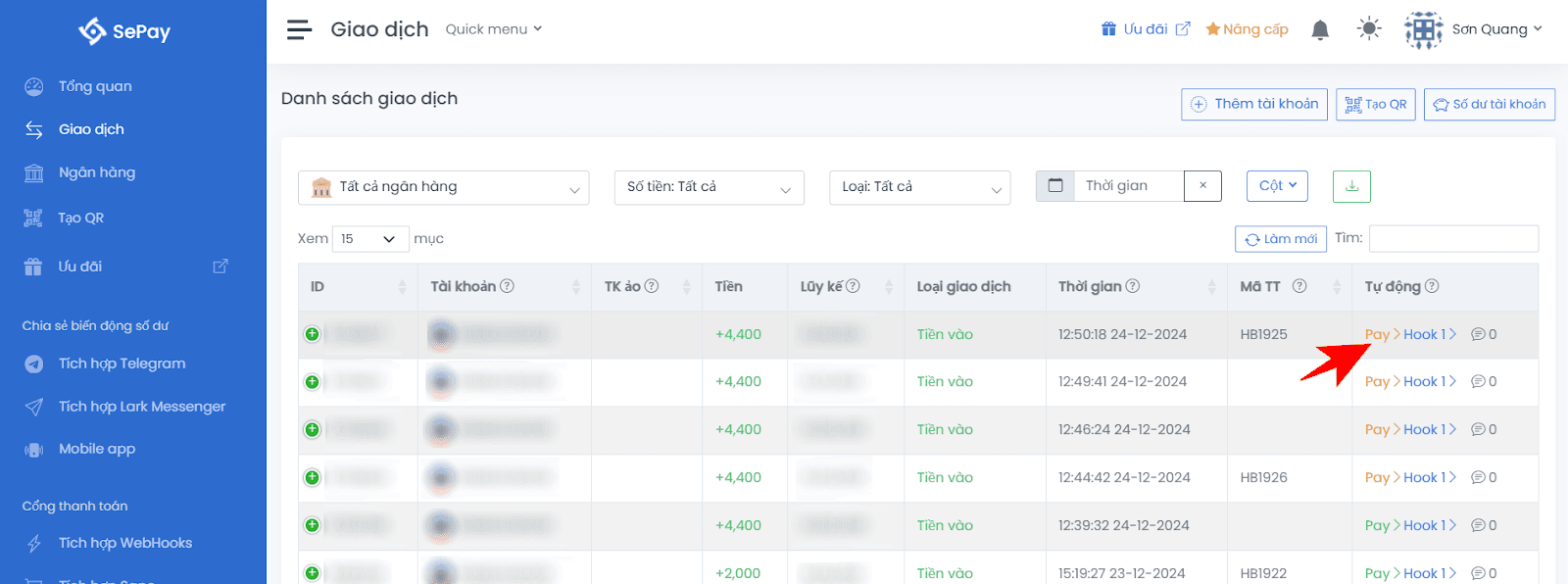
Step 2: Inspect the Auto column
The webhook status shows in the Auto column. Success = SePay delivered the transaction to HostBill, which records it on the invoice and flips the status.
2. Telegram alerts for manual handling
When SePay can't add a transaction to HostBill (no auto-add), you can configure a Telegram alert to your accounting team so they handle it manually.
Step 1: Open Telegram integration
In the left menu of My SePay pick Tích hợp Telegram (Telegram integration).
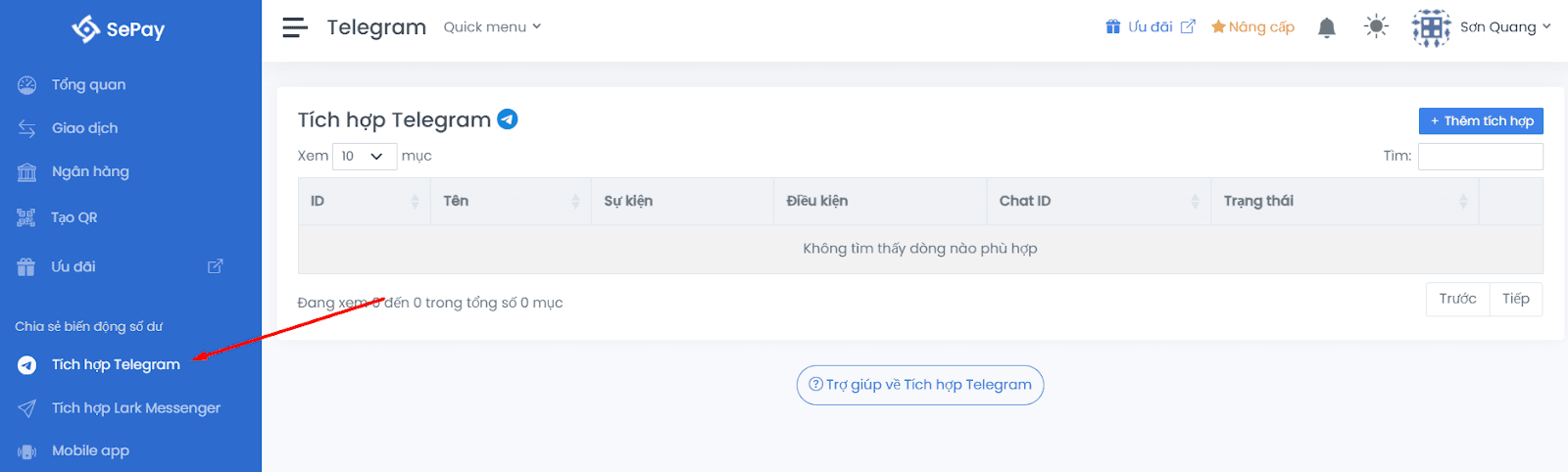
Step 2: Add a new integration
Click Add integration at the top right — modal opens.

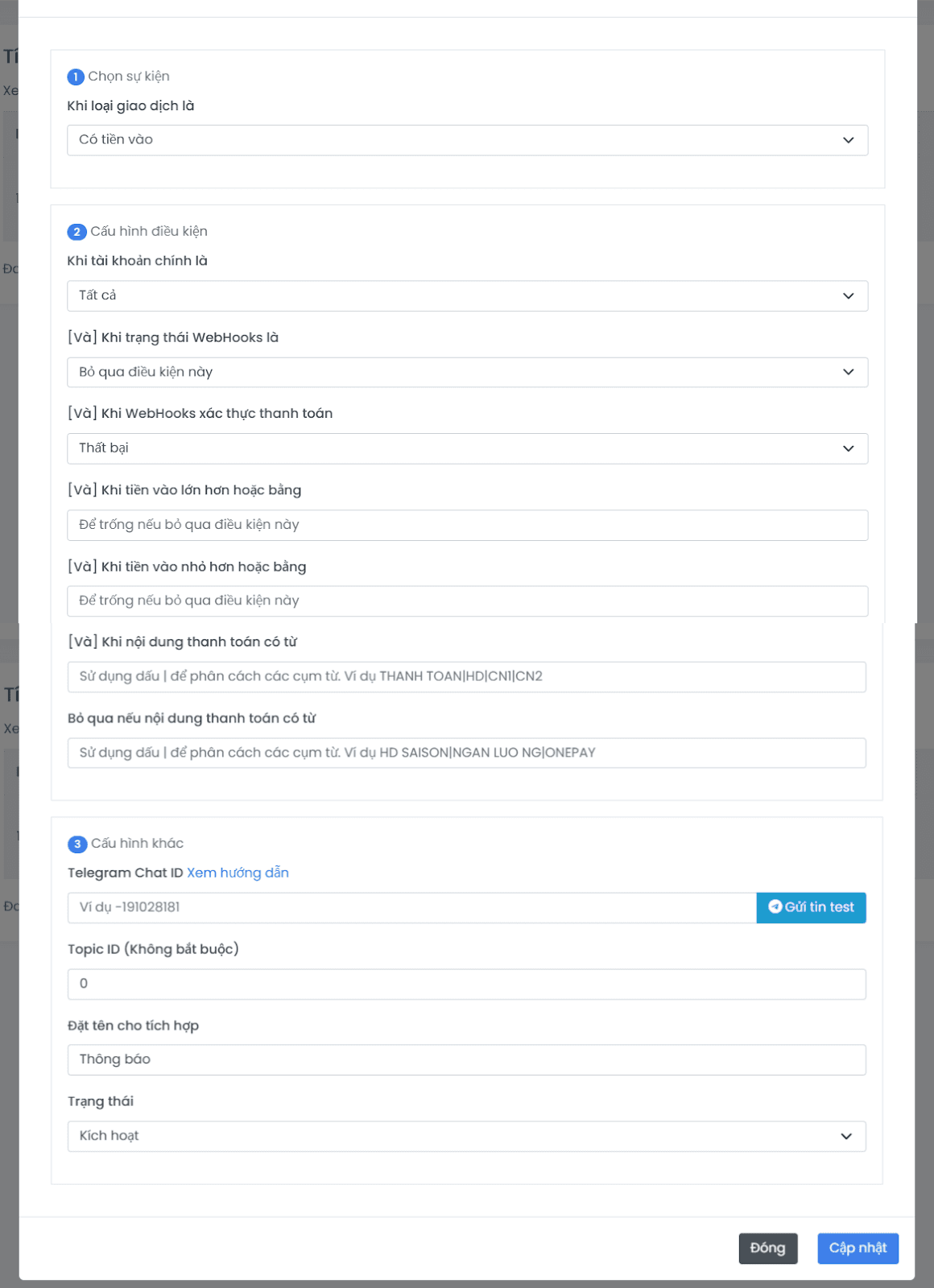
Step 3: Fill in the conditions
Event — pick Money in.

Conditions:
- Source bank account — pick the bank you set in Bank Name (1.2.2.2) or All.

- Webhook status — pick Skip this condition.

- Payment-verification webhook — pick Failed to alert when verification fails.

- Min/Max amount — leave blank to receive all.


- Content keywords / blocked keywords — leave blank.


Other config:
-
Telegram Chat ID — the group ID receiving alerts. To find it:
- Open the Telegram group's Info.
- Tap Add to add a member.
- Search for
autopay_telebot(SePay Bot). - The bot posts the Chat ID into the group — copy it.
- Click Send test message to verify.
See the detailed guide.
-
Topic ID — optional, for groups with topics enabled.
-
Integration name — anything you like.
-
Status — pick Active.
Step 4: Save the integration
Click Add to save.

Step 5: Customise the Telegram message
Edit the Telegram message template to match your needs.
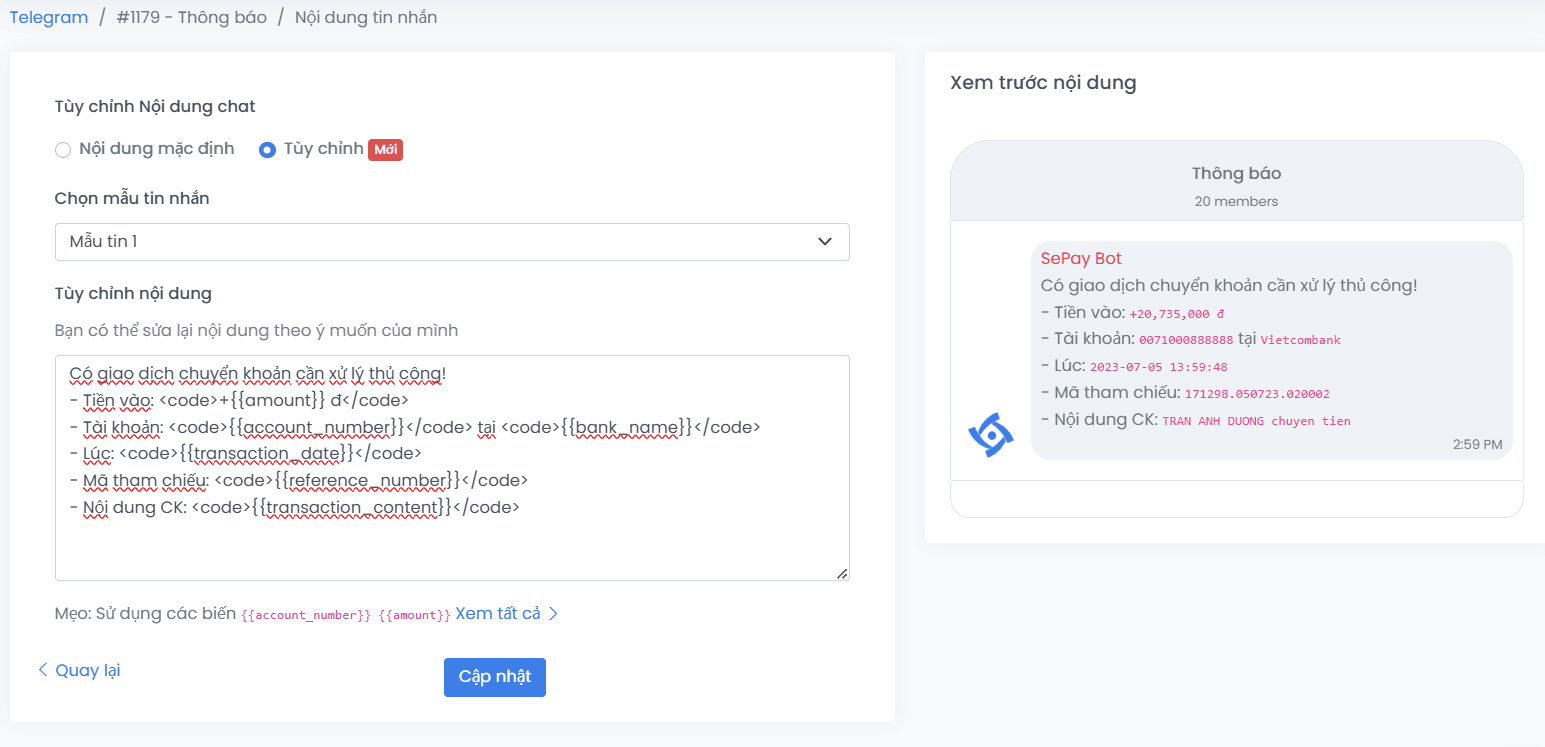
Then go back to 1.3 Smoke-test and try sending a payment with a deliberately-wrong description — the system should fire a Telegram alert.