Main Features
- Payment processing: Receive payment information from customers
- Transaction security: Encrypt and protect payment data
- Bank connection: Communicate with banks and card organizations
- Result notification: Send transaction information to your system
General Operation Flow
Getting Started with Bank Transfer QR Code Scanning
Step 1: Register an account
Visit https://my.sepay.vn/register and register a SePay account. Choose a suitable service package after registration.
If you already have an account, visit https://my.sepay.vn/pg/payment-methods to activate the Payment Gateway.
Activate Payment Gateway:
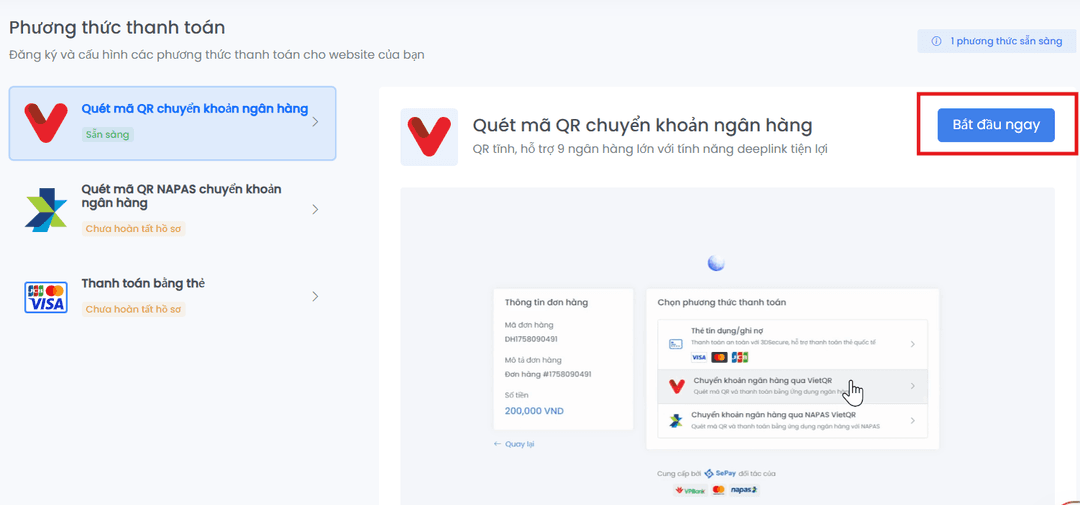
In the "PAYMENT GATEWAY" section, go to "Register". On the "Payment Methods" screen, select "Start now":
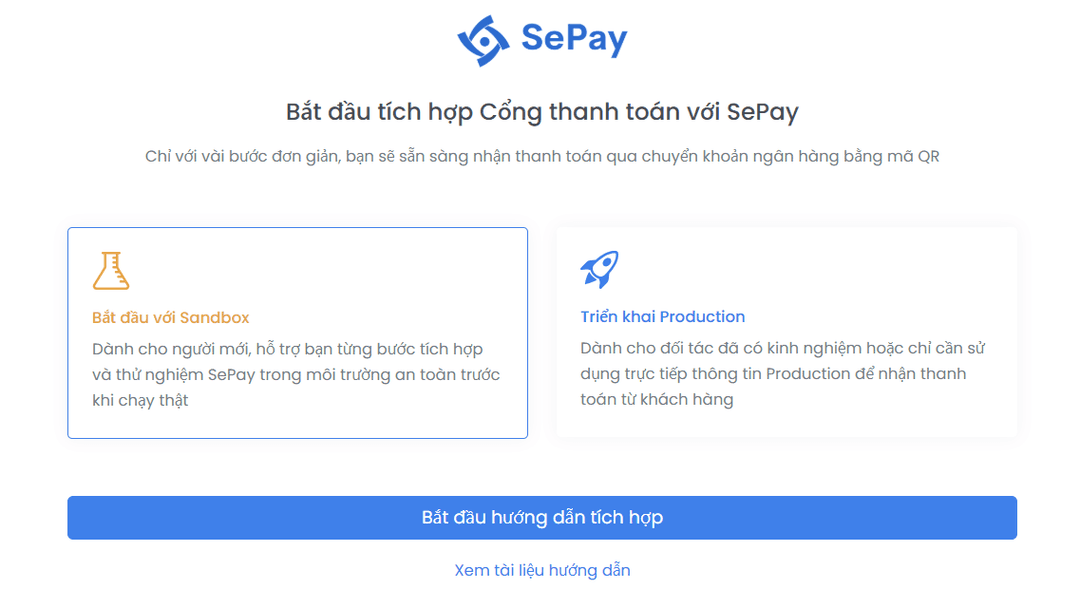
You can choose to start with Sandbox and click "Start integration guide":
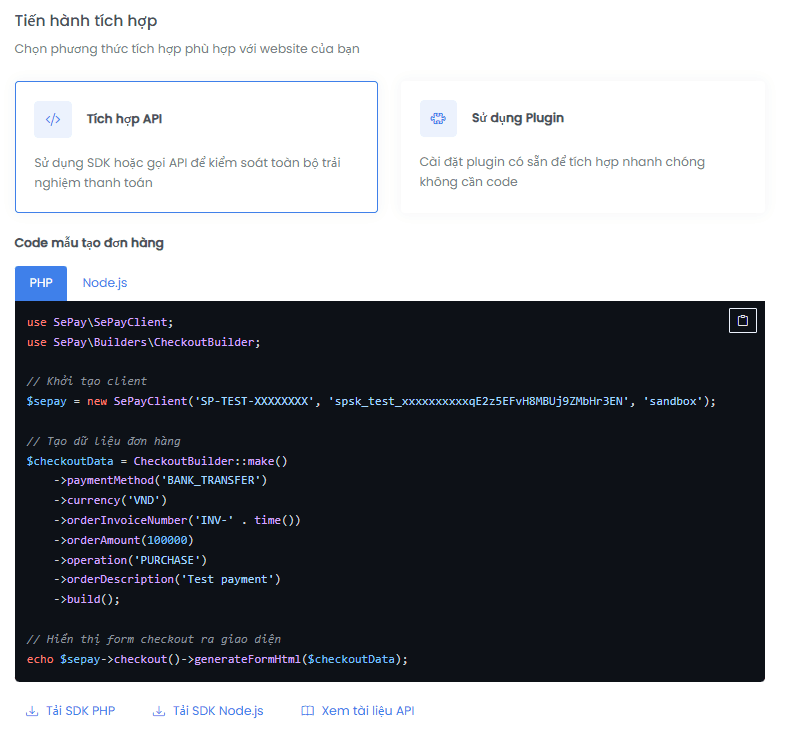
SePay supports integration via API with PHP SDK and NodeJS SDK. Click continue:
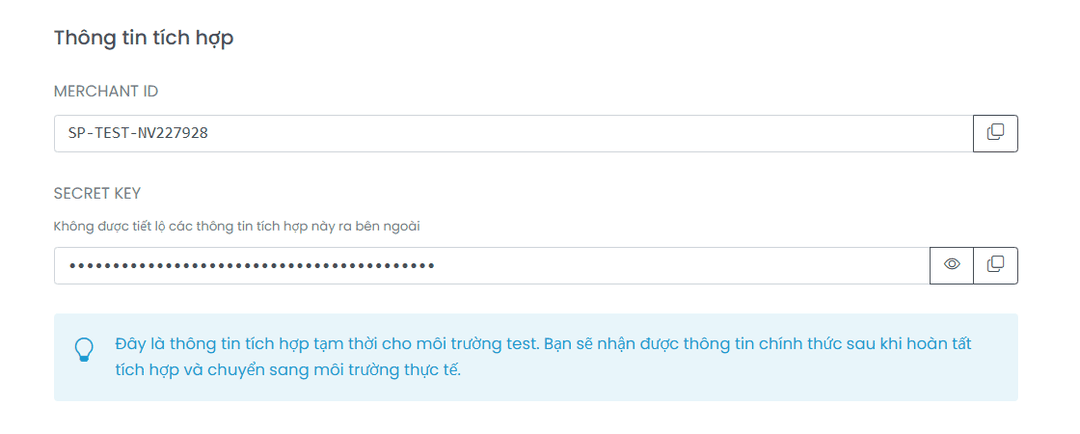
You will receive integration information (copy MERCHANT ID and SECRET KEY for later use), keep this screen and proceed with the following steps:
Step 2: Create payment form on your system
Install SDK (choose PHP or NodeJS)
composer require sepay/sepay-pg
See integration details for the PHP SDK or Node.js SDK.
Initialize payment form with order information and security signature:
- YOUR_MERCHANT_ID: MERCHANT ID you copied from integration information in step 1
- YOUR_MERCHANT_SECRET_KEY: SECRET KEY you copied from integration information in step 1
<?phprequire_once 'vendor/autoload.php';use SePay\SePayClient;use SePay\Builders\CheckoutBuilder;// Initialize client$sepay = new SePayClient('YOUR_MERCHANT_ID', 'YOUR_MERCHANT_SECRET_KEY', 'sandbox');// Create checkout data$checkoutData = CheckoutBuilder::make()->currency('VND')->orderInvoiceNumber('INV-' . time())->orderAmount(100000)->operation('PURCHASE')->orderDescription('Test payment')->successUrl('https://example.com/order/DH123?payment=success')->errorUrl('https://example.com/order/DH123?payment=error')->cancelUrl('https://example.com/order/DH123?payment=cancel')->build();// Render checkout form to UIecho $sepay->checkout()->generateFormHtml($checkoutData);
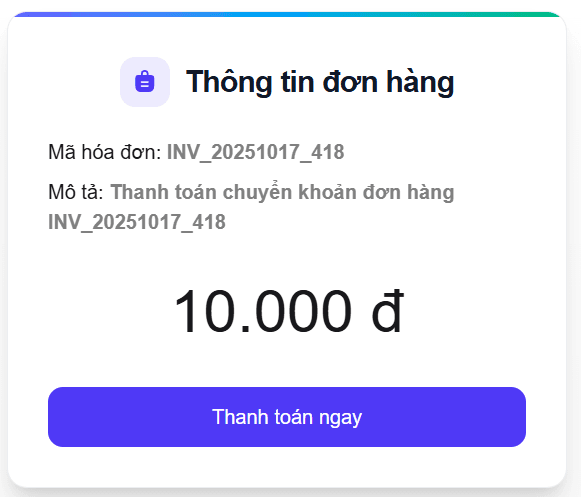
Result: payment form received (Customize the interface to match your system):
When submitting the payment form, it will redirect to SePay's payment gateway:
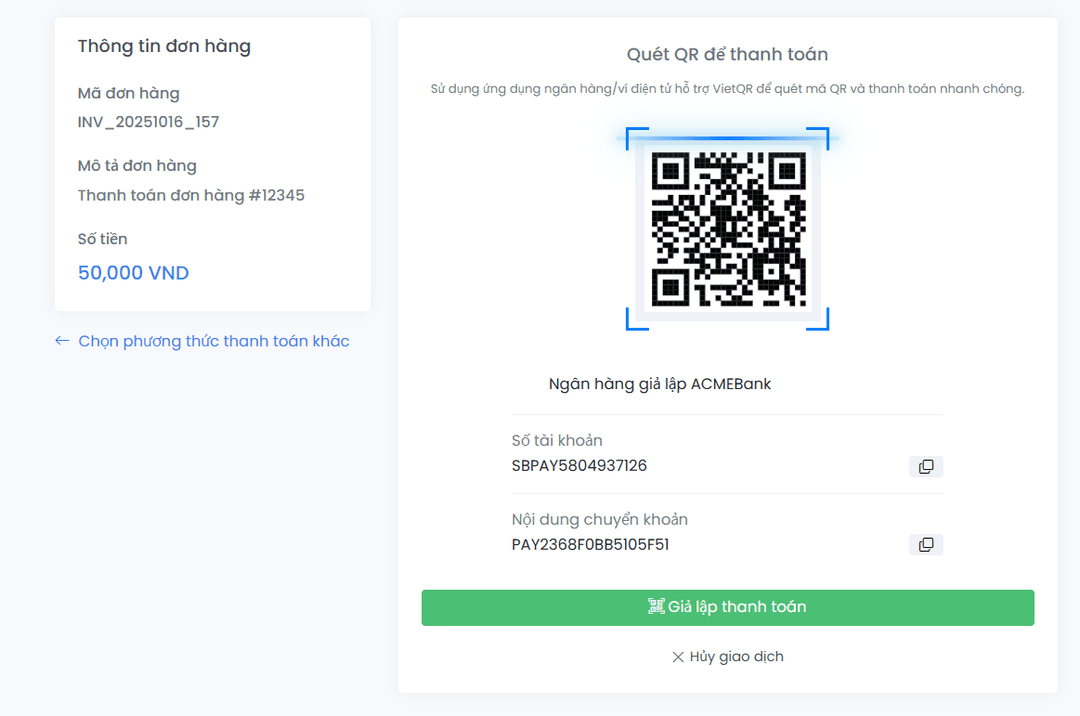
When payment ends, SePay will return results: Success (success_url), Failure (error_url) and Customer cancelled (cancel_url). You need to create endpoints to handle callbacks from SePay.
Create endpoints to receive callbacks from SePay:
// success_url - Handle successful paymentRoute::get('/payment/success', function() {// Show success page to customerreturn view('payment.success');});// error_url - Handle failed paymentRoute::get('/payment/error', function() {// Show error page to customerreturn view('payment.error');});// cancel_url - Handle canceled paymentRoute::get('/payment/cancel', function() {// Show cancel page to customerreturn view('payment.cancel');});
Add the endpoints you created to success_url, error_url, cancel_url when creating the payment form.
Step 3: Configure IPN
IPN is an endpoint on your system used to receive real-time transaction notifications from SePay payment gateway. Learn more about IPN
On the integration information screen from step 1, enter your IPN endpoint:
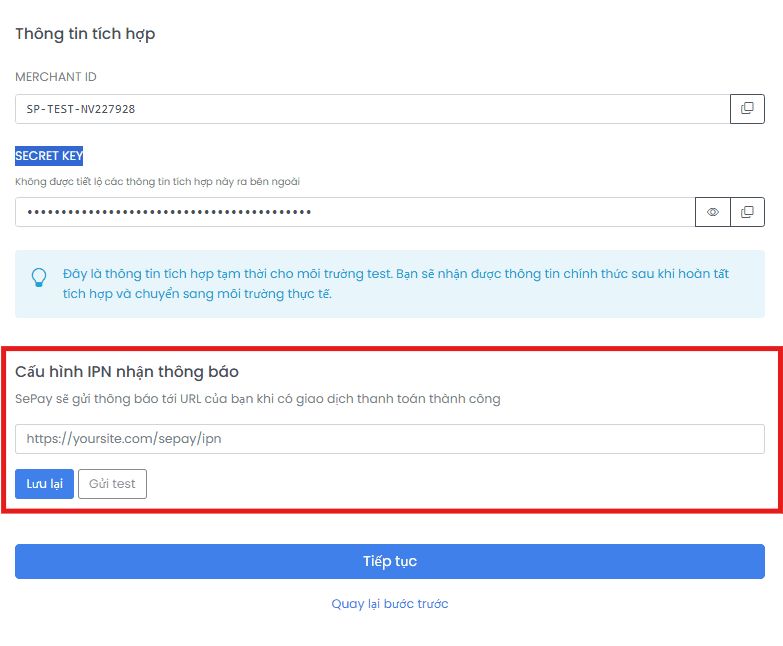
Save the IPN configuration.
When a successful transaction occurs, SePay will return JSON via your IPN:
{
  "timestamp": 1759134682,
  "notification_type": "ORDER_PAID",
  "order": {
      "id": "e2c195be-c721-47eb-b323-99ab24e52d85",
      "order_id": "NQD-68DA43D73C1A5",
      "order_status": "CAPTURED",
      "order_currency": "VND",
      "order_amount": "100000.00",
      "order_invoice_number": "INV-1759134677",
      "custom_data": [],
      "user_agent": "Mozilla/5.0 (Macintosh; Intel Mac OS X 10_15_7) AppleWebKit/537.36 (KHTML, like Gecko) Chrome/140.0.0.0 Safari/537.36",
      "ip_address": "14.186.39.212",
      "order_description": "Test payment"
  },
  "transaction": {
      "id": "384c66dd-41e6-4316-a544-b4141682595c",
      "payment_method": "BANK_TRANSFER",
      "transaction_id": "68da43da2d9de",
      "transaction_type": "PAYMENT",
      "transaction_date": "2025-09-29 15:31:22",
      "transaction_status": "APPROVED",
      "transaction_amount": "100000",
      "transaction_currency": "VND",
      "authentication_status": "AUTHENTICATION_SUCCESSFUL",
      "card_number": null,
      "card_holder_name": null,
      "card_expiry": null,
      "card_funding_method": null,
      "card_brand": null
  },
  "customer": null,
  "agreement": null
}
Create IPN endpoint to receive JSON data from SePay
The endpoint is the one you configured in IPN:
Route::post('/payment/ipn', function(Request $request) {$data = $request->json()->all();if ($data['notification_type'] === 'ORDER_PAID') {$order = Order::where('invoice_number', $data['order']['order_invoice_number'])->first();$order->status = 'paid';$order->save();}// Return 200 to acknowledge receiptreturn response()->json(['success' => true], 200);});
Step 4: Testing
Now you can test by creating an order on the form integrated in step 2.
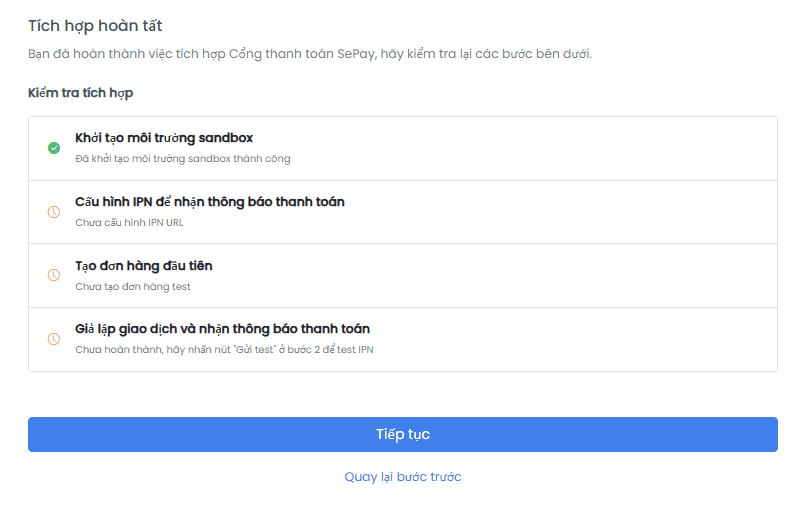
Then return to the integration information screen and click continue to check the results:
Scenario:
- When the user submits the payment form on your website, the system will redirect to SePay's payment page.
- On successful payment: SePay redirects to your
/payment/successendpoint and sends data to the IPN endpoint you configured - On failed payment: SePay redirects to your
/payment/errorendpoint - On cancelled payment: SePay redirects to your
/payment/cancelendpoint
Step 5: Go live
Have a personal/business bank account and completed integration and testing in Sandbox.
Steps to perform:
- Link a real bank account
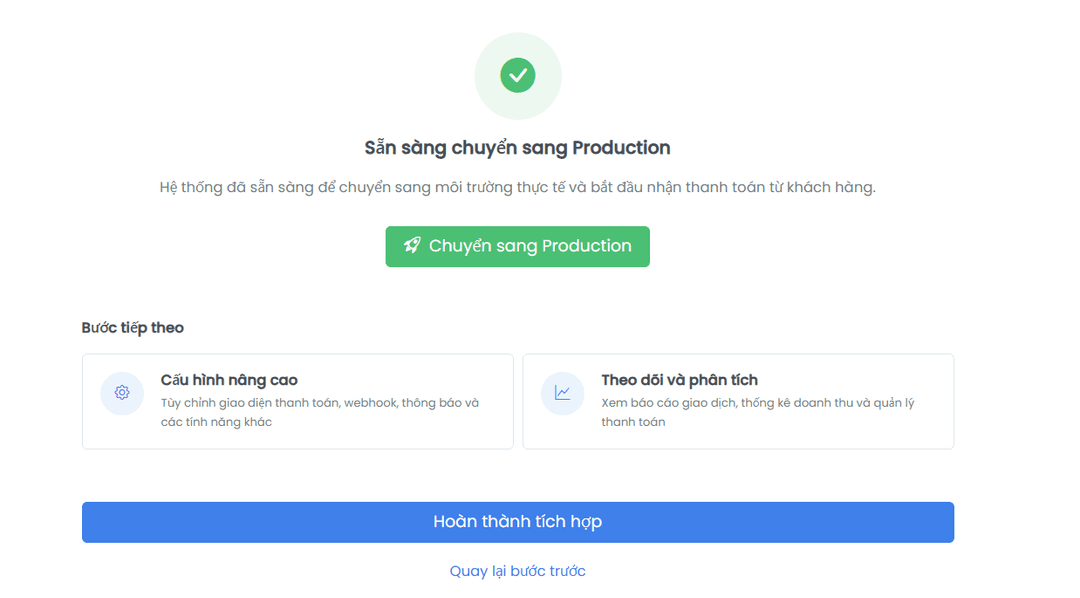
- From https://my.sepay.vn/ go to Payment Gateway and select Register → In "Bank transfer QR code scanning" select "Start now" and continue until the screen shown below and select "Switch to Production"
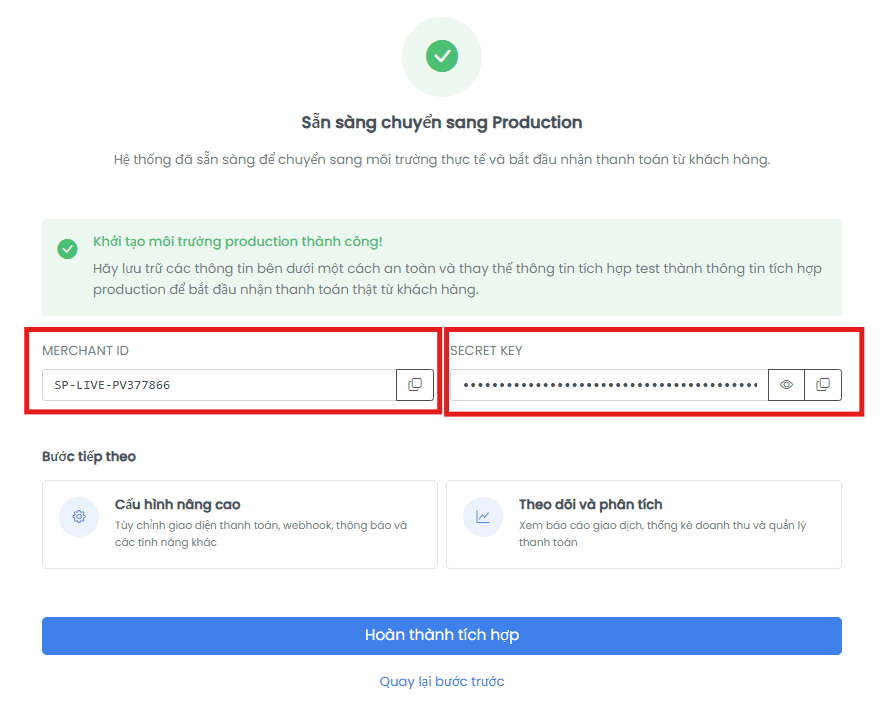
- After Switching to Production, you will receive the official "MERCHANT ID" and "SECRET KEY"
- Update endpoint to Production:
https://pay.sepay.vn/v1/checkout/init - For SDK users: update environment variables from Sandbox to Production (when initializing client)
- Update Sandbox "MERCHANT ID" and "SECRET KEY" to official "MERCHANT ID" and "SECRET KEY"
- Update IPN URL to Production
- Update Callback URLs to Production
Documents required - See details here
Documents required - See details here